Customizing the Home Screen
|
53
Rearranging Icons Through iTunes
If you have a lot of apps stored on your iPad or want to move app icons from one
pane to another, you can use iTunes instead. Not only can you use your mouse (or
laptop trackpad) to move icons across multiple panes faster than you could do this
on your iPad, but you can also see thumbnail images of each Home screen pane,
which makes it easier to see the arrangement of all your app icons at once. To rear-
range icons on the Home screen through iTunes, follow these steps:
1. Connect your iPad to your computer through the USB cable.
2. Run iTunes on your Mac or PC.
3. Click the name of your iPad under the Devices category in the iTunes window.
4. Click the Apps tab and make sure a checkmark appears in the Sync Apps
checkbox. The right side of the screen displays your Home screen panes, as
shown in Figure 7-2.
5. Drag any app icons to a new location using the mouse.
6. (Optional) Using the mouse, point to any app icon that you want to delete.
A close button appears in the upper-left corner of that app. Click this close
button to remove the app from your iPad.
7. Click Apply. Wait until iTunes finishes syncing your iPad before disconnect-
ing it from the USB cable.
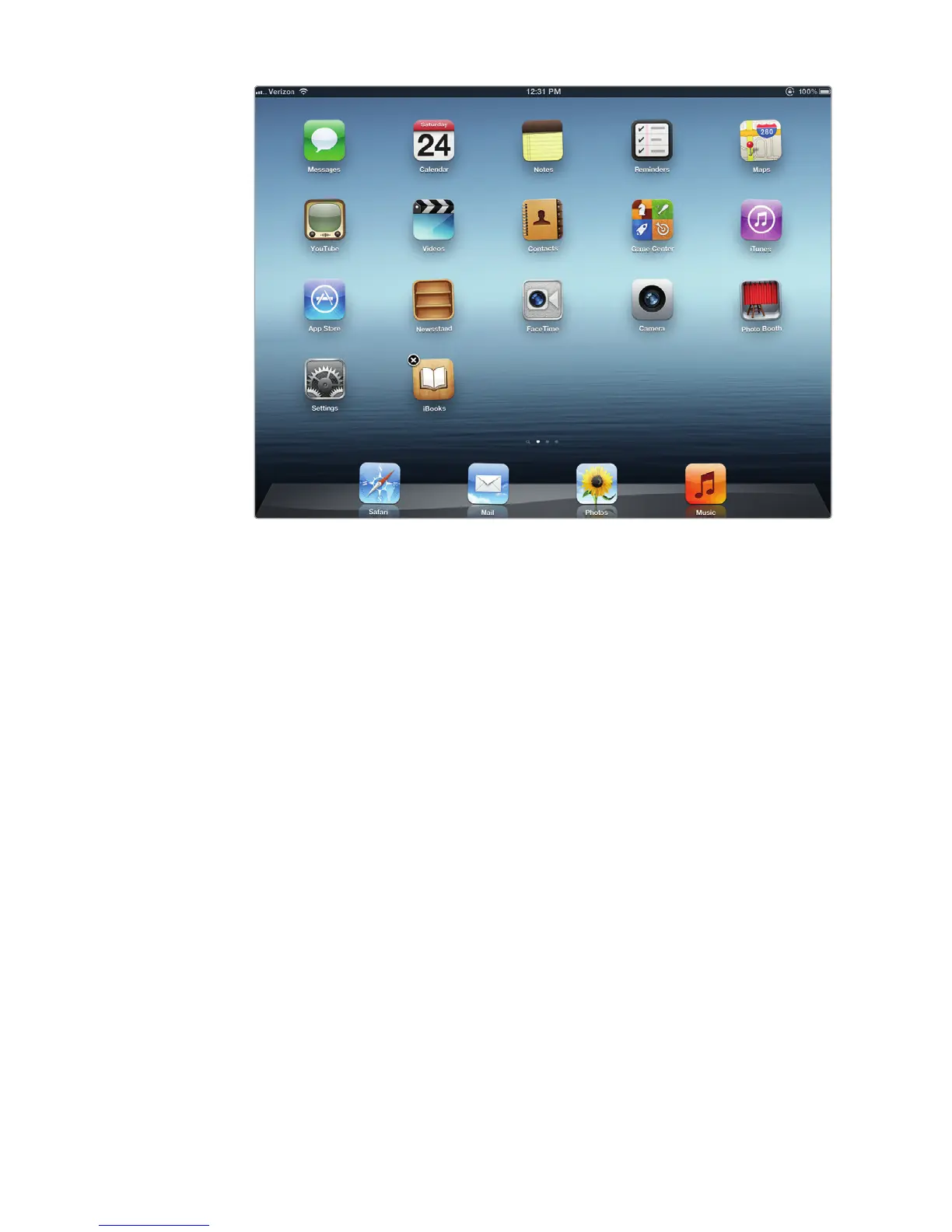
FIGURE 7-1: Tapping and holding your finger on an icon will make all
the Home screen icons wriggle.



 To Next Page