54
|
Chapter 7
Rearranging Icons into Folders
One problem with storing too many apps on your iPad is that your screen can soon
look cluttered with so many app icons all over the place. To fix this problem, you
can organize multiple apps into folders. To create a folder, follow these steps:
1. Tap and hold your finger on any app icon that you want to store in a folder.
All the app icons start wriggling.
2. Drag the app icon toward a second app icon that you want to store in the
same folder. A dark border appears around this second app icon.
3. Drag the app icon over this app icon with the dark border around it. After
you lift your finger from the screen, the contents of your folder appear on the
screen, allowing you to drop your currently selected icon into the folder, as
shown in Figure 7-3.
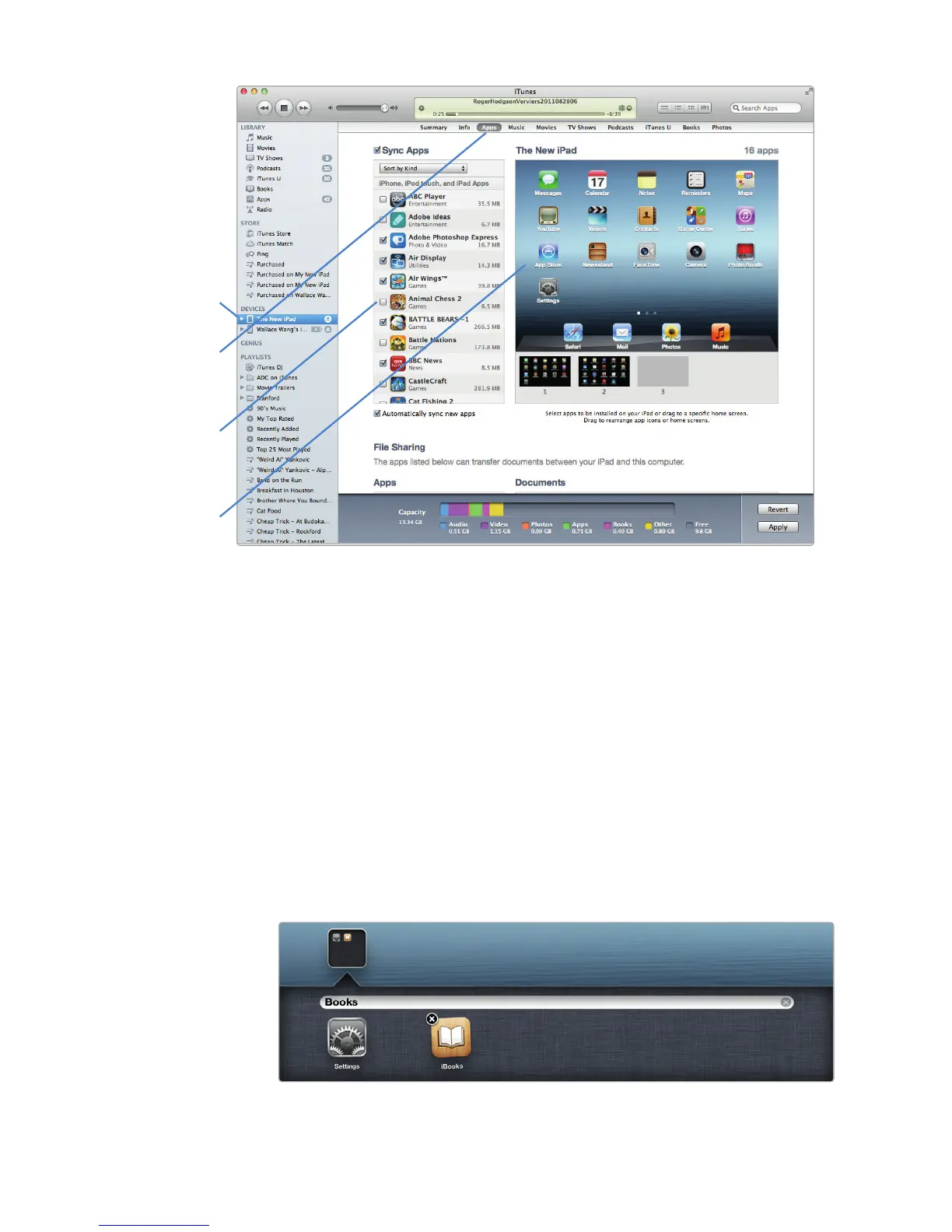
FIGURE 7-2: iTunes displays your Home screen.
First, select your
iPad in Devices.
Then select Apps.
Uncheck any apps
you don’t want.
Drag apps to
rearrange them.
FIGURE 7-3: Dropping an icon into a folder



 To Next Page