56
|
Chapter 7
Modifying the Wallpaper
The wallpaper image appears behind all your app icons so you have something
interesting to look at rather than just a blank screen. To customize the appear-
ance of your wallpaper, you can adjust the brightness or just choose a new image
altogether.
Adjusting the Wallpaper Brightness
The wallpaper on your iPad is meant to provide an interesting image to look at, but
if it seems too light or too dark, you can always modify this brightness by following
these steps:
1. From the Home screen, tap Settings. The Settings screen appears.
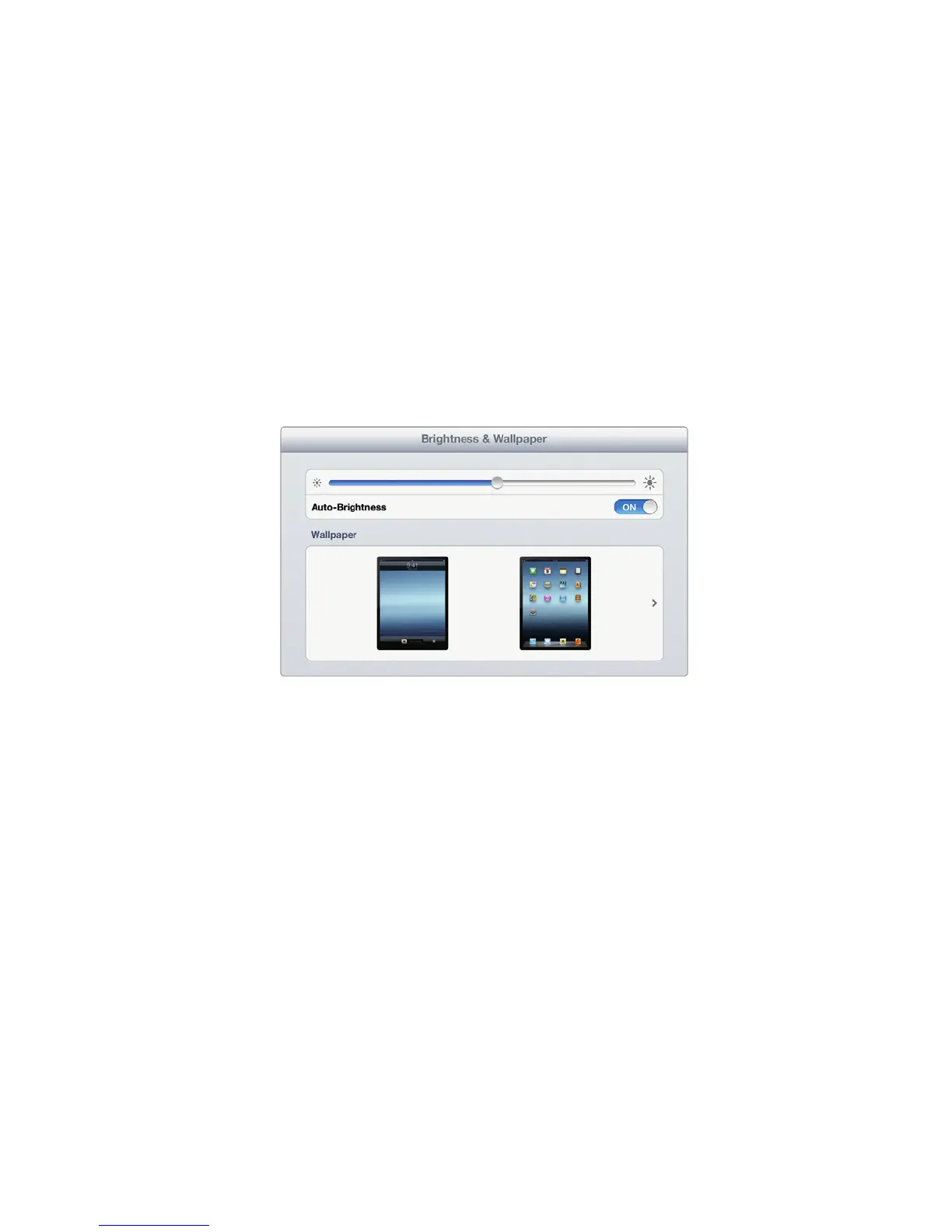
2. Tap Brightness & Wallpaper. The Brightness & Wallpaper settings screen
appears, as shown in Figure 7-4.
3. Drag the Auto-Brightness slider left or right.
4. (Optional) Tap the Auto-Brightness on/off switch. When the Auto-Brightness
switch reads ON, your iPad will adjust the brightness of the screen based on
the surrounding lighting conditions.
5. Press the Home button. The Home screen appears.
Changing the Wallpaper
If you want to choose a different wallpaper image for your iPad, you can either pick
one of the wallpaper images included with your iPad or use a picture that you’ve
already transferred from your computer to your iPad. (Chapter 15 explains how to
transfer pictures from your computer to your iPad.)
FIGURE 7-4: The Auto-Brightness slider lets you
modify the brightness of your current wallpaper.



 To Next Page