Customizing the Home Screen
|
57
To change the wallpaper image, follow these steps:
1. From the Home screen, tap Settings. The Settings screen appears.
2. Tap Brightness & Wallpaper. The Brightness & Wallpaper settings screen
appears (see Figure 7-4).
3. Tap anywhere inside the curved rectangle under the Wallpaper group. The
screen displays a Wallpaper button along with a list of photo albums such as
Camera Roll.
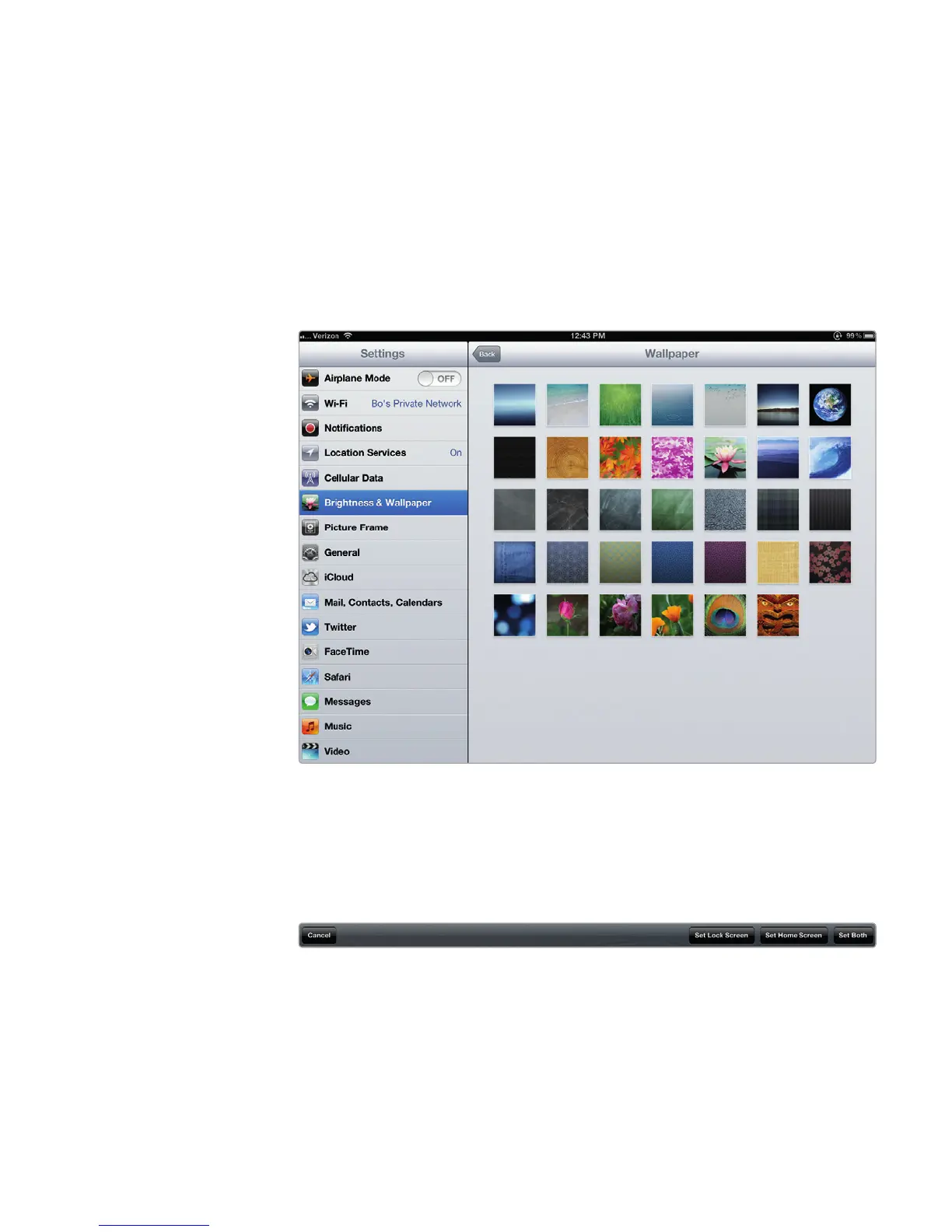
4. Tap Wallpaper (to choose from an image included on your iPad), or tap
a photo album that you’ve transferred from your computer to your iPad.
Thumbnail images of your available pictures appear, as shown in Figure 7-5.
5. Tap the image you want to use as your wallpaper. Your iPad shows what your
chosen image looks like and displays three buttons (Set Lock Screen, Set
Home Screen, and Set Both) in the upper-right corner, as shown in Figure7-6.
FIGURE 7-5: Viewing a list of available wallpaper images
FIGURE 7-6: From the top of the preview pane, you can choose where
you want the image to be used.



 To Next Page