Using Parental Controls
|
61
To block access to one or more of these features, follow these steps:
1. From the Home screen, tap Settings. The Settings screen appears.
2. Tap General. The General settings screen appears.
3. Tap Restrictions. The Restrictions settings screen appears. Notice that all
the on/off buttons appear dimmed since you cannot restrict access until you
first tap the Enable Restrictions button.
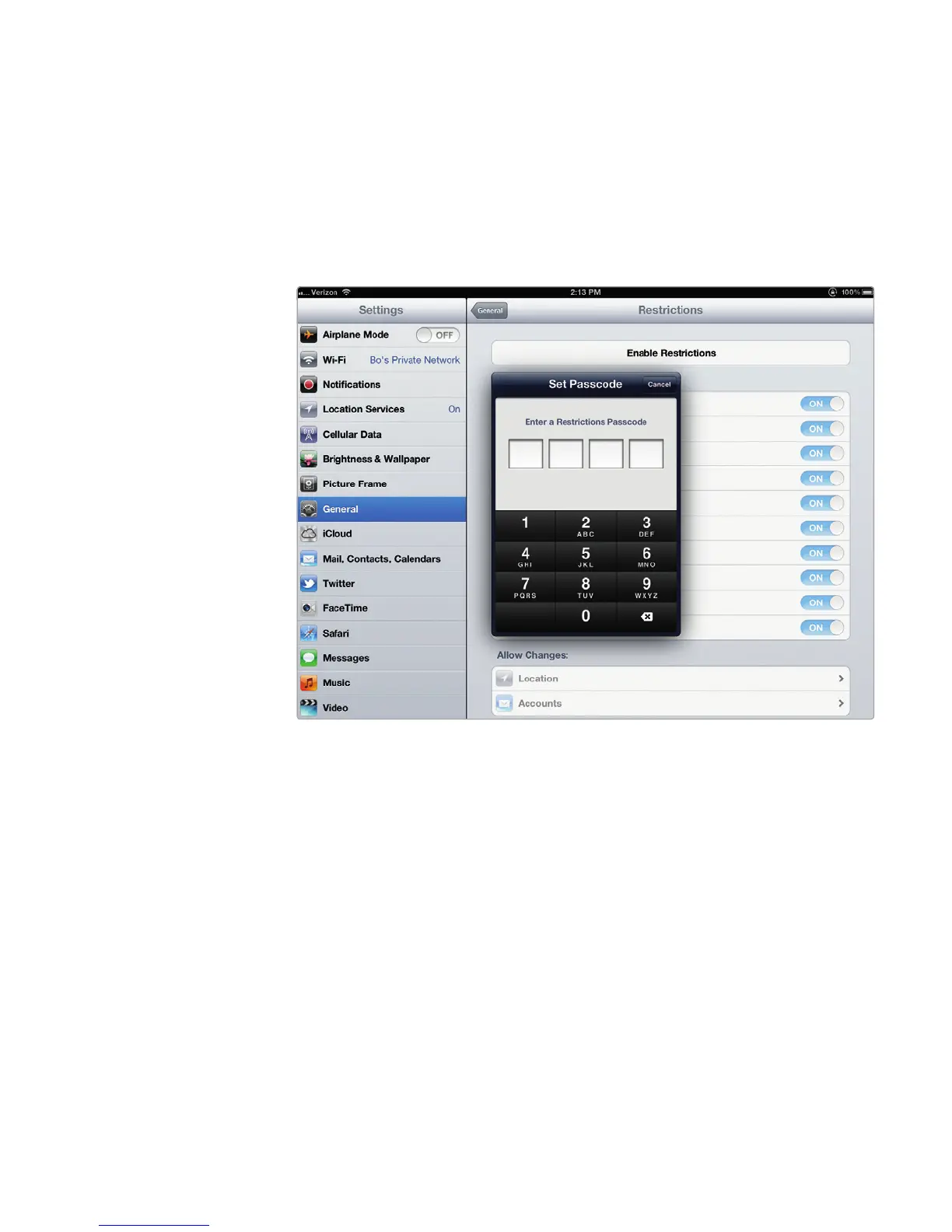
4. Tap Enable Restrictions. A Set Passcode screen appears, as shown in
Figure 8-1.
5. Type a four-digit number on the numeric keypad that appears on the screen.
A second Set Passcode screen appears, asking you to reenter your four-digit
passcode.
6. Type your four-digit number again. The Restrictions settings screen appears
again, allowing you to tap the on/off switches of different features, as shown
in Figure 8-2.
7. (Optional) Tap the on/off switch for the Safari, YouTube, Camera, FaceTime,
iTunes, Ping, Installing Apps, Deleting Apps, Dictation, or Explicit
Language features. To turn a feature off, tap the switch until OFF appears.
8. (Optional) Scroll down until you see the Allow Changes category. Then tap
the on/off switch for Location or Accounts.
9. (Optional) Scroll down until you see the Game Center category. Then tap the
on/off switch for Multiplayer Games or Adding Friends.
10. Press the Home button.
FIGURE 8-1: The Set Passcode screen lets you selectively block access.



 To Next Page