66
|
Chapter 9
What You’ll Be Using
To protect your privacy, you need to use the following:
The Settings app
Setting (or Removing) a Passcode
Initially, your iPad does not require a passcode to start using it. Just press the
Home button or the On/Off button, slide your finger across the screen to unlock
the Home screen, and you (or anyone else who gets a hold of your iPad) can start
peeking through your data. A passcode simply acts like a password that locks out
strangers from using your iPad.
Setting a Passcode
You can define a simple or regular passcode to block access to your iPad. A simple
passcode lets you define a four-digit number to block access. A regular passcode
lets you define a passcode of more than four characters that can consist of letters
and symbols. To set a simple or regular passcode, follow these steps:
1. From the Home screen, tap Settings. The Settings screen appears.
2. Tap General. The General settings screen appears.
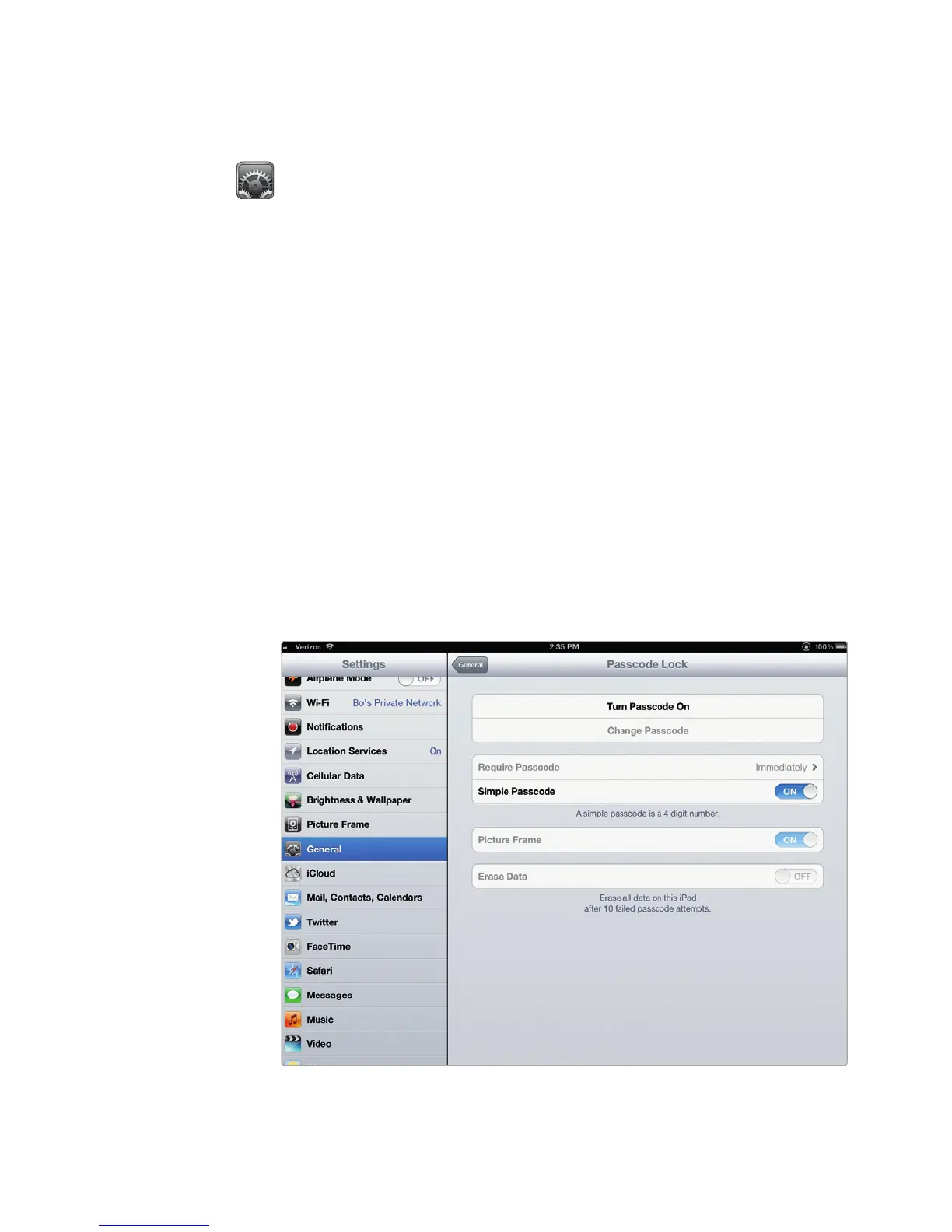
3. Tap Passcode Lock. The Passcode Lock settings screen appears, as shown
in Figure 9-1.
FIGURE 9-1: The Passcode Lock settings screen lets you turn the pass-
code feature on or off.



 To Next Page