Protecting Your Privacy
|
67
4. (Optional) Tap the Simple Passcode on/off switch. When set to ON, you can
define a four-digit passcode. When set to OFF, you can define a passcode of
letters and symbols.
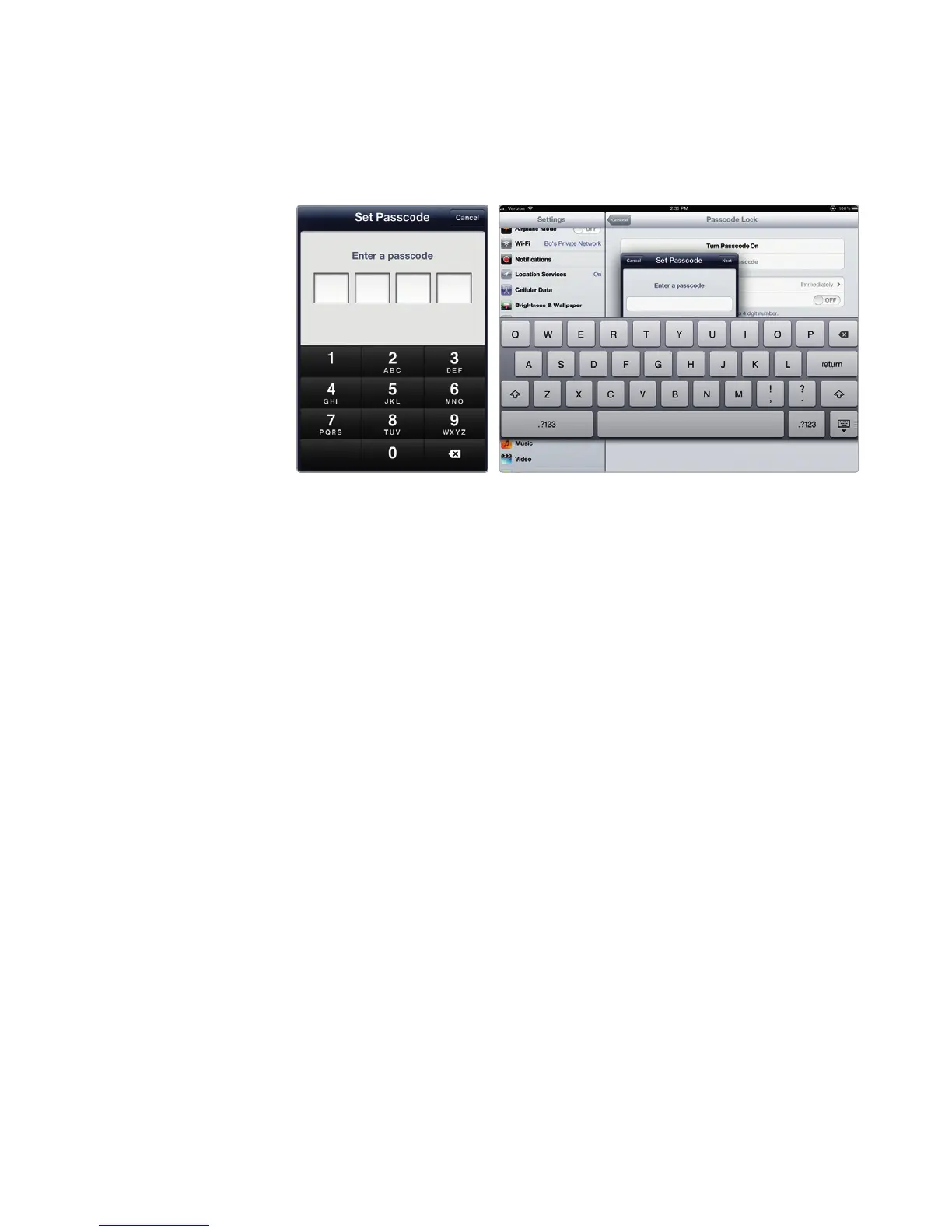
5. Tap Turn Passcode On. A Set Passcode screen appears, as shown in
Figure 9-2.
6. Type a code using the number pad or virtual keyboard.
7. A second Set Passcode screen appears. Type your code a second time to
verify that you remember what it is.
8. Press the Home button.
Q WARNING: If you forget your passcode, you’ll lock yourself out of your iPad,
so make sure you remember it!
Changing or Removing a Passcode
If you have already defined a passcode but want to change it to a different one or
remove it entirely, you can by following these steps:
1. From the Home screen, tap Settings. The Settings screen appears.
2. Tap General. The General settings screen appears.
3. Tap Passcode Lock. An Enter Passcode screen appears.
4. Type your current passcode. The Passcode Lock settings screen appears.
5. (Optional) Tap Change Passcode. A Change Passcode screen appears.
6. (Optional) Tap Turn Passcode Off.
7. Type your current code.
8. Type a new code.
9. A second Set Passcode screen appears. Type your new code a second time
to verify that you remember what it is.
10. Press the Home button.
FIGURE 9-2: The Set Passcode screen lets you type a four-digit or
alphanumeric passcode.



 To Next Page