68
|
Chapter 9
Defining When to Ask for a Passcode
If you often turn your iPad off and on in short intervals throughout the day, you
may not want to keep typing in a passcode. In that case, you can adjust the time
interval before your iPad will ask for the passcode. The longer the time interval, the
less chance you’ll constantly need to keep typing in a passcode each time you turn
on your iPad. However, the longer the time interval, the greater the chance that
someone can steal or peek at your iPad and see all your data.
To define the time interval before your iPad asks for a passcode, follow
these steps:
1. From the Home screen, tap Settings. The Settings screen appears.
2. Tap General. The General settings screen appears.
3. Tap Passcode Lock. An Enter Passcode screen appears.
4. Type your passcode. The Passcode Lock settings screen appears.
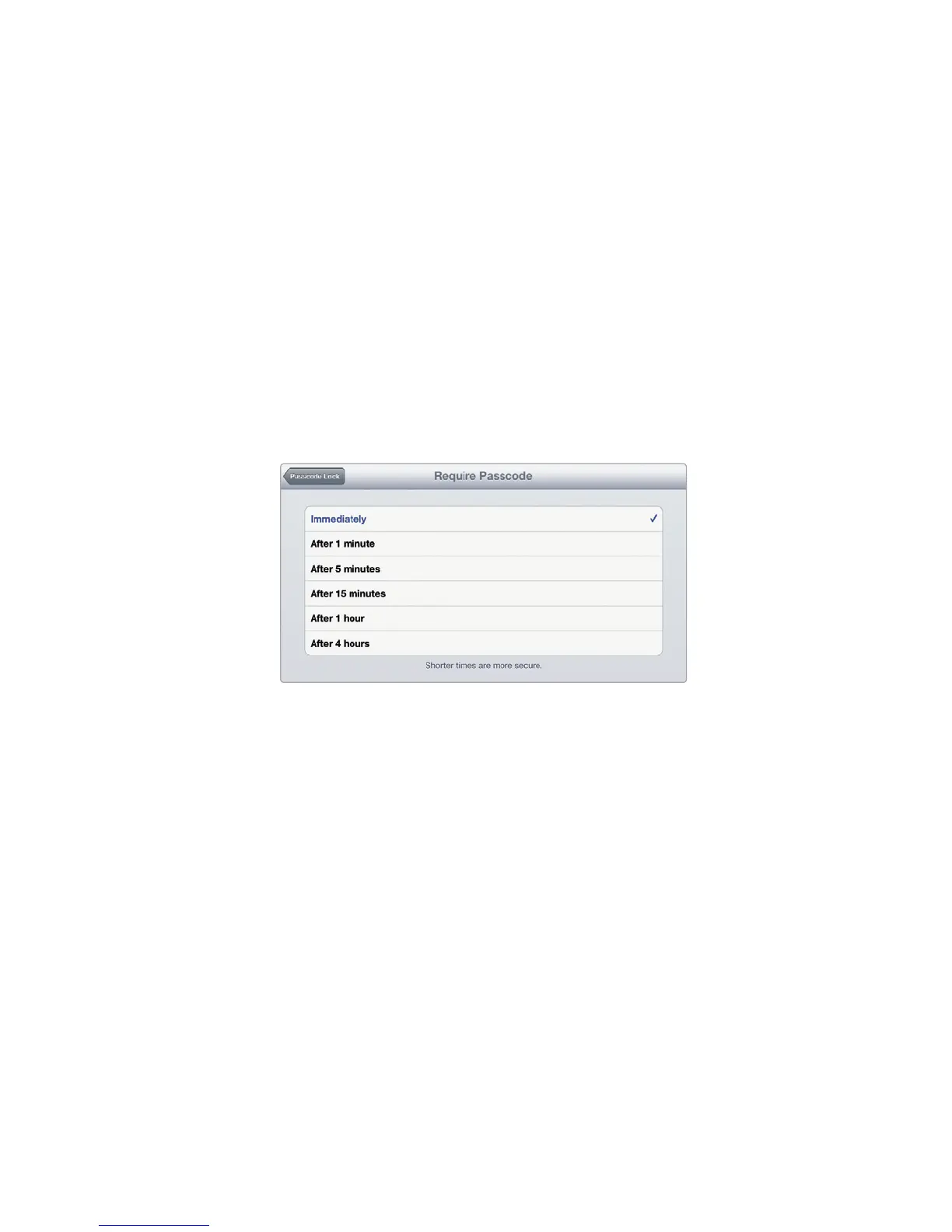
5. Tap Require Passcode. The Require Passcode settings screen appears, as
shown in Figure 9-3.
6. Tap an option such as Immediately, After 5 minutes, or After 1 hour.
7. Press the Home button.
Erasing Data After 10 Incorrect Passcodes
Turning on the passcode feature can prevent a thief from peeking at your iPad’s
data. However, for even more security, you can make your iPad automatically erase
its data if someone tries 10 incorrect passcodes in a row. To turn on this data-
erasing feature after you have already defined a passcode, follow these steps:
1. From the Home screen, tap Settings. The Settings screen appears.
2. Tap General. The General settings screen appears.
FIGURE 9-3: The Require Passcode settings screen
lets you define a time interval for the iPad to wait
before asking for a passcode.



 To Next Page