iPad Symptom Charts — Connectivity Issues 59
2010-04-30
iTunes/Sync issues
Symptom Quick Check
• iPad is not recognized
in iTunes
• iPad not syncing
1. If using just the iPad 30-pin connector, ensure cable is
attached securely to iPad.
2. Connect iPad to a USB port that is built into the computer
instead of the keyboard or an external USB hub.
3. Try a dierent USB port on computer.
4. Verify iPad has the latest software updates
• Use iTunes to install the latest version of the iPhone
OS software
• Use iTunes version 9.1 or later
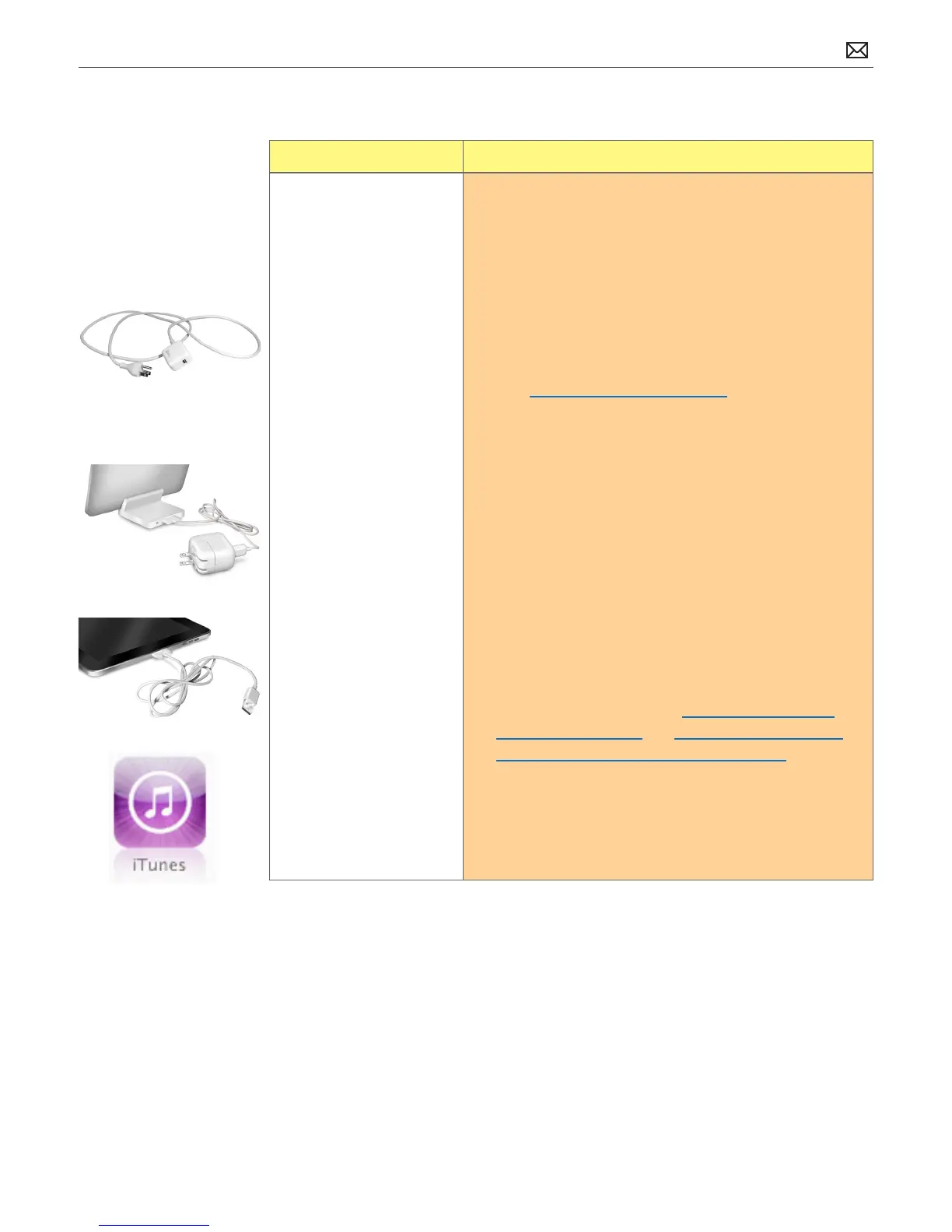
5. Charge the iPad. Connect iPad to a power outlet and
charge with iPad 10W USB Power Adapter for 10 minutes
6. Disconnect other USB devices from your computer
and connect iPad to a dierent USB 2.0 port on your
computer (not on your keyboard).
7. Restart:
• Press and hold the Sleep/Wake button until a red
slider appears. Slide your nger across the slider to
turn o iPad.
• Turn iPad on by pressing and holding the Sleep/
Wake button until the Apple logo appears
8. Download and install (or reinstall) the latest version of
iTunes. For Windows, refer to: Device not recognized
in iTunes for Windows and How to restart the Apple
Mobile Device Service (AMDS) on Windows.
9. Try connecting the iPad to another computer.
10. Restart the computer and reconnect iPad.
11. Check for third-party software conicts.
12. Go to Deep Dive
Possible Causes:



 To Next Page