iPad Symptom Charts — Connectivity Issues 69
2010-04-30
Cannot Connect to Cellular Data Network on iPad Wi-Fi + 3G
Symptom Quick Check
• Able to connect to a Wi-
Fi network, but unable to
connect to a 3G, EDGE, or GPRS
cellular data network on iPad
Wi-Fi + 3G
• “SIM not supported” error
message
1. Restart iPad Wi-Fi + 3G:
• Press and hold the Sleep/Wake button until
a red slider appears. Slide your nger across
the slider to turn o iPad.
• Turn iPad on by pressing and holding the
Sleep/Wake button until the Apple logo
appears
• If you can’t restart the device, reset it.
2. Reset network settings: Settings > General >
Reset > Reset Network Settings
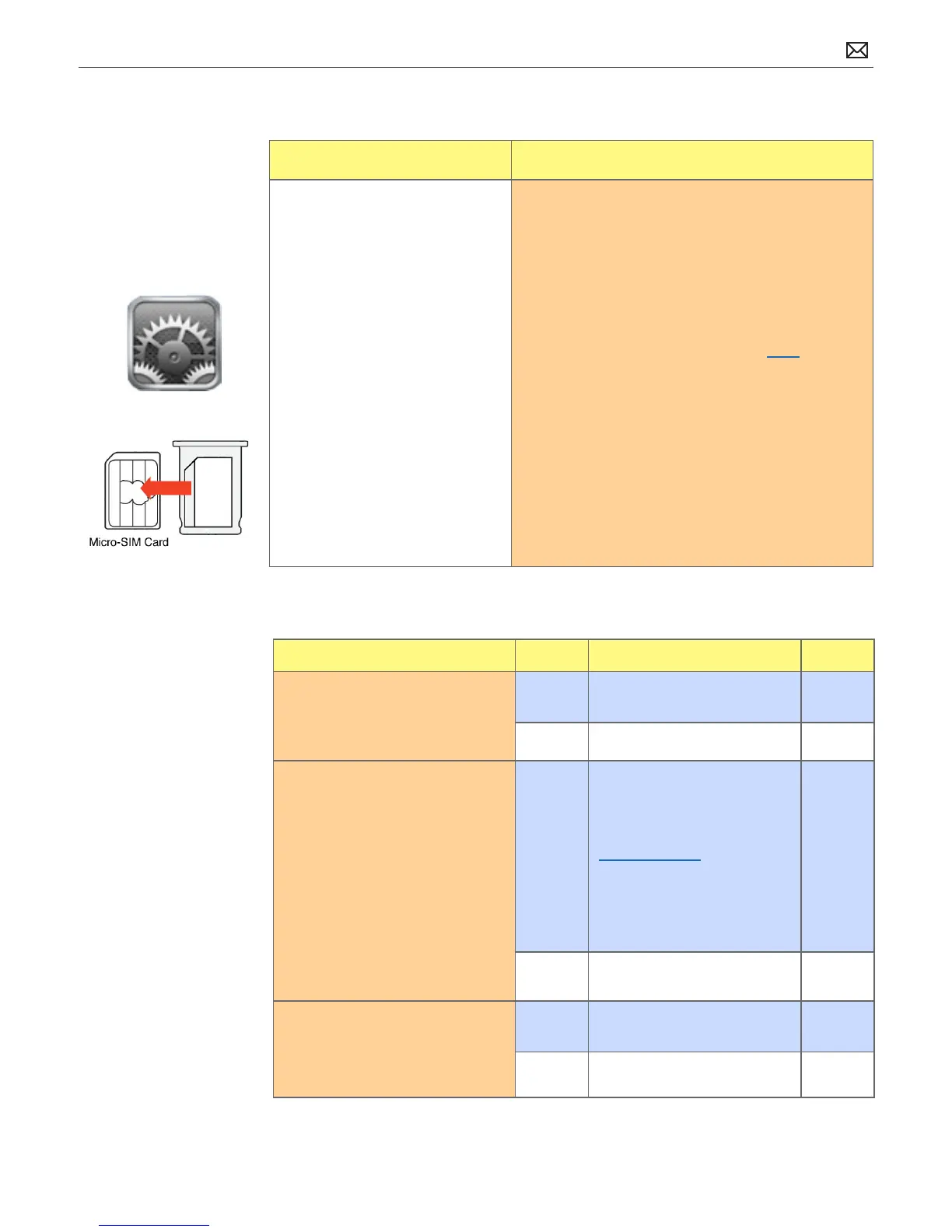
3. Verify that micro-SIM is not locked.
Settings > Cellular Data > SIM PIN
4. Verify Airplane Mode is not enabled:
Settings > Airplane Mode > O
5. Go to Deep Dive
Deep Dive
Check Result Action Code
1. Inspect SIM tray.
Does tray fail to insert fully or
show signs of breakage?
Yes Replace SIM tray (922-9553).
Go to step 2.
No Go to step 2.
2. Remove micro-SIM card and
check for debris, corrosion, or
damage.
Does the card or tray exhibit
signs of debris, corrosion,
exposure to liquid, or damage?
Yes - If there is debris, remove it.
Go to step 3.
- If there is corrosion or signs
of exposure to liquid, refer to
Liquid Damage in General
Troubleshooting.
- If card is damaged, refer
customer to his/her cellular
carrier for replacement card.
No Go to step 3.
3. Reinstall original micro-SIM
card.
Can iPad Wi-Fi + 3G connect to
cellular network?
Yes Issue resolved.
No Go to step 4.
Possible Causes:



 To Next Page