iPad Symptom Charts — Connectivity Issues 73
2010-04-30
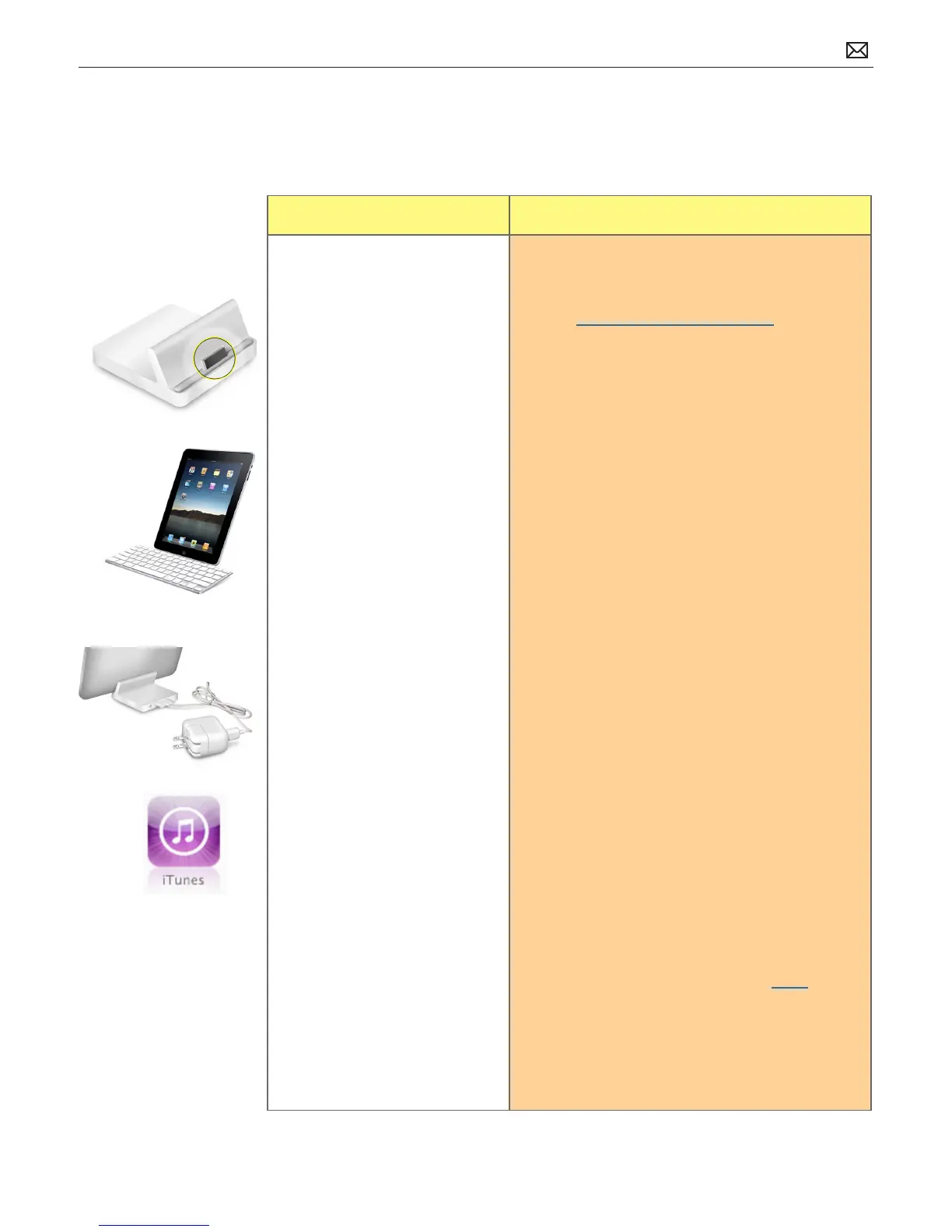
Keyboard Dock/Standalone Dock Not Functioning
Quick Check
Symptom Quick Check
• Keyboard dock not recognized
• Typing issues
• iPad does not charging while
in dock
• Powered speakers not working
1. Check iPad has the latest software updates
• Use iTunes to install the latest version of the
iPhone OS software
• Use iTunes version 9.1 or later
2. Remove iPad Case when using Dock or Keyboard
Dock.
3. Ensure iPad is properly positioned and fully
docked on connector.
4. Check for a paired bluetooth keyboard. This could
interfere with typing on the Keyboard Dock.
• Disable bluetooth or unpair the wireless
keyboard
5. Charge iPad. Connect to a power outlet and
charge with iPad 10W USB Power Adapter for 10
minutes.
6. Ensure iPad is charging. Important: If Keyboard
Dock/Standalone Dock is not connected to a
power source using the 10W USB Power Adapter,
the iPad is not charging.
7. Try a known-good Keyboard Dock/Standalone
Dock.
8. If present, reseat audio cable on back of Keyboard
Dock/Standalone Dock.
9. Restart:
• Press and hold the Sleep/Wake button until
a red slider appears. Slide your nger across
the slider to turn o iPad.
• Turn iPad on by pressing and holding the
Sleep/Wake button until the Apple logo
appears
• If you can’t restart the device - Reset iPad.
Press and hold the Sleep/Wake button
and the Home button at the same time for
at least 10 seconds, until the Apple logo
appears.
10. Go to Deep Dive
Possible Causes:



 To Next Page