iPad Symptom Charts — Connectivity Issues 75
2010-04-30
Apple Wireless Keyboard Not Functioning
Quick Check
Symptom Quick Check
• Keyboard not recognized
• Certain applications not
responding to typing
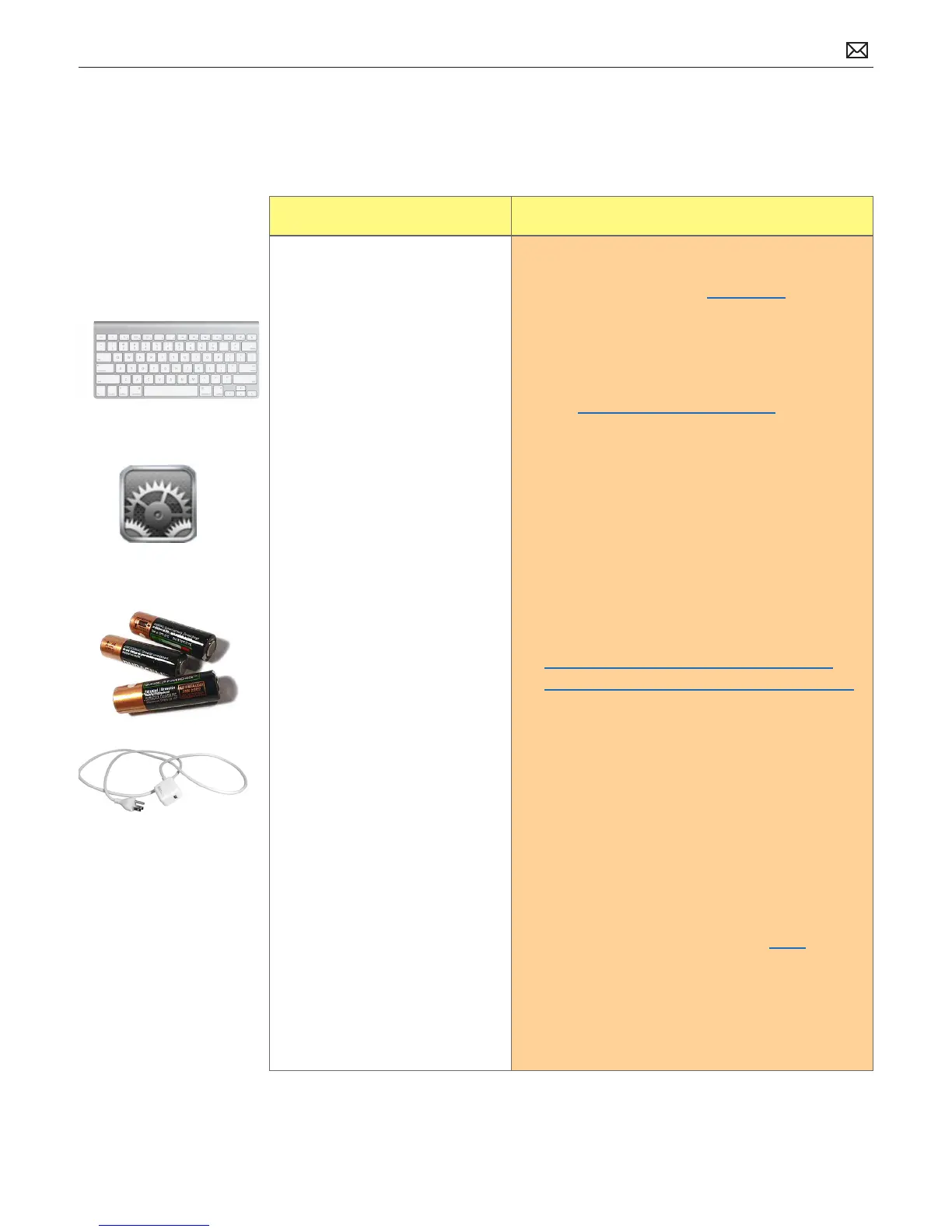
1. Ensure compatibility with iPad of accessory
being used. Only the Apple Wireless Keyboard
is supported. Refer to the Apple Store for
supported Apple Wireless Keyboard.
2. Verify iPad has the latest software updates
• Use iTunes to install the latest version of the
iPhone OS software
• Use iTunes version 9.1 or later
3. Check Settings. Enable Bluetooth on iPad. Make
sure the keyboard has been paired properly with
the iPad and is not paired to another keyboard.
4. Turn on the Apple Wireless Keyboard.
5. Make sure Apple Wireless Keyboard has known
good batteries installed and they are installed in
correct orientation.
6. Check for potential sources of inerference
for wireless devices and networks. Refer to:
AirPort and Bluetooth: Potential sources of
interference for wireless devices and networks
7. Ensure iPad is charging. Important: If Dock is not
connected to a power source using the 10W USB
Power Adapter, the iPad is not charging.
8. Restart:
• Press and hold the Sleep/Wake button until
a red slider appears. Slide your nger across
the slider to turn o iPad.
• Turn iPad on by pressing and holding the
Sleep/Wake button until the Apple logo
appears
• If you can’t restart the device -Reset iPad.
Press and hold the Sleep/Wake button
and the Home button at the same time for
at least 10 seconds, until the Apple logo
appears.
9. Go to Deep Dive
Possible Causes:



 To Next Page