© Computer Coaching Services | www.computercoach.co.nz | 027 637 0413 | info@computercoach.co.nz P a g e | 10
Connecting to a WiFi Network
The iPad has two ways that you can get an internet connection. If your iPad has a 3G or 4G
connection then it will happen automatically. If your iPad is WiFi only then you will need to
establish an internet connection while at home or out and about. This could be a local coffee
shop, the library or a work area.
Steps:
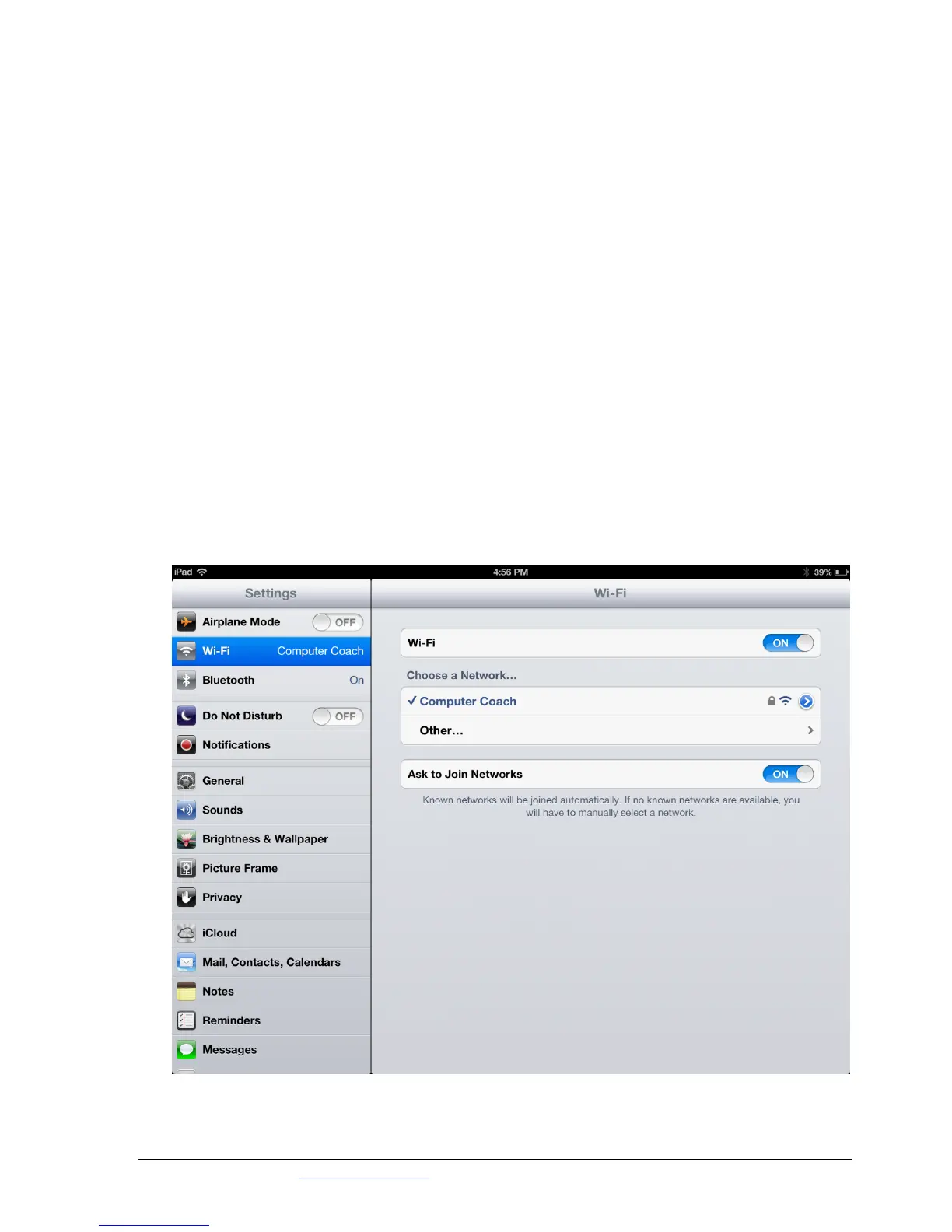
1. Tap the Settings app on the Home Screen. (The Wi-Fi status appears near the top of
the left pane. If you’re connected to a network, its name will appear here.
2. Tap the WiFi button in the left pane of your iPad. A list of available networks will
appear.
3. Tap the name of the network you want to connect to. You will generally have to enter a
security key or password to access the network. E.g. If you are at a coffee shop, just ask
them for the password for WiFi.
4. Enter the security key or password and tap the Join key. Once your iPad is connected to
a network it will remember it for next time and automatically connect in the future.



 To Next Page