© Computer Coaching Services | www.computercoach.co.nz | 027 637 0413 | info@computercoach.co.nz P a g e | 9
Status Information
The status bar displays information about what is going on currently on your iPad. It’s visible
on all apps and on the Home Screen. It’s useful to know what the symbols mean.
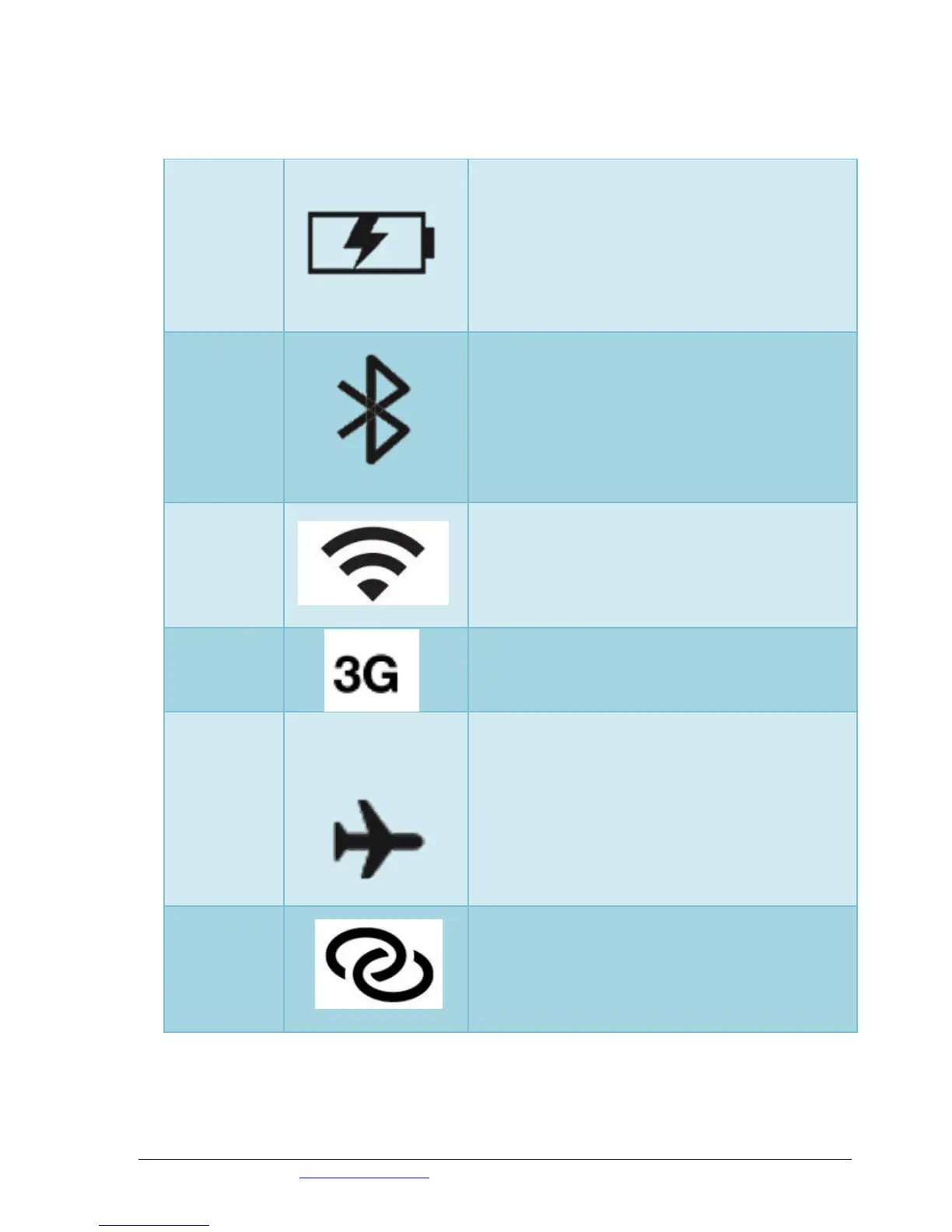
This icon is located at the top right of the screen
and reflects the level of your battery’s charge
The icon shows when you’re connected to a power
source, and when the battery is fully charged or is
currently charging. An on-screen message is
displayed when the charge drops to 20 percent or
below and another when it reaches 10 percent.
This icon is displayed at the top right of the screen
and shows the current state of your iPad’s
Bluetooth connection. If you see this icon on the
status bar, Bluetooth is on and a device (such as a
wireless headset or keyboard) is connected.
When this icon is displayed on the top left of the
screen, your iPad is connected to the Internet over
a Wi-Fi network. The more semicircular lines you
see (up to three), the stronger the Wi-Fi signal.
3G (Wi-Fi +
3G models
only)
This icon informs you that the high-speed 3G data
network from your wireless carrier is available and
that your iPad can connect to the Internet via 3G.
When in Airplane mode your ipad turns off all
wireless features— the cellular networks; Wi-Fi; and
Bluetooth — and makes it possible to enjoy music
or video during your flight.
Some flights now offer on-board Wi-Fi. If you’re on
one, you can turn Airplane mode off and use your
iPad’s Wi-Fi (but not without the permission of the
captain).
You’ll see this icon (on third-generation Wi-Fi + 4G
iPads only) when you’re sharing your Internet
connection with computers or other devices over
Wi-Fi.



 To Next Page