Create an Apple ID if you haven’t got one.
Settings | iTunes & App Stores | Sign In
Tap Create new account.
If you’re already signed in and want to create another account, tap your
Apple ID and select Sign Out.
Before you can start sending and receiving emails you need to set up your
account. This can be done through Settings
Tap the Settings icon
Tap Mail, Contacts, Calendars
Tap Add Account. A list appears (iCloud, Microsoft Exchange,
Gmail, Yahoo, Hotmail)
Tap the appropriate account.
Type your account information in the appropriate fields
Tap the Save button to complete the process
Or, if no accounts have been set up, you can also tap the Mail icon on the
home screen to display the Add Account Screen.
Load New Messages:
Tap and hold to pull the message list down from the top to refresh
the list. Any new emails will then be displayed.
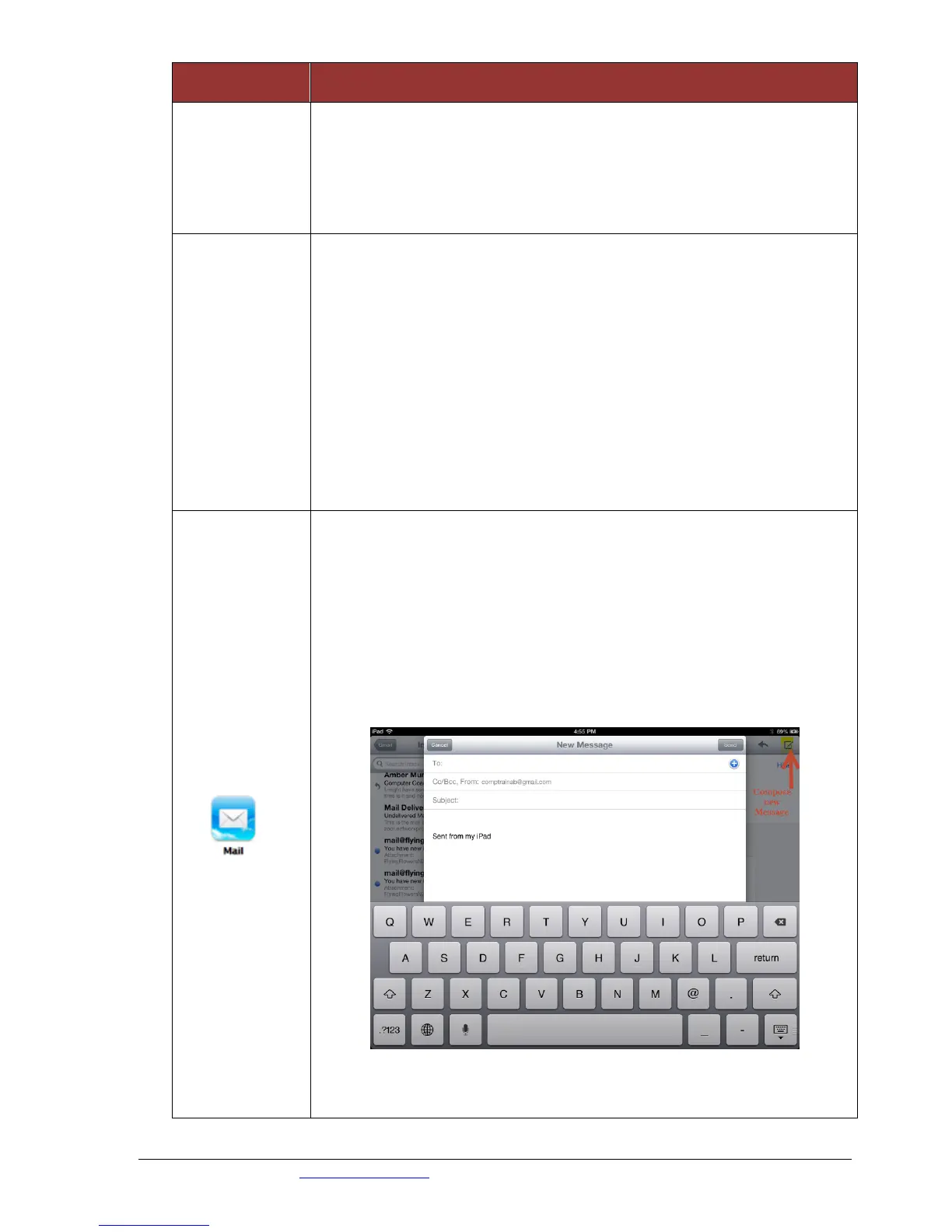
Send a Message:
Tap the ‘compose new message’ icon at the top right of the
screen, then type a name or email address



 To Next Page