iPad for Learning Trial – iPad Quick Start Guide Page 3
Downloading and installing iTunes
1. Download the latest version of iTunes from http//www.itunes.com/download
2. Double click on the copy of iTunes you have just downloaded, and when prompted
click Next
3. The next screen displayed is the iTunes Licence agreement. Make sure you read the
licence agreement; if you are comfortable with the licence agreement, select the I
accept the terms in the licence agreement radio button and press Next.
4. Click Install
5. When the installation is completed, click Finish, iTunes will now launch
6. When iTunes starts for the first time, the iTunes Software Licence Agreement is
displayed. Please read this agreement carefully, and if comfortable with this
agreement, click Agree.
7. Click Next
8. Click Next
9. Click Next
10. Click Finish
Congratulations, you have now successfully installed iTunes on your computer. You are now
ready to create an iTunes store account and redeem you iTunes gift cards.
2. Redeeming your iTunes gift cards
The section below steps you the process of redeeming the iTunes gift cards you have been
provided as part of the iPad for Learning Trial. This section is broken down into two parts:
1. If you have NOT yet created an iTunes store account, please follow the steps
outlined in the section I do not have an iTunes store account (p. 3)
2. If you already have an iTunes store account please follow the steps outlined in the
section I already have an iTunes store account (p. 6).
I do not have an iTunes store account
1. Open iTunes.
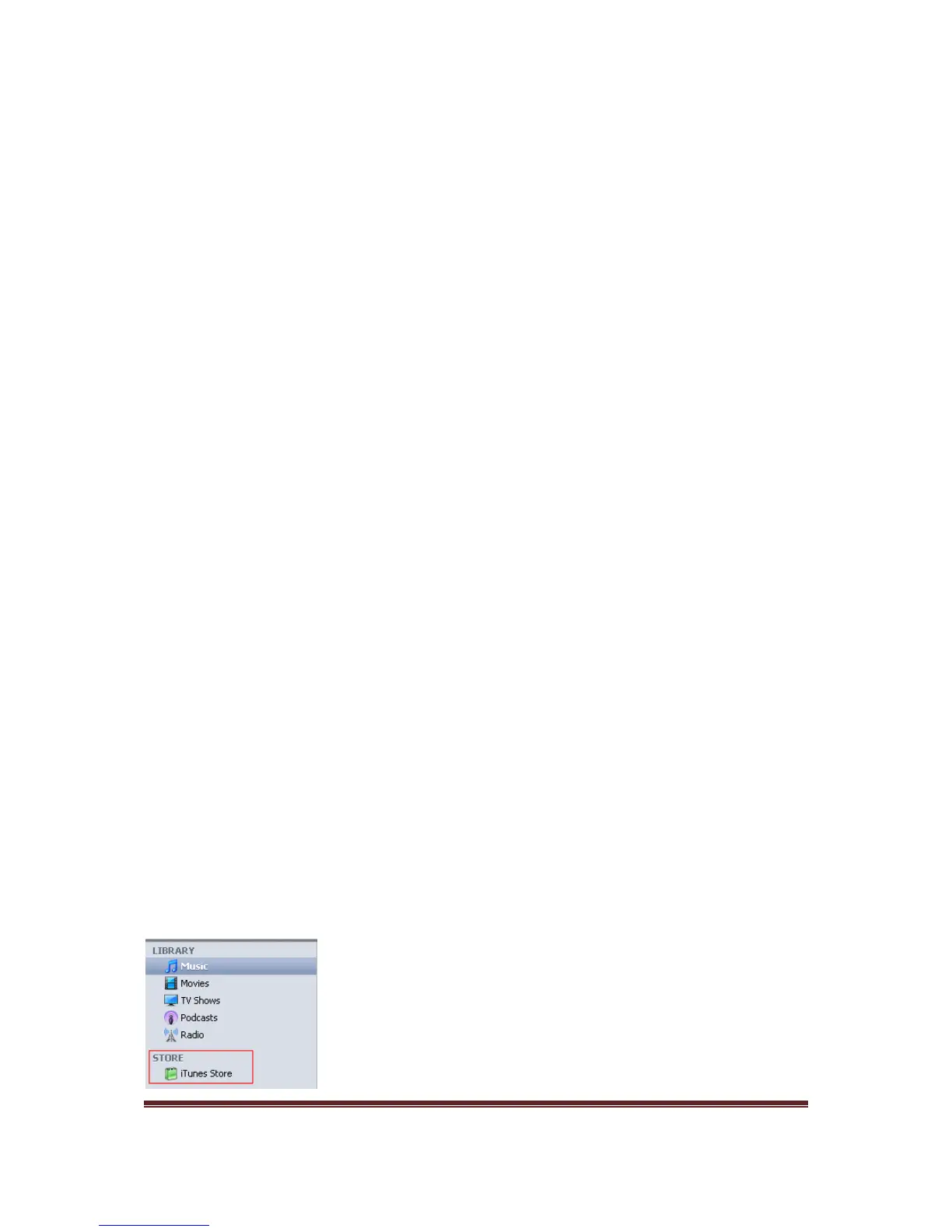
2. On the left hand side of the screen, click on the iTunes Store.



 To Next Page