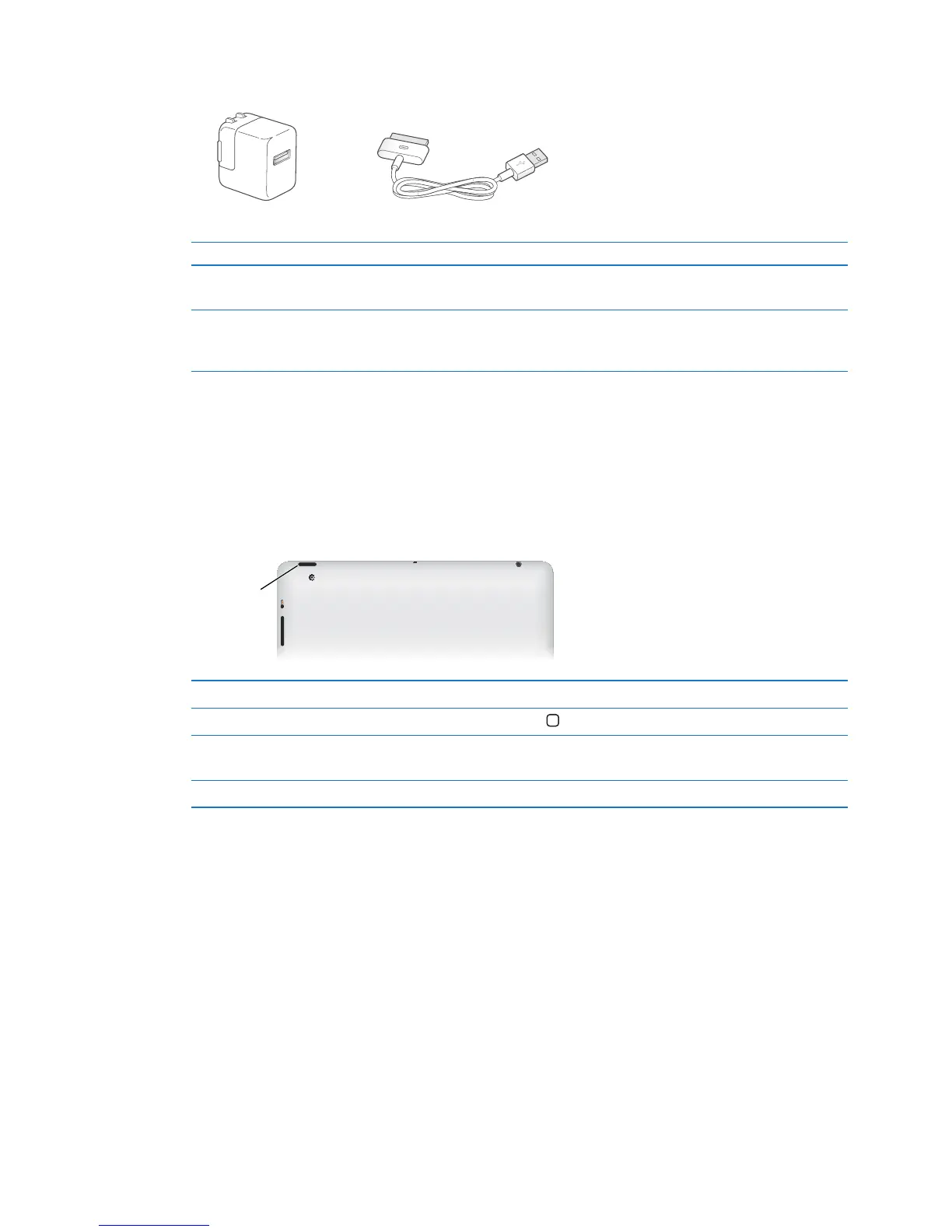
Item What you can do with it
10W USB power adapter Use the 10W USB power adapter to provide power to iPad and charge
the battery.
Dock Connector to USB Cable Use this cable to connect iPad to the 10W USB power adapter to charge
or to your computer to sync. Use the cable with the optional iPad Dock,
or plug it directly into iPad.
Buttons
A few buttons make it easy to lock iPad and adjust the volume.
Sleep/Wake button
You can lock iPad by putting it to sleep when you’re not using it. When you lock iPad, nothing
happens if you touch the screen, but music continues playing and you can use the volume buttons.
Lock iPad Press the Sleep/Wake button.
Unlock iPad Click the Home button
or the Sleep/Wake button, then drag the slider.
Turn iPad o Hold down the Sleep/Wake button for a few seconds until the red slider
appears, then drag the onscreen slider.
Turn iPad on Hold down the Sleep/Wake button until the Apple logo appears.
If you don’t touch the screen for a minute or two, iPad locks automatically. You can change this,
or set a passcode to unlock iPad.
Set the Auto-Lock time: In Settings, go to General > Auto-Lock, then set a time for iPad to
lock automatically.
Set a passcode: In Settings, go to General > Passcode Lock, then tap On or O.
You can use the iPad Smart Cover, available separately, to automatically unlock iPad 2 when
you open the cover and lock iPad 2 when you close it.
Use the Smart Cover with iPad 2: In Settings, go to General > iPad Cover Lock/Unlock, then
tap On or O.



 To Next Page