Home button
The Home button lets you get back to the Home screen at any time. It also provides other
convenient shortcuts.
Go to the Home screen: Click the Home button .
On the Home screen, just a tap opens an app. See “ ” .
Display the multitasking bar to see
recently used apps
When iPad is unlocked, double-click the Home button
.
Display audio playback controls When iPad is locked: Double-click the Home button
.
When using another app: Double-click the Home button
, then ick the
multitasking bar from left to right.
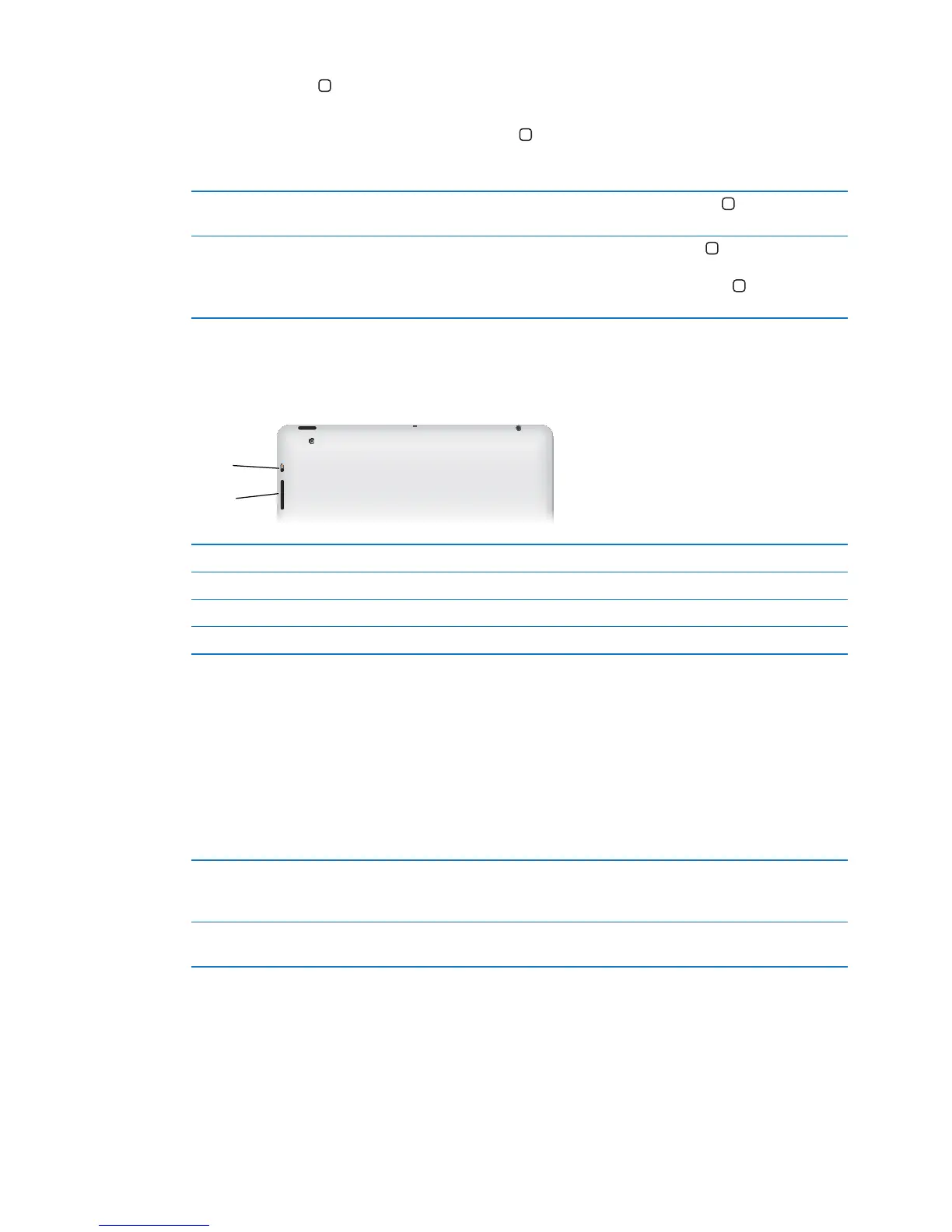
Volume buttons
Use the volume buttons to adjust the audio volume of songs and other media, and of alerts and
sound eects.
Increase the volume Press the Volume Up button.
Decrease the volume Press the Volume Down button.
Set a volume limit In Settings, go to Music > Volume Limit.
Mute the sound Hold down the Volume Down button.
Side Switch
You can use the Side Switch to disable audio alerts and notications. You can also use it to
lock the screen rotation and prevent the iPad display from switching between portrait and
landscape mode.
Suppress notications and
sound eects
Slide the Side Switch down to mute notications and sound eects.
This switch doesn’t mute audio playback, such as music, podcasts, movies,
and TV shows. See “
.
Lock the screen rotation In Settings, go to General > Use Side Switch to, then tap Lock Rotation.
.



 To Next Page