18
General Maintenance
Charging: There are two (2) ways to charge your iPad. Both use the connecting port
located on the bottom edge of the iPad.
Option 1: Plug the iPad into a receptacle using the USB cable and the wall plug adapter.
Option 2: Plug the iPad into your computer’s USB port using the USB cable. Note: The
computer must be turned on in order for the iPad to charge.
Note: It is a good idea to let your iPad completely run out of battery at least once
a month and then fully recharge the battery using Option 1.
Note: Excessive heat will damage your iPad battery. If you notice the iPad getting
hot while charging, take it out of the case.
Cleaning: Only use a soft, lint-free cloth to wipe down your screen. Do NOT get moisture
into any openings. Do NOT use aerosol sprays, solvents, or abrasives on the screen.
iOS Software Update: Occasionally, Apple releases updates for the iPad iOS software.
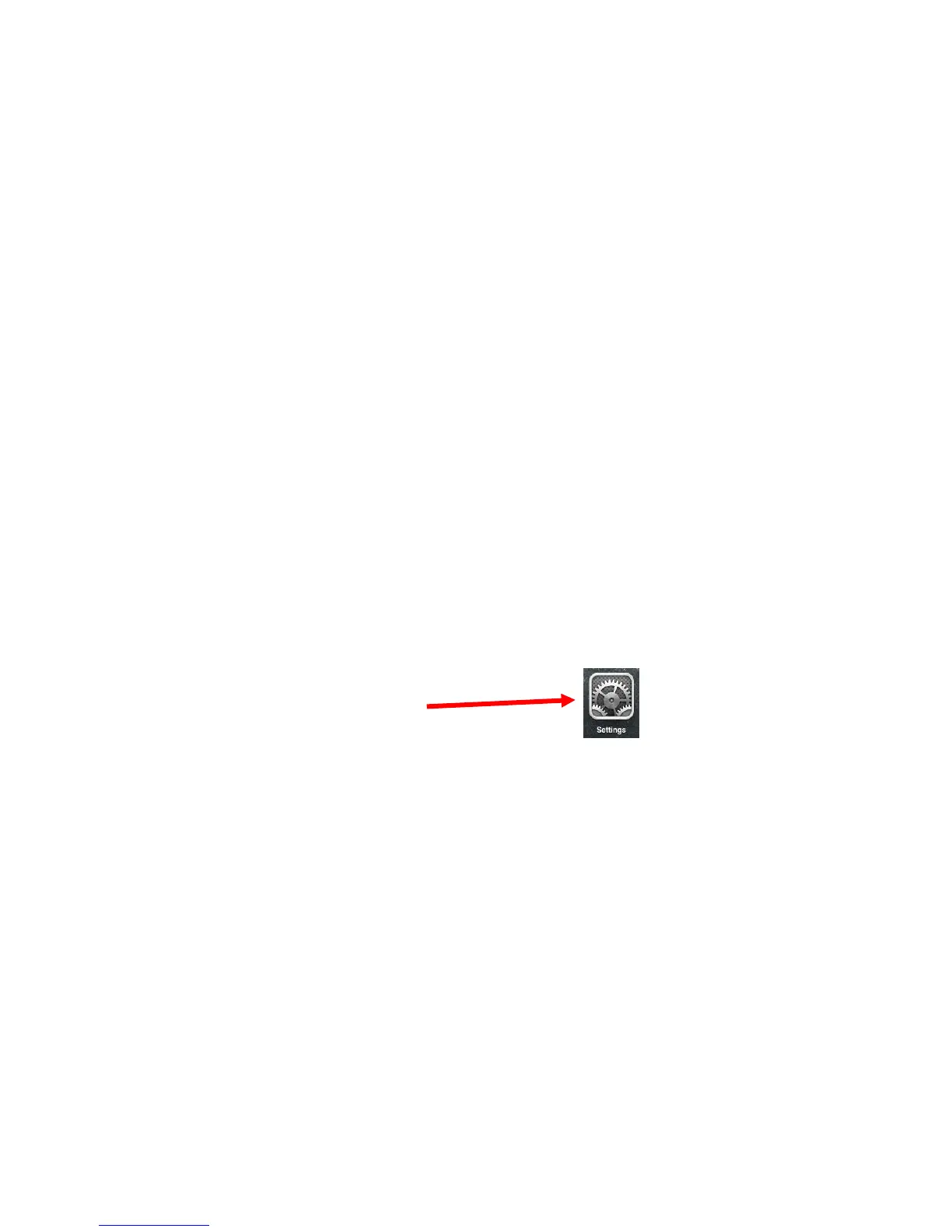
An update can add new features and or correct bugs. If there is an update, a little red
circle with a 1 in it will appear on the top right of the Settings Icon. Follow the steps shown
below to update the iOS software:
1. Plug the iPad into a power source.
2. Tap on the Settings icon.
3. Tap General in the left-hand column.
4. Tap the Software Update button.
5. The iPad will check for updates and if one is available, it will appear.
6. Tap Install Now to install the update.
7. Agree to the Terms and Conditions.
8. The update will install.



 To Next Page