17
Downloading and Updating Apps
Use the App Store Icon to:
Find free or purchased apps by browsing or searching.
Download updates and previously purchased apps.
Redeem a gift card or download code.
Manage your App Store account.
Note: You need an Internet connection and an Apple ID to use the App Store.
Purchasing a Free App or Paying with a Credit Card:
1. Tap on the App Store icon.
2. Tap the app’s price (or tap Free) and then tap Buy Now. Note: If you already
purchased the app, “install” appears instead of the price. You won’t be charged to
download it again as long as you are using the same Apple ID you used to originally
purchase the app.
3. While the app is being downloaded, the corresponding icon appears on the Home
screen with a progress indicator.
Purchasing an App with a Redemption Code:
1. Tap on the App Store icon.
2. Tap on Featured which is located at the bottom of the screen.
3. Scroll all the way to the bottom of the screen.
4. Tap Redeem and type in the code. Note: The code is not case-sensitive.
Download Updated Apps:
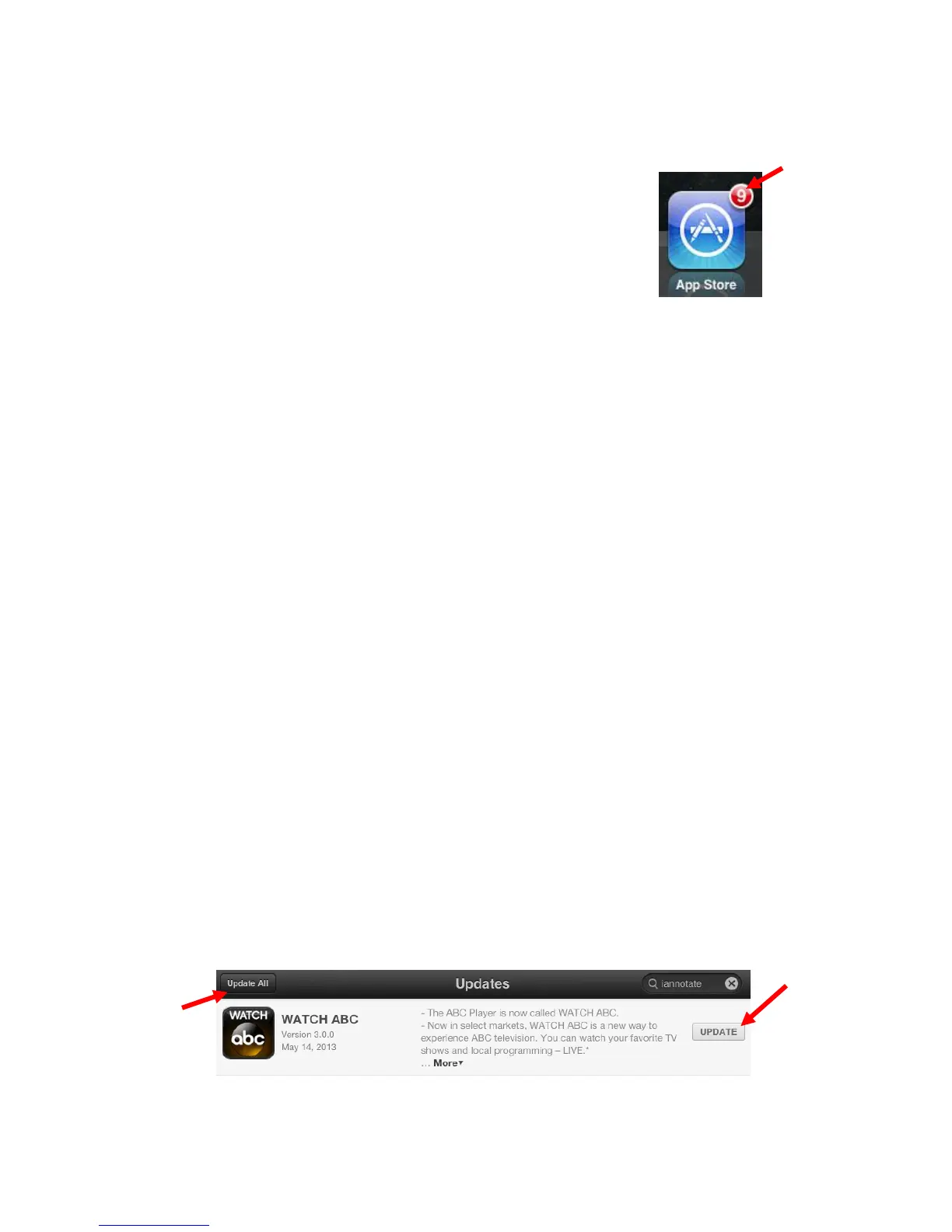
1. Tap on the App Store icon.
2. Tap on Updates which is located at the bottom of the screen.
3. Update individual apps by tapping Update for each app you want to update OR tap
the Update All button located at the top left of the screen to update all apps.



 To Next Page