16
Adding Bookmarks
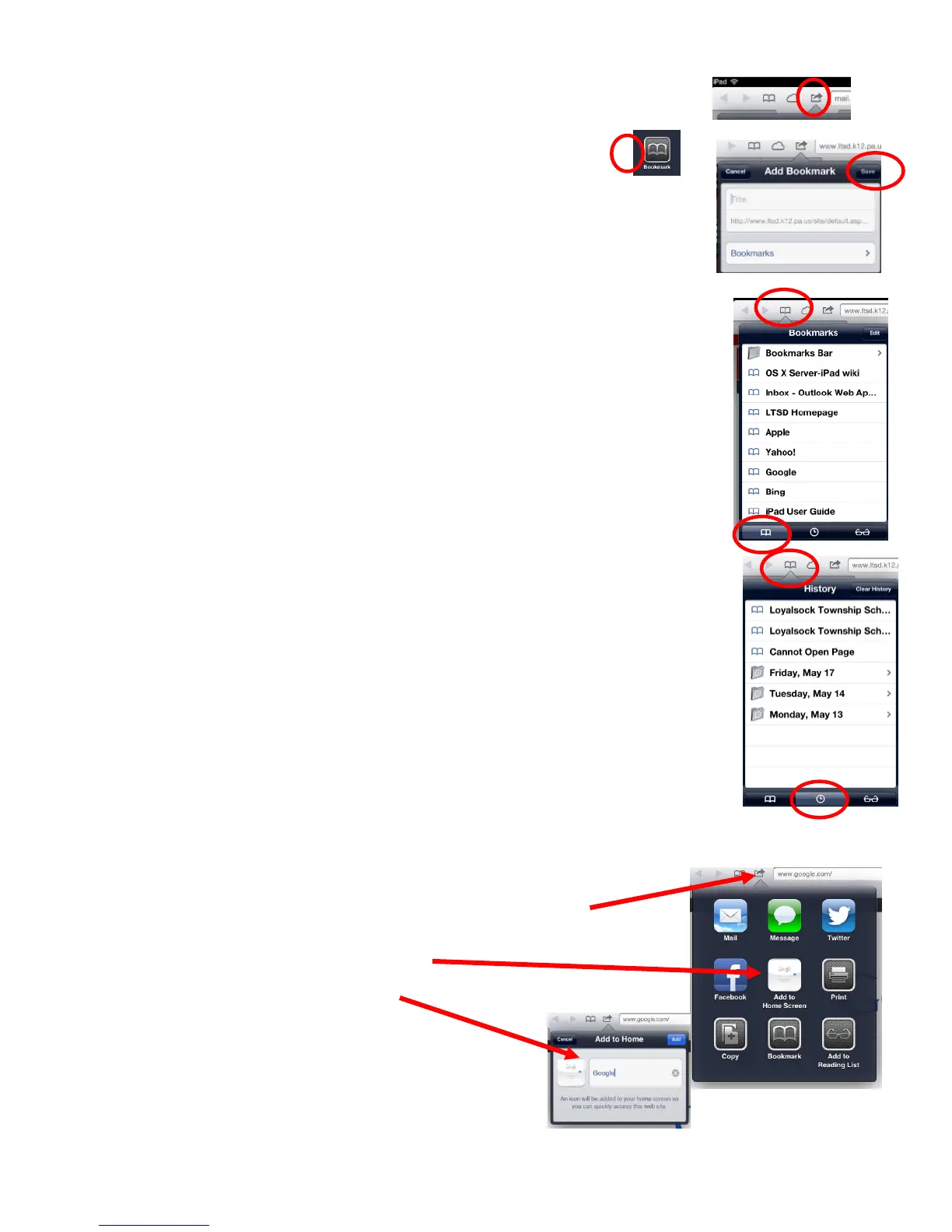
1. Tap on the Add icon to the left of the address bar.
2. The add menu will appear giving you various options.
3. Tap on the Bookmark icon.
4. Add a title for your bookmark to make it easily recognizable.
5. Tap on Save.
Open a Bookmarked Webpage
1. Tap the Bookmarks icon to the left of the address bar.
2. Tap on one of the listed bookmarks or, tap on the Bookmarks icon
at the bottom of the menu to view all Bookmarks and then tap on
the bookmark you wish to view.
View History
1. Tap the Bookmarks icon to the left of the address bar.
2. Tap on the Clock icon at the bottom of the menu to view History.
3. Various recent webpages, as well as recent folders from previous
days, are visible.
4. Tap on a webpage or folder to open a recently viewed webpage.
Adding Website as Icon on Homescreen
For quick and easy access to any of your favorite websites you can
create an icon (quicklink) on your homescreen.
1. Open Safari and go to the website you would like.
2. Tap on the Add icon to the left of the address bar.
3. The add menu will appear giving you various options.
4. Select the Add to Home Screen
5. Type in the Name of Website on next Prompt
6. Tap Blue Add Button and done
7. You will be brought to your homescreen
where you will see your new bookmark (icon)



 To Next Page