15
Using Safari
Safari is Apple’s Internet browser that comes pre-installed on the iPad. Safari will be the
application that you use to access a website. You can also create bookmarks in Safari to
quickly and easily access websites that you use frequently.
Accessing a Webpage
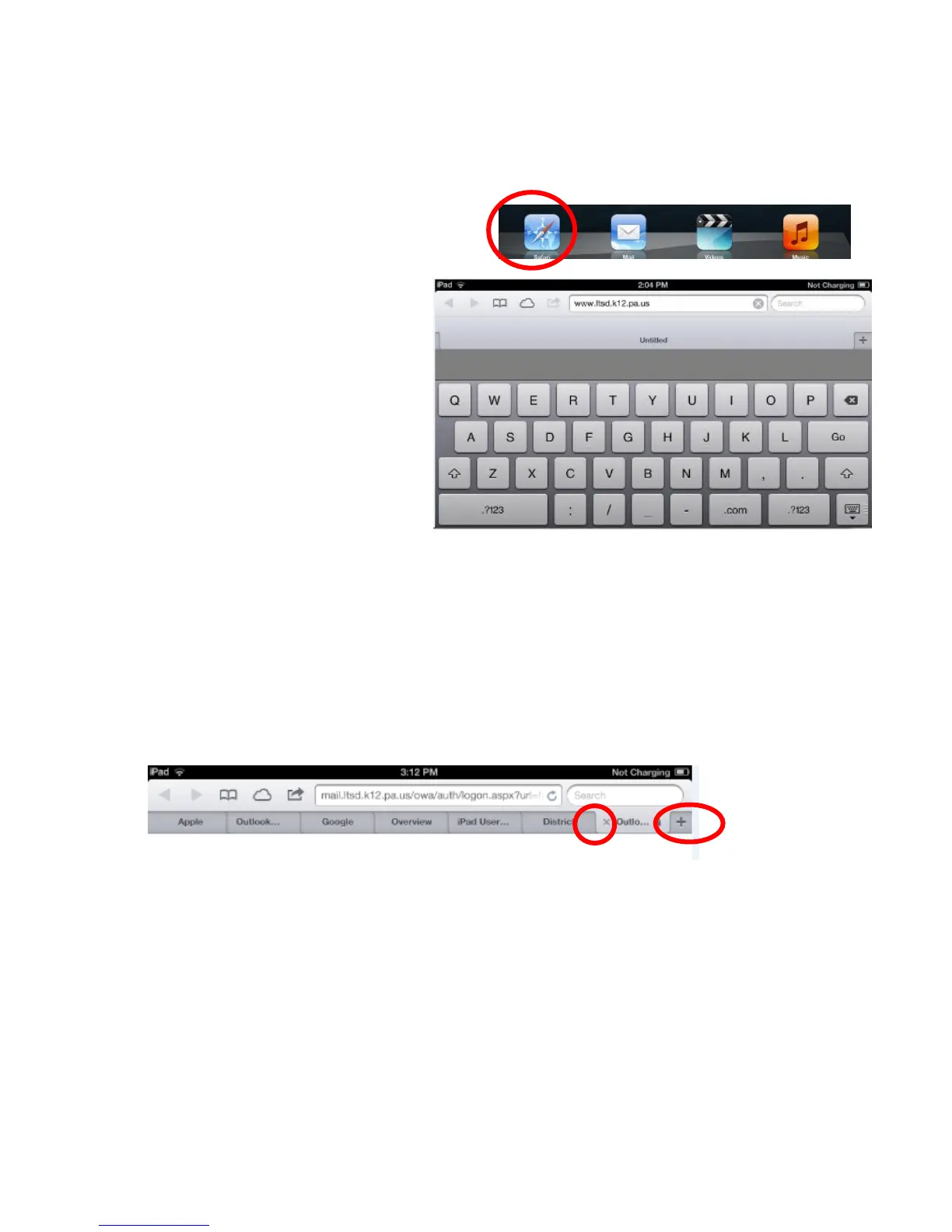
1. Tap the Safari icon on the dock.
2. A blank webpage screen will be
displayed.
3. Tab on the address bar.
4. The keyboard will appear
allowing you to type in the
webpage address.
5. Tap on Go to load the webpage.
6. To scroll in a webpage, drag
your finger up, down, or
sideways.
7. To zoom in on a webpage, use a
two-finger unpinch or tap twice on the screen. Rotate the iPad to see full pages in
landscape view.
Using Tab Browsing
1. To open a second browsing tab, click on the + button to the right of the tab.
2. Enter a webpage address in the address bar and tap on Go (on the keyboard) to load
the website.
3. To switch between tabs, tap on the previous tab.
4. To rearrange the order of the tabbed windows, tap on a tab and drag it left or right.
5. To close a tab, click on the tab and then click on the x to the left of the page title on
the tab.
6. To open a webpage you recently had opened, tap and hold on the + and a list will
appear allowing you to select a recent webpage.



 To Next Page