14
Connecting to Wi-Fi (wirelessly to the Internet)
Connecting to Wi-Fi: Go to Settings > Wi-Fi. Choose a network
you would like to connect to. If there is a lock icon next to the Wi-Fi symbol, you will be
prompted to enter a password for the network. Type in the password and press Join. When
you are connected to Wi-Fi, you will see the wireless symbol in the status bar
(on the top left corner of the iPad screen).
Connecting To AirPlay (i.e. Apple TV)
AirPlay: With AirPlay, you can stream music, photos, and video wirelessly to an Apple TV
and other AirPlay-enabled devices. The AirPlay controls appear when an AirPlay-enabled
device is available on the same Wi-Fi network to which the iPad is connected. You can also
mirror the contents of your iPad screen on a TV.
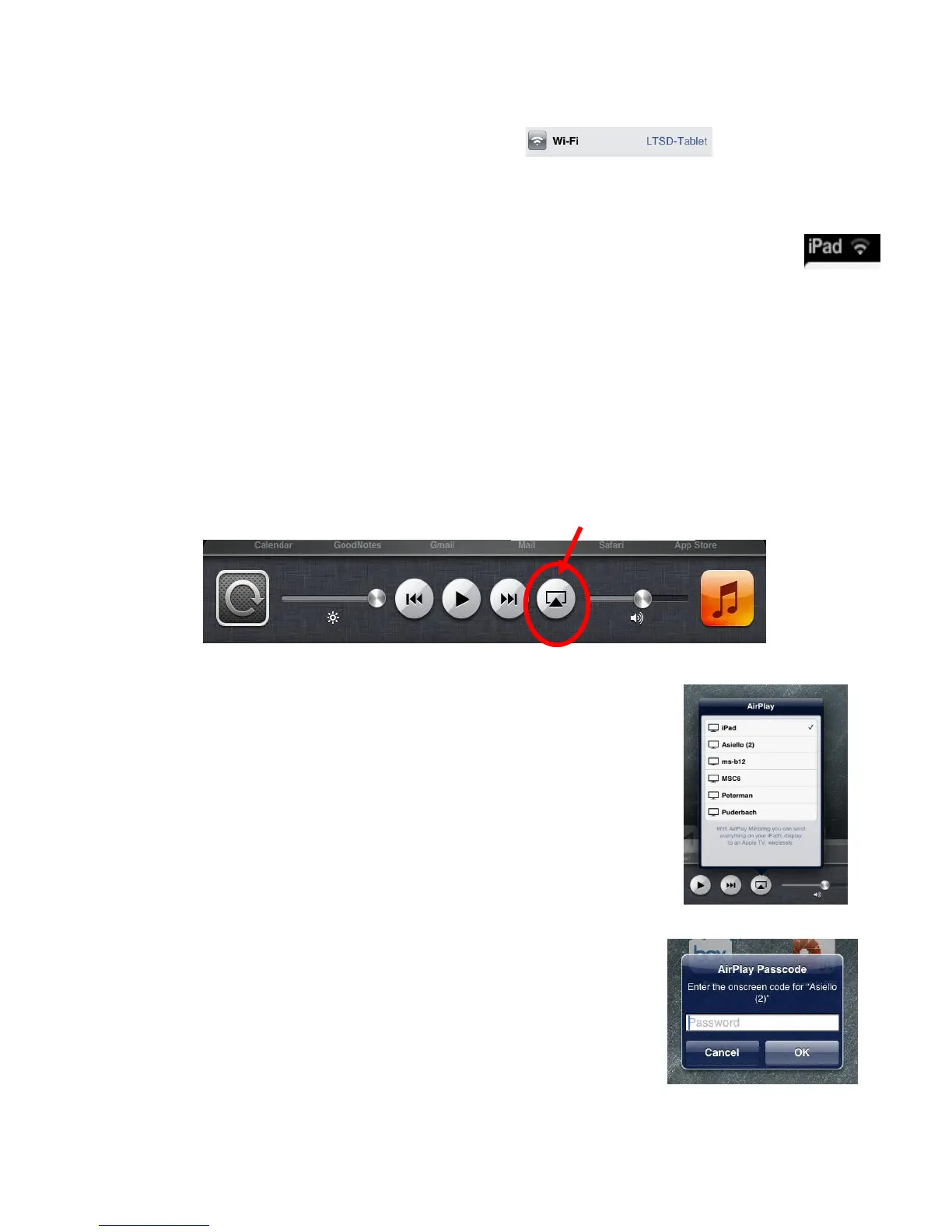
Accessing AirPlay:
1. When the screen is on, double-click the Home button to
view the multi-tasking bar and scroll to the left end of the
multi-tasking bar.
2. Tap the AirPlay/Apple TV button and select the
AirPlay/Apple TV device to which you would like to connect.
3. Turn Mirroring On to project the iPad onto the screen.
4. If prompted, type in the 4-digit AirPlay passcode. The
code will appear on the screen to which you are trying to
connect.
5. A blue bar appears at the top of the iPad screen when
AirPlay mirroring is turned on. Everything on the iPad
screen appears on the screen.
Turning Off AirPlay: Go to the AirPlay Selection menu as in
steps 1 and 2 above and choose iPad.



 To Next Page