13
2. Press and hold one of the icons and slide it on top of another icon (that you want
to combine into one folder).
3. Let go of the screen, and you now have a folder.
4. The iPad will give your folder a suggested name. Feel free to change the name of
the folder to something that makes sense to you.
5. Continue steps 2 through 4 to combine icons into folders.
6. When you are finished creating folders, press the Home button once and all
wiggling will stop.
Changing the Wallpaper (Background):
1. Tap on the Settings icon.
2. Choose Brightness and Wallpaper.
3. Choose Wallpaper and select the image you would like. If you don’t like any of the
wallpapers shown, you may select one of your own pictures by choosing Camera
Roll. Then, go through your photo library and select the picture you like.
4. Tap one of the three settings: Set Lock Screen, Set Home Screen or Set Both.
Note: You can choose a different image for the Home screen and the Lock screen.
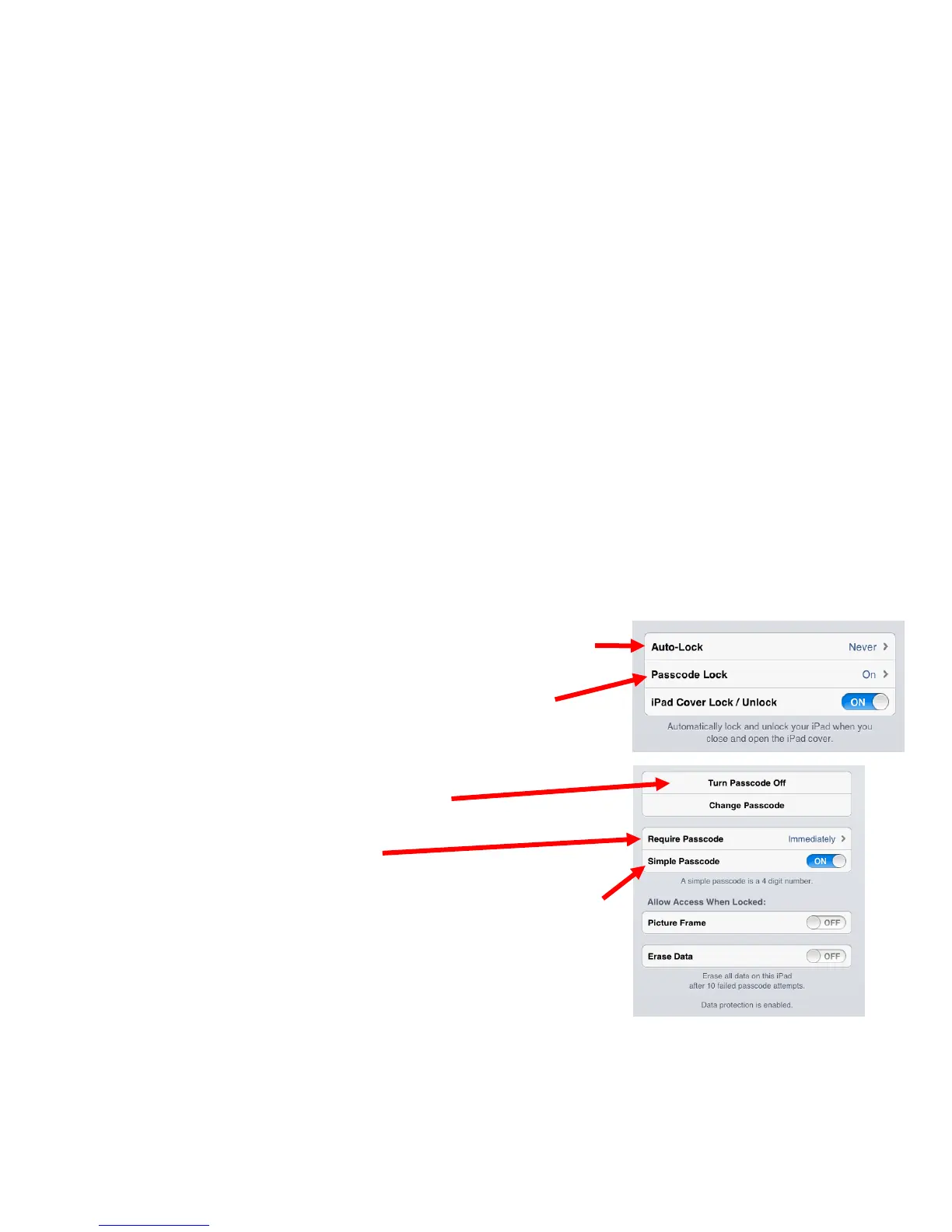
Setting a Passcode Lock: To prevent others from accessing your iPad, set a passcode
lock.
1. Tap on the Settings icon.
2. Choose General.
3. Select Auto-Lock to set how long it will take for
your iPad to automatically lock the screen.
4. Select Passcode Lock to make the following
settings:
a. Turn Passcode On (or Off) and create a
passcode that will have to be typed in every
time your screen is locked.
b. Require passcode to set when the passcode
will be required.
c. Simple Passcode in the on position will require
a 4-digit code. If you turn this setting off,
the passcode can be anything you want.
d. Picture Frame – recommended to be set to
off.
e. Erase Data – recommended to be set to off.
5. Select iPad Cover Lock/Unlock if you have a magnetic cover on your iPad and want
to set whether the magnetic cover automatically locks the iPad when the iPad is
covered.



 To Next Page