12
Personalizing the iPad
(Customizing the Home Screen by moving and deleting apps,
making folders, etc.)
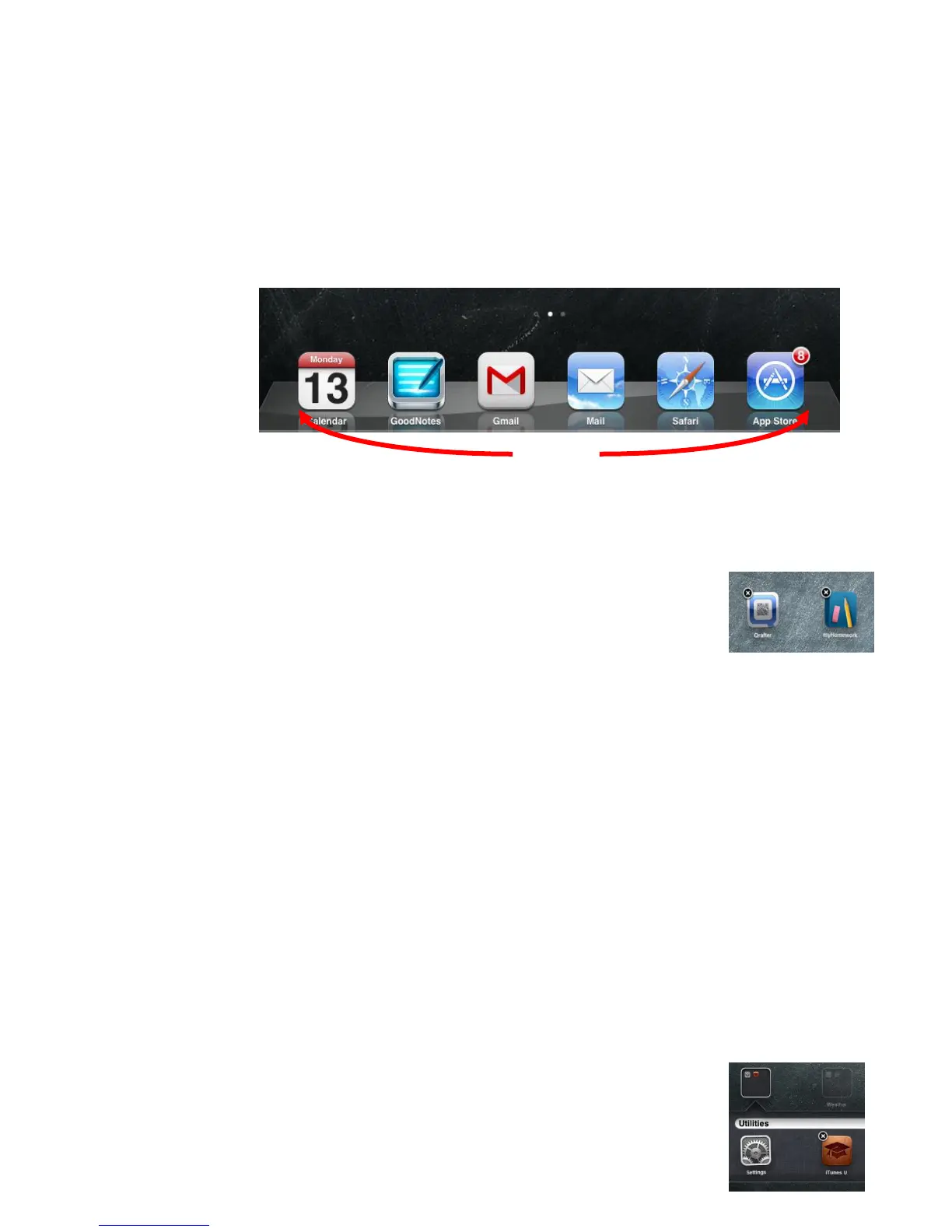
The Dock: The Dock is located at the bottom of the screen. It is where you can keep
apps that are used frequently for easy access. You can customize the placement of the
application icons on the Home screen and the Dock.
Moving Icons:
1. Press and hold one icon until all icons start to wiggle. (An X will appear in the
corner of each icon.)
2. Once all icons are wiggling, let go of the screen.
3. Press and hold the icon (do NOT press the “X”) that you
would like to move and slide it wherever you would like.
4. If you slide the icon all the way to the right or left side of
screen, you will move it to a new screen.
5. Repeat steps 3 and 4 as necessary.
6. Press the Home button to stop customizing (and to stop icons from wiggling).
Deleting Apps:
1. Press and hold one icon until all icons start to wiggle (A black circle with a white X
will appear in the corner of each icon.).
2. Press the X to delete the app. You will be asked to confirm the deletion of the
app. If, at a later time, you decide you want the app back, you can go to the App
store and download it again.
3. Repeat step 2 as necessary.
4. Press the Home button to stop customizing (and to stop icons from wiggling).
Making Folders: If you feel you have too many icons, you can organize your icons by
creating folders. To create folders and organize icons:
1. Press and hold one icon until all icons start to wiggle. (An X
will appear in the corner of each icon.)



 To Next Page