4. On the toolbar, click the Sharing button (the box with the arrow coming out of it) and
r click "Use As Wallpaper."!
5. A new toolbar will appear with the options of Set As Lock Screen, Set As Homepage,
r or Set Both.!
6. Click on the desired option and enjoy that beautiful picture as your new Wallpaper.!
!
!
If you don't want random people to look at your iPad, you will have to set a password
lock. !
!
To Set a Passcode Lock:!
!
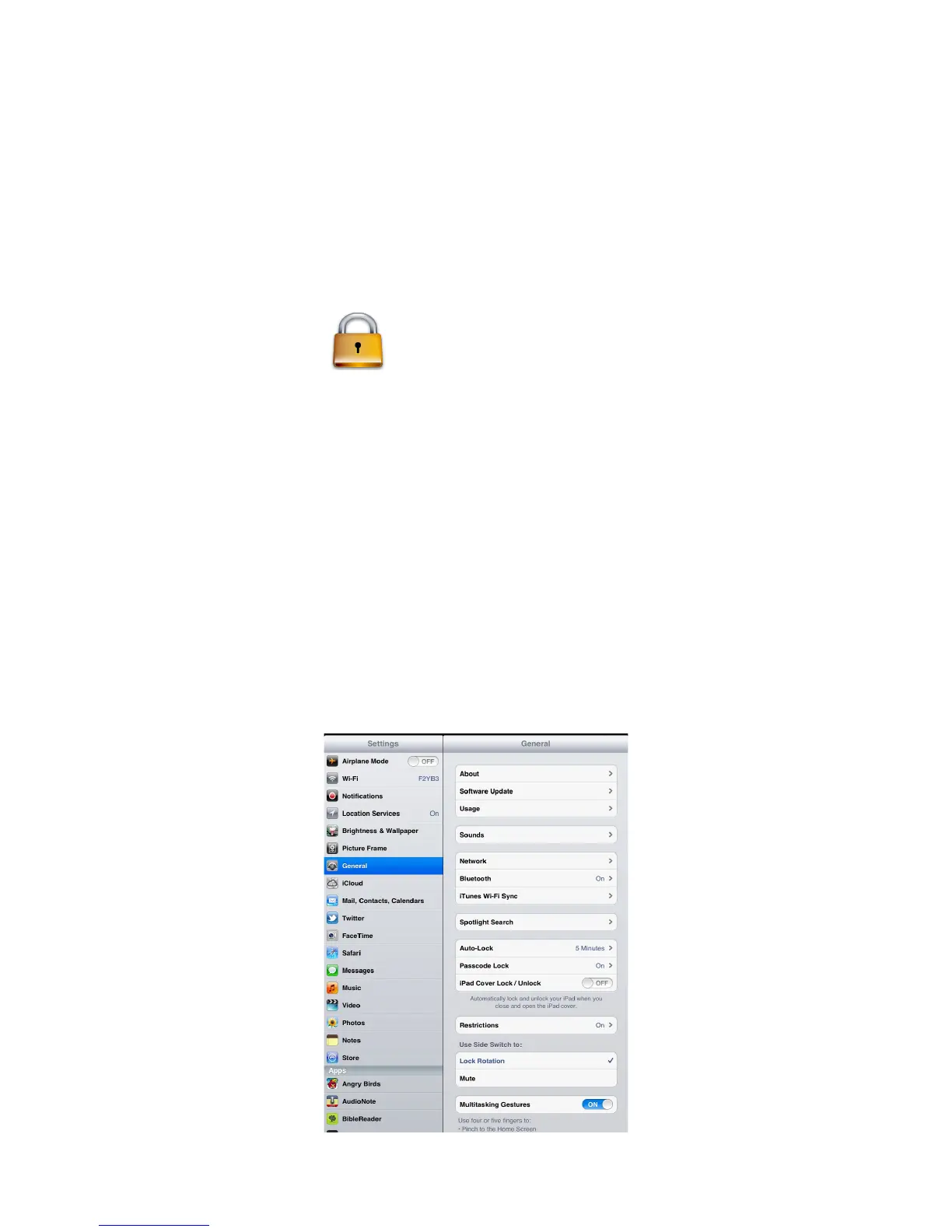
1. Click on the Setting icon on the Homepage.!
2. Click on the General tab!
3. On this page, there is a tab called Passcode Lock. Click on it.!
4. Click on "Turn Passcode On." "!
5. A number pad will appear on your screen. Use it to type in your desired password.!
(You will have to type the passcode in twice for verification) !
6. If you would like to have a longer passcode with words, you must turn simple
passcode OFF.!
7. A keyboard should pop up and you can change your password with letters. !
8. Type in the desired password and you are set.!
!
WARNING: DO NOT TURN ON THE ERASE DATA FEATURE IN THE PASSCODE
LOCK SETTINGS! YOU WILL LOSE ALL APPS, MUSIC, AND ANY OTHER DATA IF
SOMEONE INCORRECTLY ENTERS THE PASSCODE TEN TIMES!!
!
!



 To Next Page