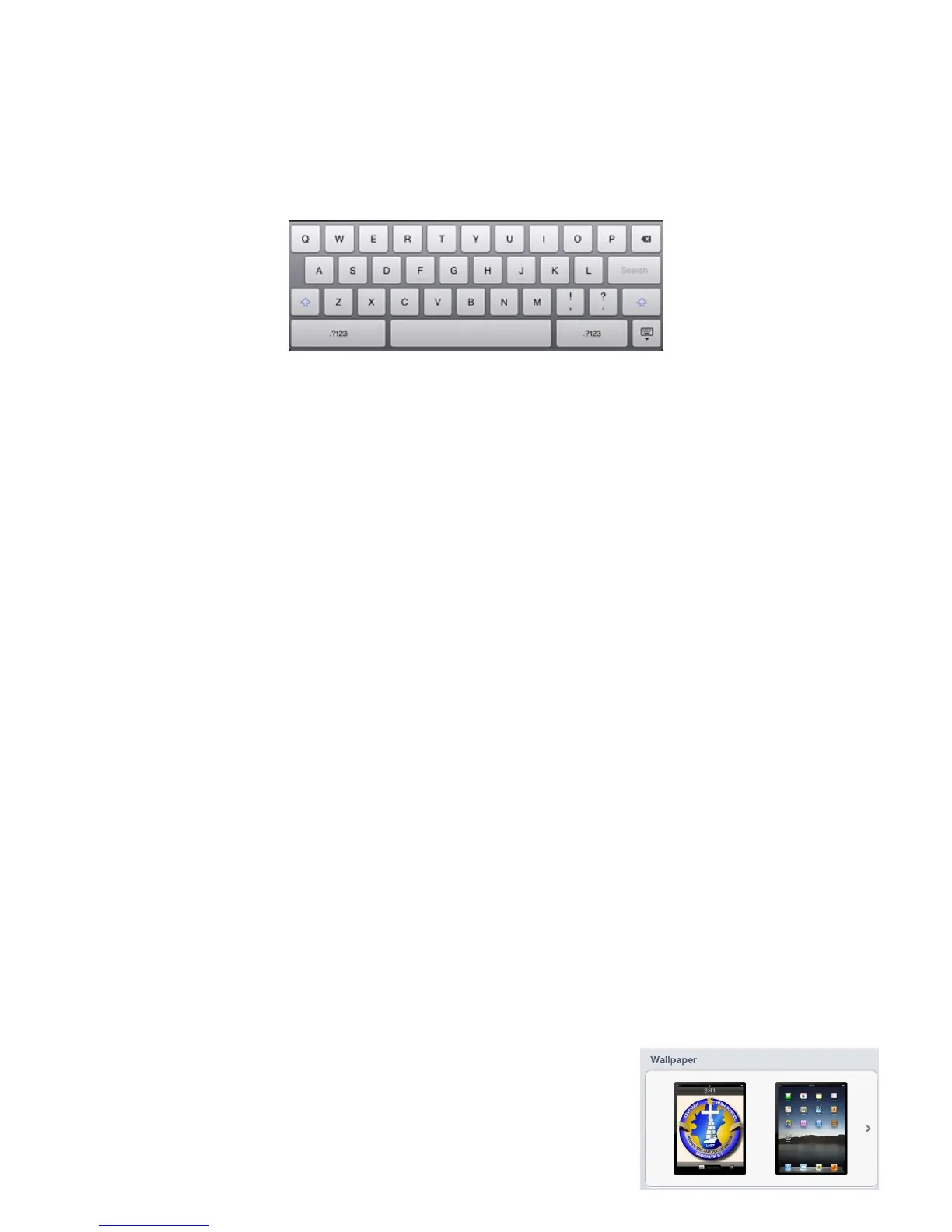
the phrase and the shortcut and cluck save. You can also choose to split the keyboard.
To do this turn split keyboard on or off. You can also change your keyboard to different
languages by selecting international, and selecting!
language.!
!
Accessibility:!
As you look at the next setting, accessibility, many of the things on this list will not
concern you as a Xaverian student except for possibly large text. If you have trouble
seeing the text on the screen you can make it larger by selecting the text size you like.!
!
Profiles:!
The next setting, Profiles, will not concern you as a Xaverian student. !
Next is Reset. In reset you can change all of the General Settings back to the form that
Apple has set up. To reset your settings to their original form click, Reset All Settings. !
!
Warning: DO NOT click on erase all content and settings,you will lose all of your
notes and other apps on your iPad. You can also reset other things such as,
Reset Location Warnings.!
!
!
There are two features that stand out to people in General Settings. They are Passcode
Lock and Wallpapers.!
!
To Change your Wallpaper:!
!
!
1. Click on the Settings icon on the Homepage!
2. Click on the Brightness and Wallpapers Tab!
2. Click on the Wallpaper tab (there will be two pictures under the word)!
3. Once you've clicked on the Wallpaper tab, you can change the picture that is !
r currently set as your wallpaper. !
!
The iPad comes with standard wallpapers, but you can choose and set your own
pictures as wallpaper by:!
!
1. Click on the tab called Camera Roll.!
2. Select your picture.!
3. Tap the middle of the screen and the toolbar will appear. !
!



 To Next Page