You can also use the Home button to turn accessibility features on or off. See
Accessibility Shortcut (on page) .
On iPad Air 2, iPad Pro, and iPad mini 3 and later, you can use the sensor in the
Home button to unlock iPad or make purchases in the iTunes Store, App Store,
and iBooks Store (instead of using your passcode or Apple ID password). See
Touch ID (on page) . You can also use the Touch ID sensor for authentication
when using Apple Pay to make a purchase from within an app. See Apple Pay
(on page) .
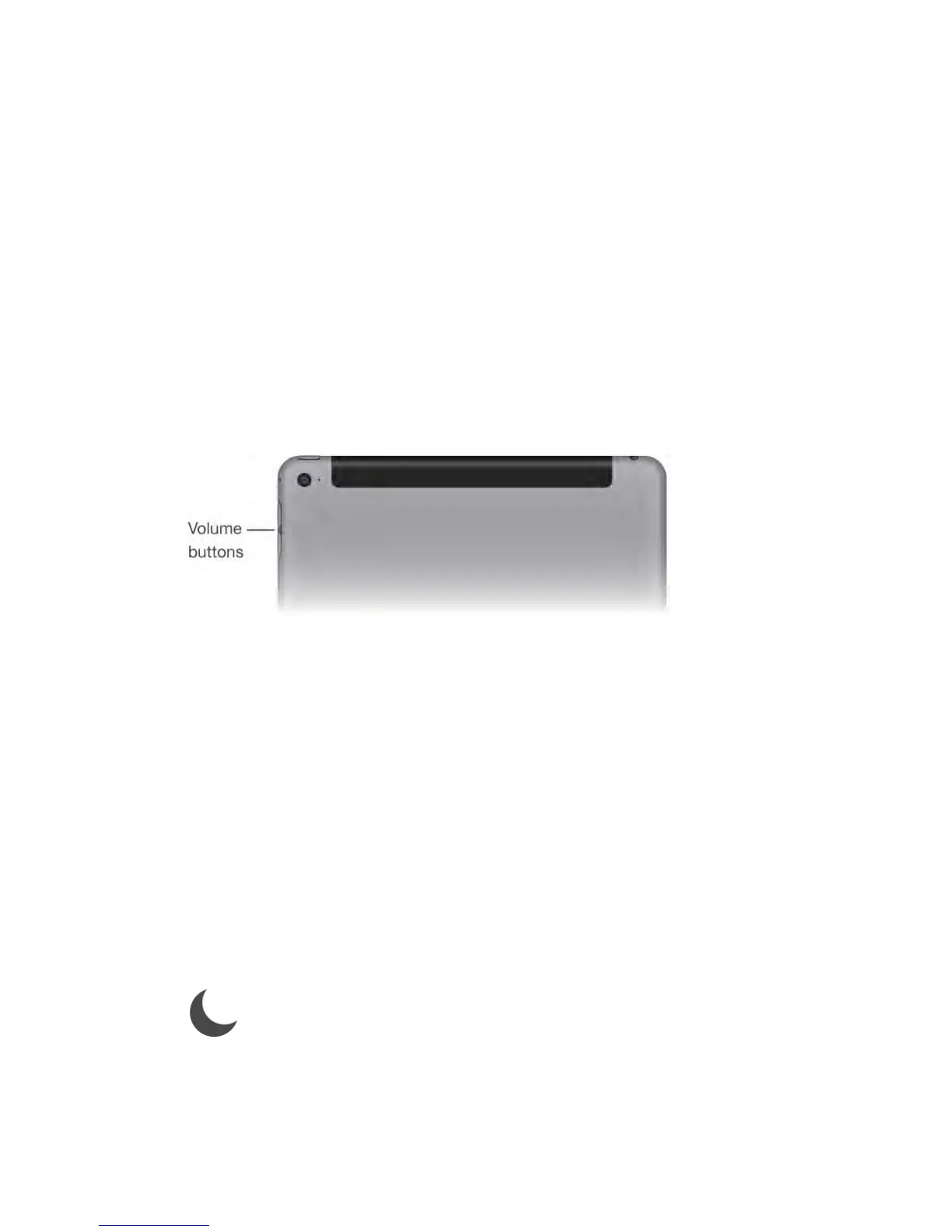
Volume buttons
Use the Volume buttons to adjust the volume of songs and other media, and
alerts and sound effects. Use Control Center (or on some iPad models, the Side
Switch) to silence audio alerts and notifications.
WARNING: For important information about avoiding hearing loss, see
Important safety information (on page) .
Lock the ringer and alert volumes.
Go to Settings > Sounds, then turn off Change with Buttons.
Note: To limit the maximum headset volume, go to Settings > Music > Volume
Limit (under Playback). To prevent changes to the volume limit, go to Settings >
General > Restrictions > Volume Limit (under Allow Changes).
Use Control Center to adjust the volume.
When iPad is locked or when you’re using another app, swipe up from the
bottom edge of the screen to open Control Center.
Do Not Disturb, also available in Control Center, is an easy way to keep iPad
silent. See Do Not Disturb (on page) .
Mute the sound.
Press and hold the Volume Down button.
You can also use either volume button to take a picture or record a video. See
Take photos and videos (on page) .
Mute notifications, alerts, and sound effects.
Swipe up from the bottom edge of the screen to open Control Center, then tap
. For more information, see Do Not Disturb (on page) . On iPad models
with a side switch, slide the Side Switch toward the volume buttons.
The Side Switch and Do Not Disturb don’t mute the audio from music, podcasts,



 To Next Page