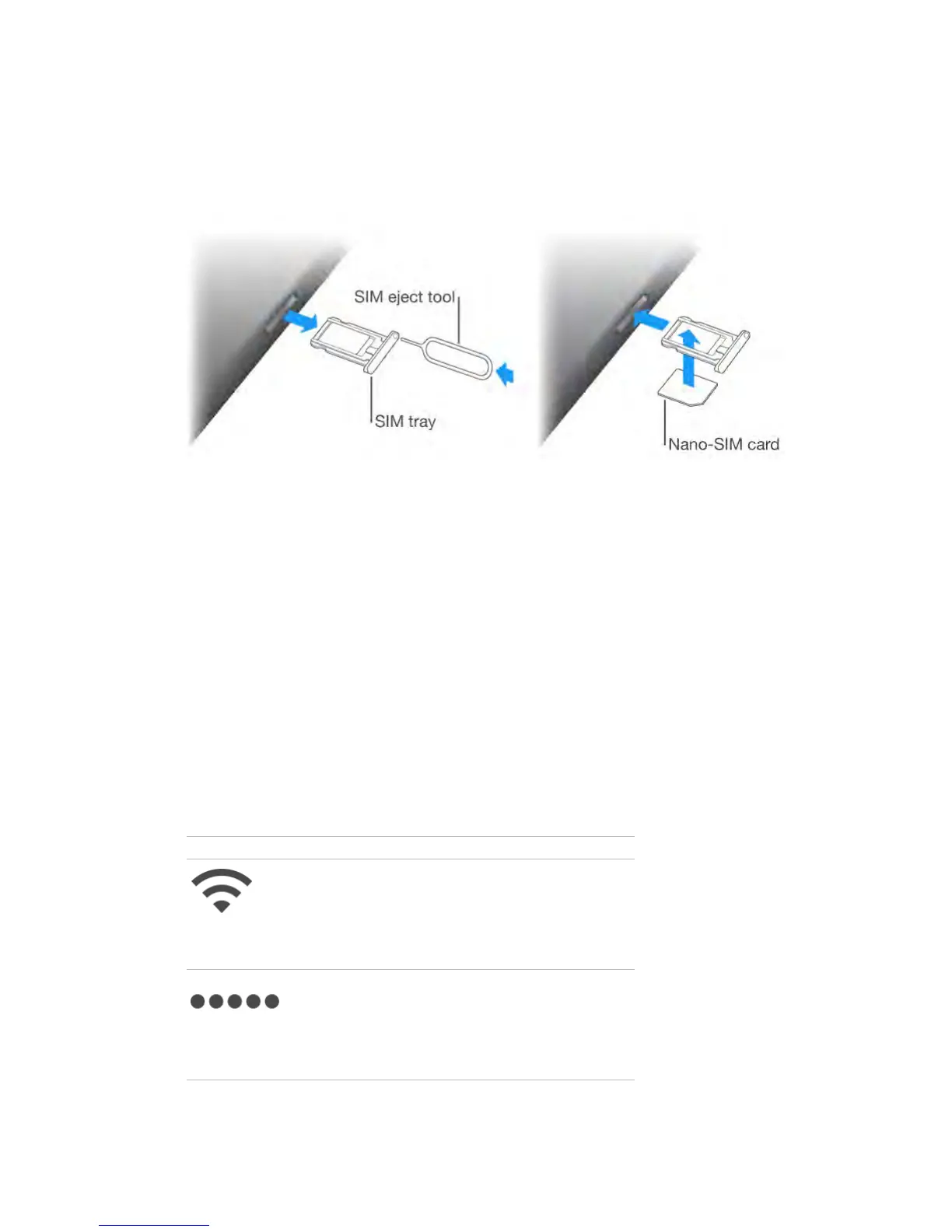
connection. If your SIM card isn’t installed or if you change carriers, you may
need to install or replace the SIM card.
Open the SIM tray.
Insert a SIM eject tool (sold separately) into the hole on the SIM tray, then press
firmly and push the tool straight in until the tray pops out. Pull out the SIM tray
to install or replace the SIM card. If you don’t have a SIM eject tool, try the end
of a small paper clip.
Important: A SIM card is required to use cellular services when connecting to
GSM networks and some CDMA networks. Your iPad is subject to your wireless
service provider’s policies, which may include restrictions on switching service
providers and roaming, even after conclusion of any required minimum service
contract. Contact your wireless service provider for more details. Availability of
cellular capabilities depends on the wireless network.
For more information, see Cellular settings (on page) .
Status icons
The icons in the status bar at the top of the screen give information about iPad:
Wi-Fi
iPad has a Wi-Fi Internet
connection. The more
bars, the stronger the
connection. See
Connect
to Wi-Fi (on page) .
Cell signal
iPad (Wi-Fi + Cellular
models) is in range of the
cellular network. If there’s
no signal, “No service”
appears.



 To Next Page