Tap , then tap your note to bring up the keyboard. The first line of the
note becomes the note’s title.
See just the note.
Tap or turn iPad to portrait orientation.
Add a photo or video to your note.
Tap . Take a new photo or video, or tap Photo Library to select and
add existing photos and videos.
Ask Siri Say something like: “Create a new note.”
Format notes
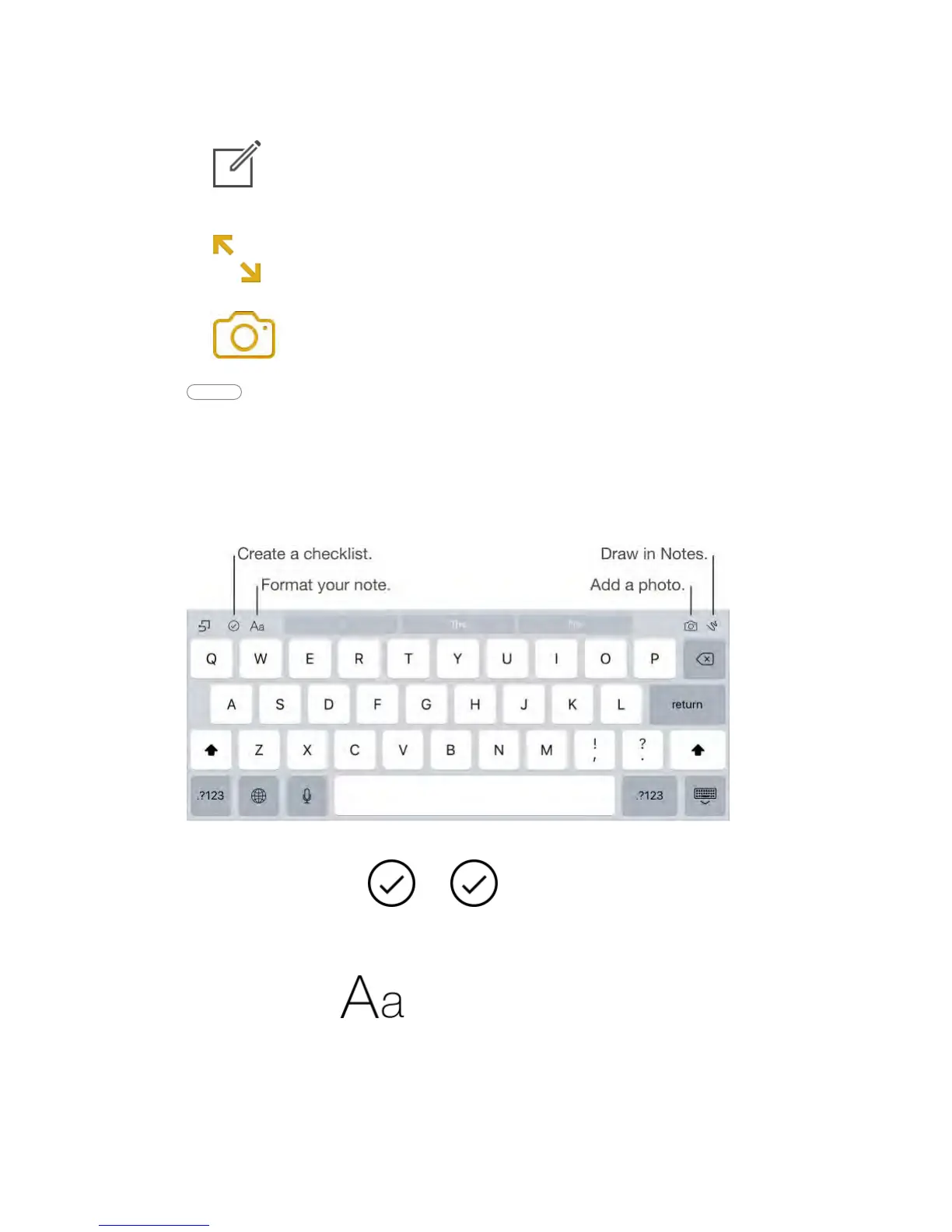
With upgraded notes, you can create checklists, change paragraph styles, and
add attachments.
Start a checklist.
Tap a line in your note, then tap . Tap again to remove the
checklist format. Type the task. Tap the empty checklist circle to mark your task
complete.
Change the paragraph style of a line.
Tap a line in your note, tap , then select the style.
Set a default formatting style for the first paragraph.
Go to Settings > Notes, then tap New Notes Start With.



 To Next Page