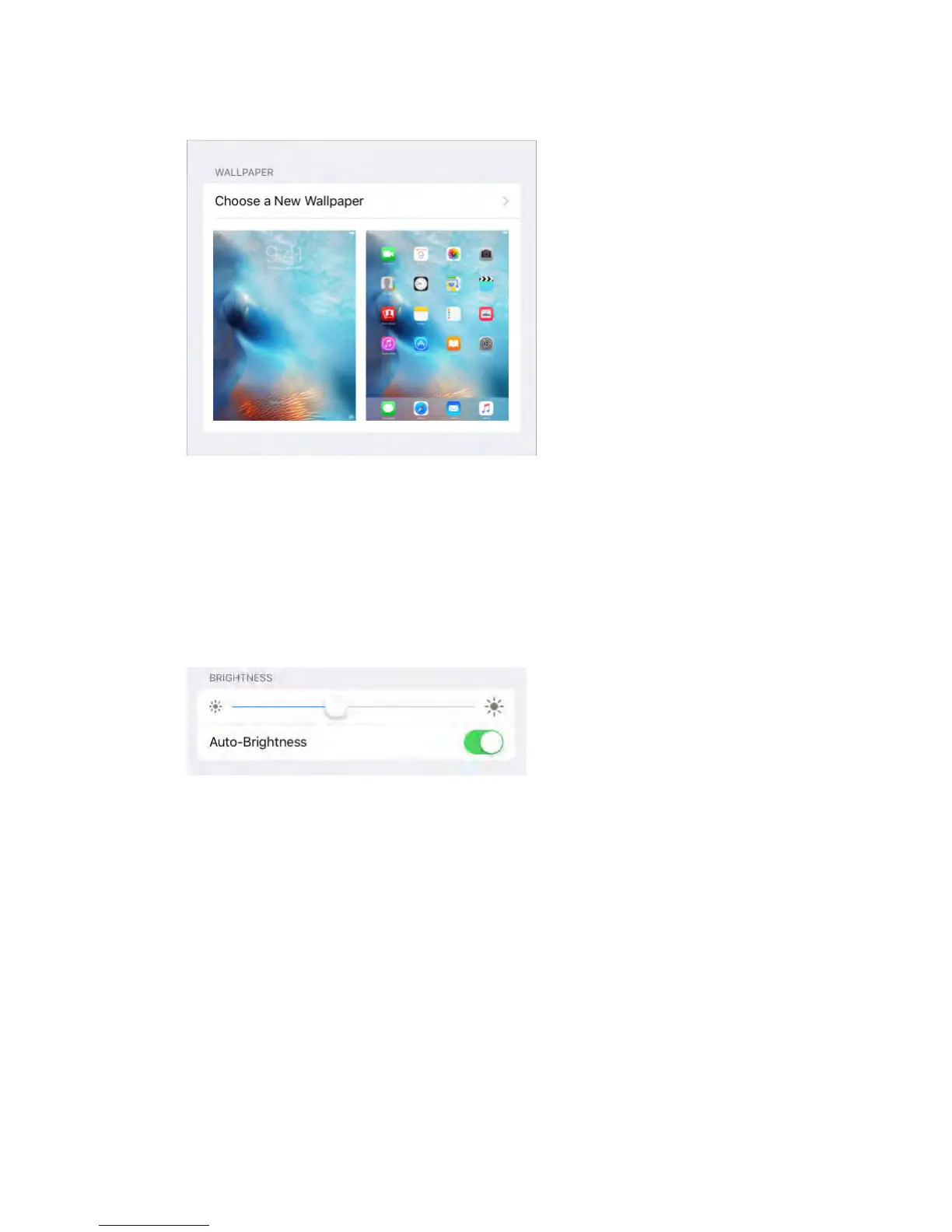
When choosing an image for new wallpaper, the Perspective Zoom button
determines whether your selected wallpaper is zoomed. For wallpaper you
already set, go to the Wallpaper setting, then tap the image of the Lock screen
or Home screen to see the Perspective Zoom button.
Note: The Perspective Zoom button doesn’t appear if Reduce Motion (in
Accessibility settings) is turned on. See Reduce screen motion (on page) .
Adjust the screen brightness
Dim the screen to extend battery life, or use Auto-Brightness.
Adjust the screen brightness.
Go to Settings > Display & Brightness, then drag the slider. If Auto-Brightness is
on, iPad adjusts the screen brightness for current light conditions using the
built-in ambient light sensor. You can also adjust the brightness in Control
Center.
Display Zoom
With iPad Pro, you can magnify the screen display. Go to Settings > Display &
Brightness. Tap View (below Display Zoom), choose Zoomed, then tap Set. For
additional zoom features, see Zoom.
Type text



 To Next Page