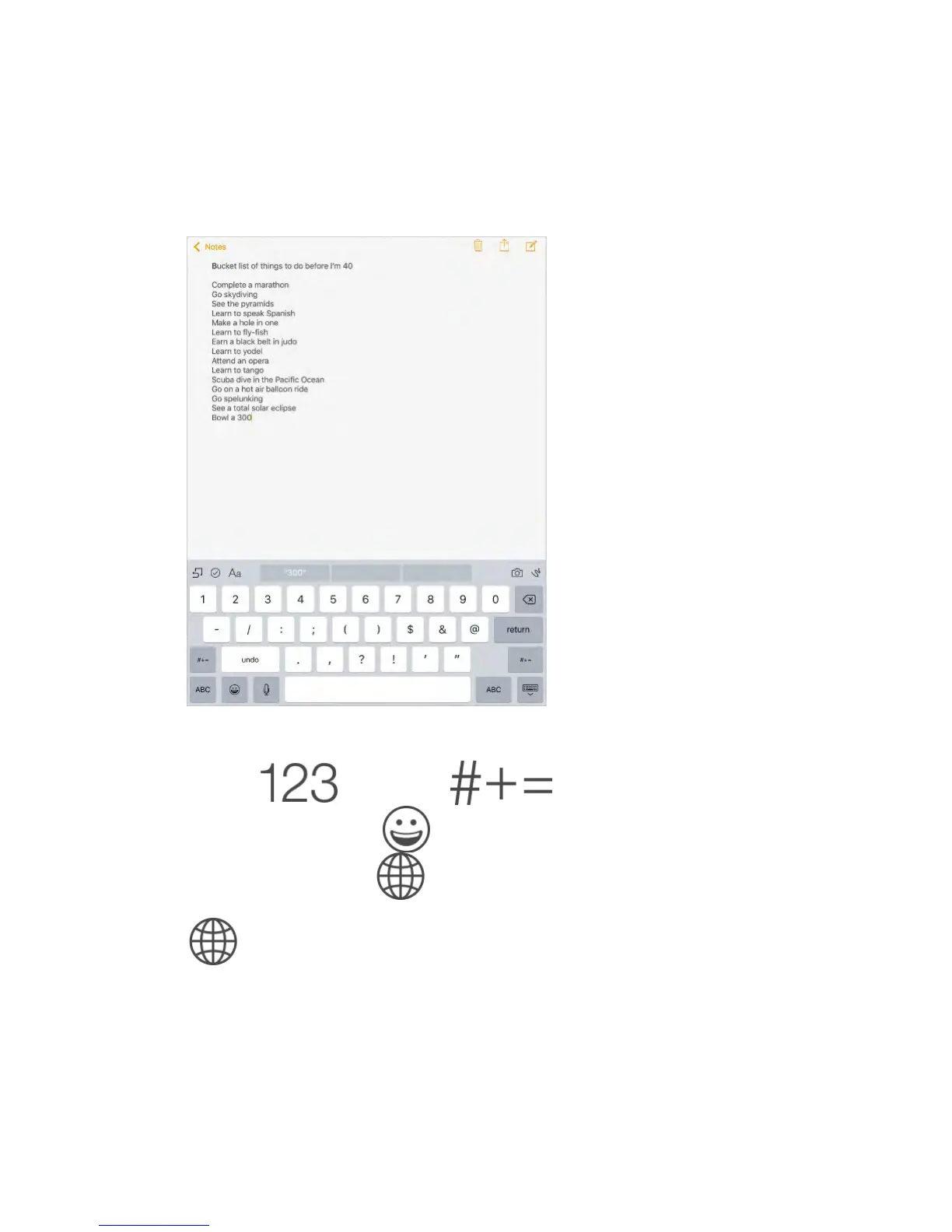
Enter text
Tap a text field to see the onscreen keyboard, then tap letters to type. If you
touch the wrong key, you can slide your finger to the correct key. The letter isn’t
entered until you release your finger from the key.
Tap Shift to type uppercase, or touch the Shift key and slide to a letter. Double-
tap Shift for caps lock. To enter numbers, punctuation, or symbols, tap the
Number key or the Symbol key . If you
haven’t added any keyboards, tap to switch to the Emoji keyboard. If
you have multiple keyboards, tap to switch to the last one you used.
Continue tapping to access other enabled keyboards, or touch and hold
, then slide to choose a different keyboard. To quickly end a sentence
with a period and a space, just double-tap the space bar.
Enter accented letters or other alternate characters.
Touch and hold a key, then slide to choose one of the options.



 To Next Page