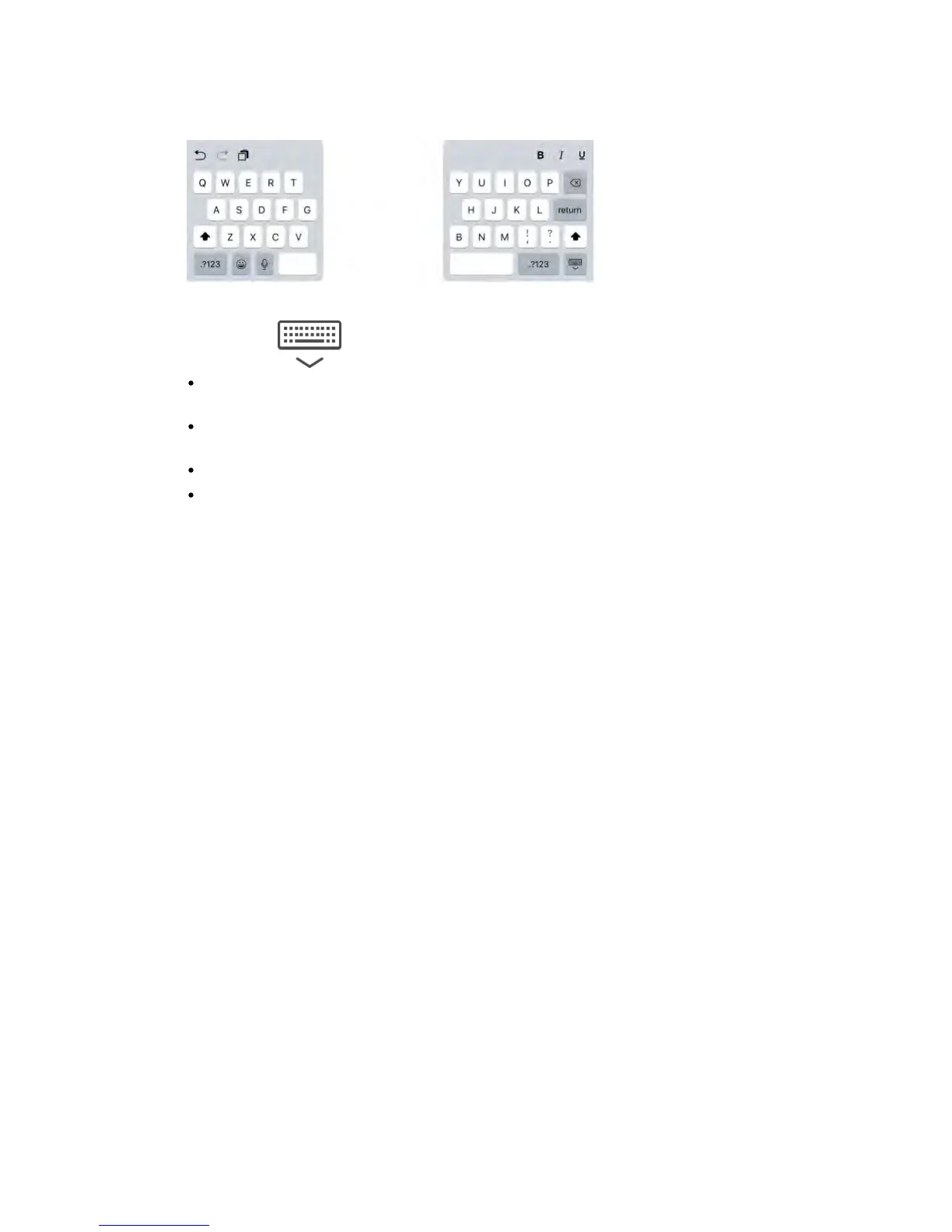
Adjust the keyboard.
Touch and hold , then:
Use a split keyboard: Slide your finger to Split, then release. Or spread the
keyboard apart from the middle.
Move the keyboard to the middle of the screen: Slide your finger to Undock,
then release.
Return to a full keyboard: Slide your finger to Dock and Merge, then release.
Return a full keyboard to the bottom of the screen: Slide your finger to Dock,
then release.
Turn Split Keyboard on or off.
Go to Settings > General > Keyboard > Split Keyboard.
Note: The split keyboard option is not available on iPad Pro.
Apple Wireless Keyboard
You can use an Apple Wireless Keyboard (available separately) to enter text on
your iPad. The keyboard connects via Bluetooth, so you must first pair it with
iPad.
Note: The Apple Wireless Keyboard may not support keyboard features that are
on your device. For example, you can’t enable dictation with Apple Wireless
Keyboard.
Pair an Apple Wireless Keyboard with iPad.
Turn on the keyboard, go to Settings > Bluetooth and turn on Bluetooth, then
tap the keyboard when it appears in the Devices list.
View keyboard shortcuts.
Press and hold the Command key to see shortcuts for an app.
Quickly switch between apps.
Hold down Command, then press Tab until you reach the app you want to open.
Open Search.
Press Command-Space.
Once it’s paired, the keyboard reconnects to iPad whenever it’s in range—up to
about 33 feet (10 meters). When it’s connected, the onscreen keyboard doesn’t
appear.
Save your batteries.
Turn off Bluetooth and the wireless keyboard when not in use. You can turn off



 To Next Page