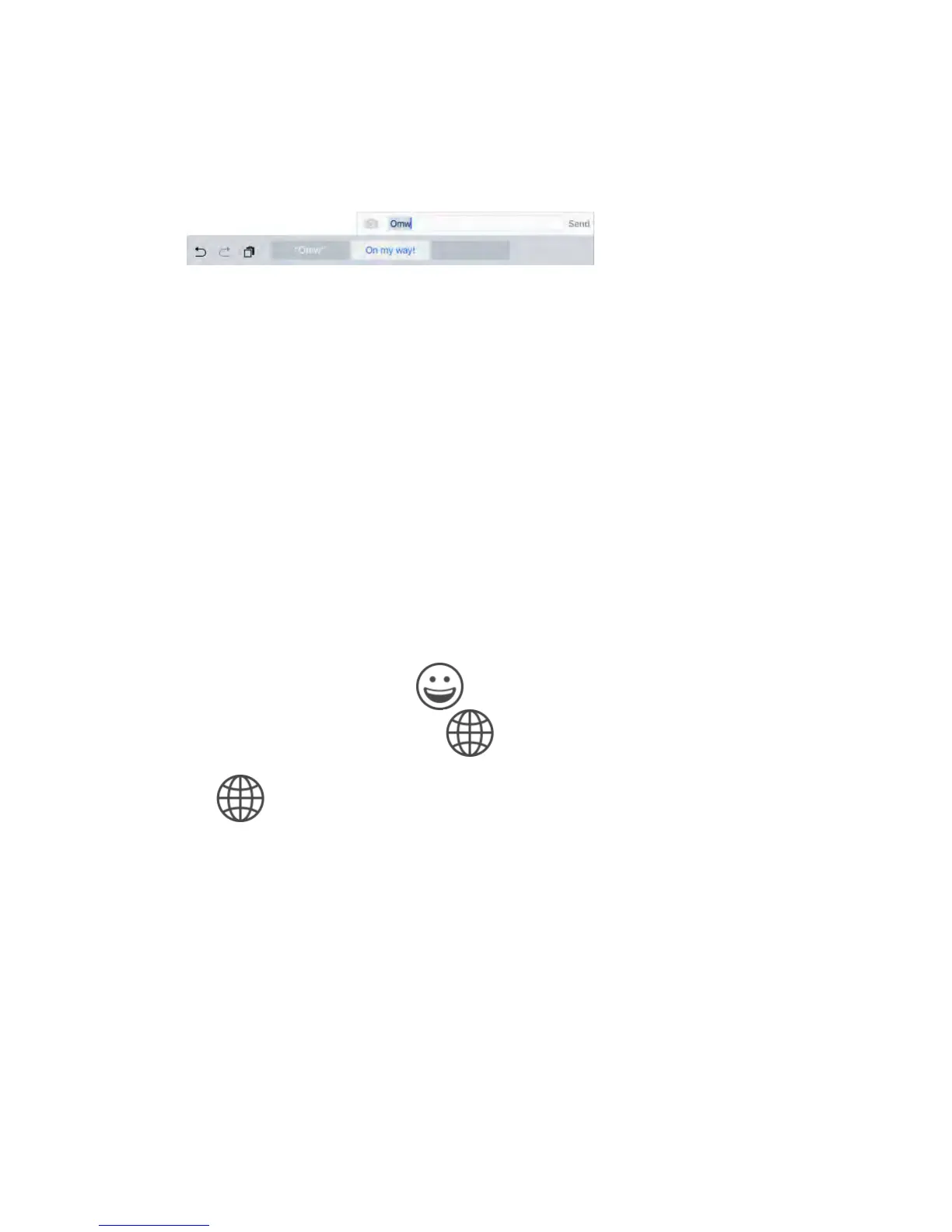
A shortcut lets you enter a word or phrase by typing just a few characters. For
example, type “omw” to enter “On my way!” That one’s already set up for you,
but you can also add your own.
Create a shortcut.
Go to Settings > General > Keyboard, then tap Text Replacement.
Have a word or phrase you use and don’t want it corrected?
Create a shortcut, but leave the Shortcut field blank.
Use iCloud to keep your personal dictionary up to date on your other
devices.
Go to Settings > iCloud, then turn on iCloud Drive or Documents & Data.
Add or change keyboards
You can turn typing features, such as spell checking, on or off; add keyboards
for writing in different languages; and change the layout of your onscreen
keyboard or Apple Wireless Keyboard.
Set typing features.
Go to Settings > General > Keyboard.
Add a keyboard for another language.
Go to Settings > General > Keyboard > Keyboards > Add New Keyboard.
Switch keyboards.
If you haven’t added any keyboards, tap to switch to the Emoji
keyboard. If you have multiple keyboards, tap to switch to the last one
you used. Continue tapping to access other enabled keyboards, or touch and
hold , then slide to choose a different keyboard.
For information about international keyboards, see Use international keyboards
(on page) .
Change the keyboard layout.
Go to Settings > General > Keyboard > Keyboards, select a keyboard, then
choose a layout.
Keyboard layouts
On iPad, you can type with a split keyboard that’s at the bottom of the screen,
or undocked and in the middle of the screen.



 To Next Page