Browse the web
Look before you leap.
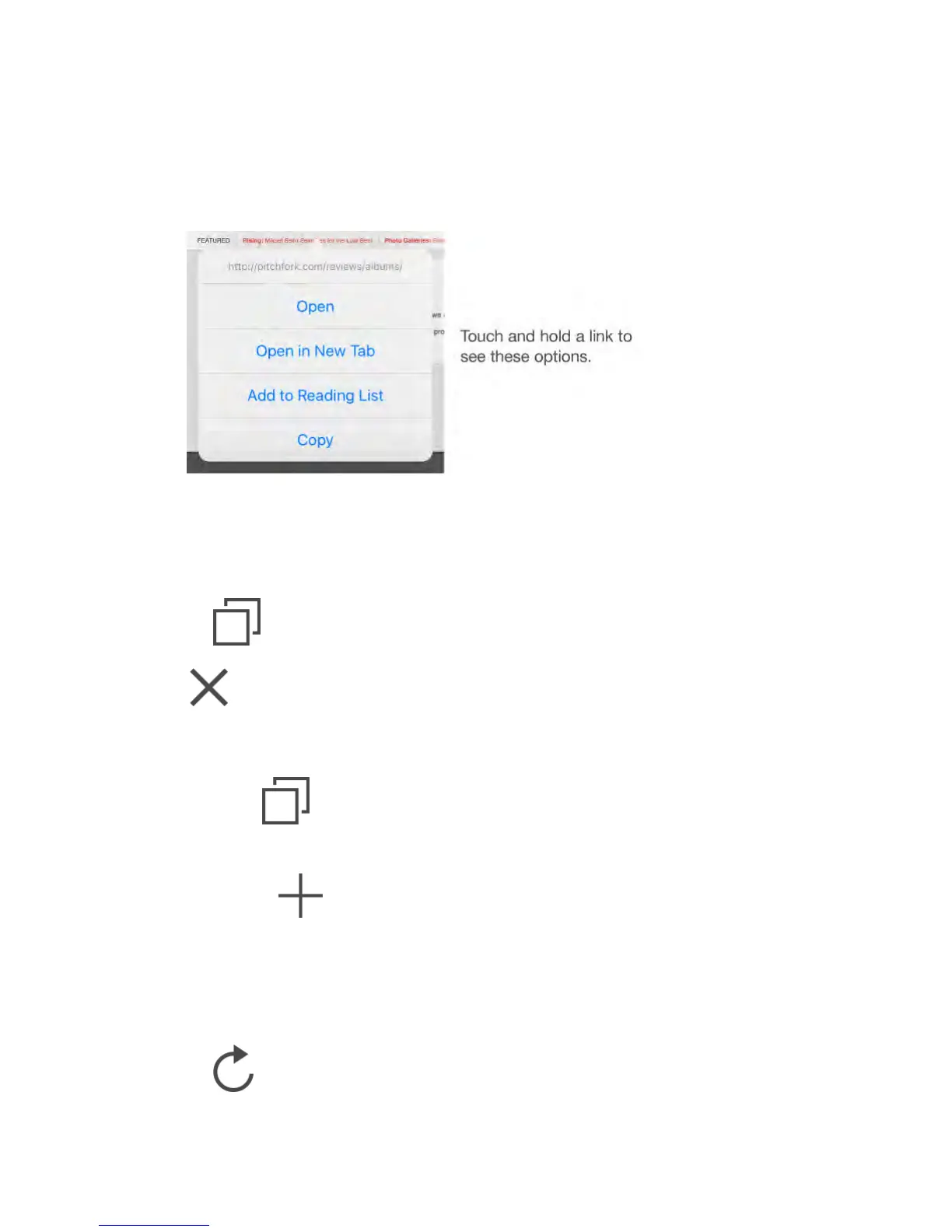
To see the URL of a link before you go there, touch and hold the link.
Open a link in a new tab.
Touch and hold the link, then tap Open in New Tab. If you’d like to switch to a
new tab when you open it, go to Settings > Safari, then turn off Open New Tabs
in Background.
Browse open tabs.
Tap , or pinch with three fingers to view all your open tabs. If you have
several open tabs, tabs for the same site are stacked. To close a tab, tap
in the upper-left corner, or swipe the tab to the left. To return to a single
tab, tap a tab, tap Done, or spread three fingers.
View tabs open on your other devices.
If you turn on Safari in Settings > iCloud, you can view open tabs on your other
devices. Tap , then scroll to the lists at the bottom of the page. To
close the tab on another device, swipe left, then tap Delete.
View recently closed tabs.
Touch and hold .
Get back to the top.
Tap the top edge of the screen to quickly return to the top of a long page.
See more.
Turn iPad to landscape orientation.
See the latest.
Tap next to the address in the search field to update the page.



 To Next Page