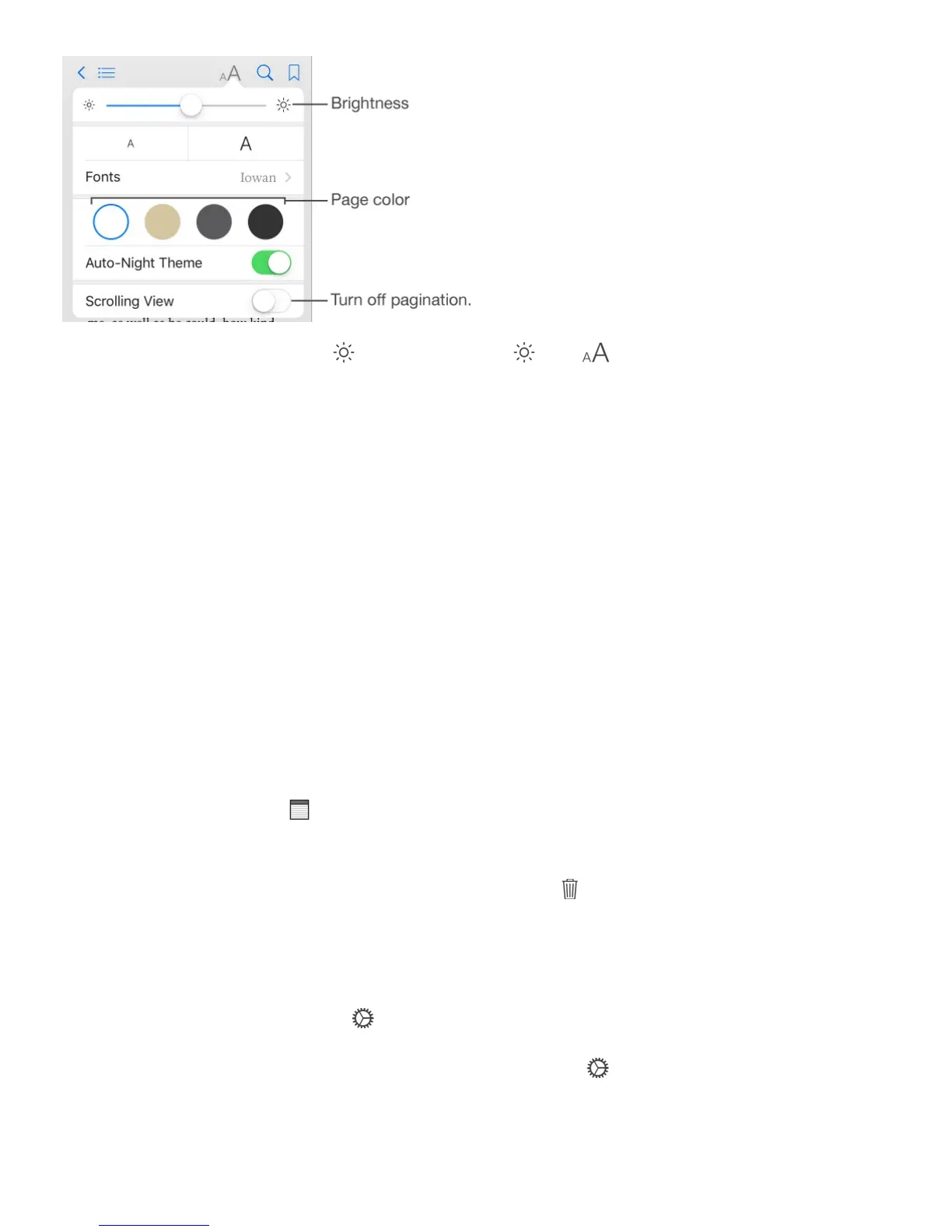
Change the brightness. Tap . If you don’t see , tap first.
Dim the screen when it’s dark. Turn on Auto-Night Theme to automatically change the
bookshelf, page color, and brightness when using iBooks in low-light conditions. (Not all
books support Auto-Night Theme.)
Interact with multimedia
Some books have interactive elements, such as movies, diagrams, presentations, galleries,
and 3D objects. To interact with a multimedia object, tap, swipe, or pinch it. To view an
element full-screen, pinch open with two fingers. When you finish, pinch it closed.
Study notes and glossary terms
In books that support it, you can review all of your highlights and notes as study cards.
See all your notes. Tap . You can search your notes, or tap a chapter to see notes you
made in that chapter.
Delete notes. Tap Select, select some notes, then tap .
Review your notes as study cards. Tap Study Cards. Swipe to move between cards. Tap
Flip Card to see its back.
Shuffle your study cards. Tap , then turn on Shuffle.
Study glossary terms. If a book includes a glossary, tap to include those words in your
study cards.
Listen to an audiobook



 To Next Page