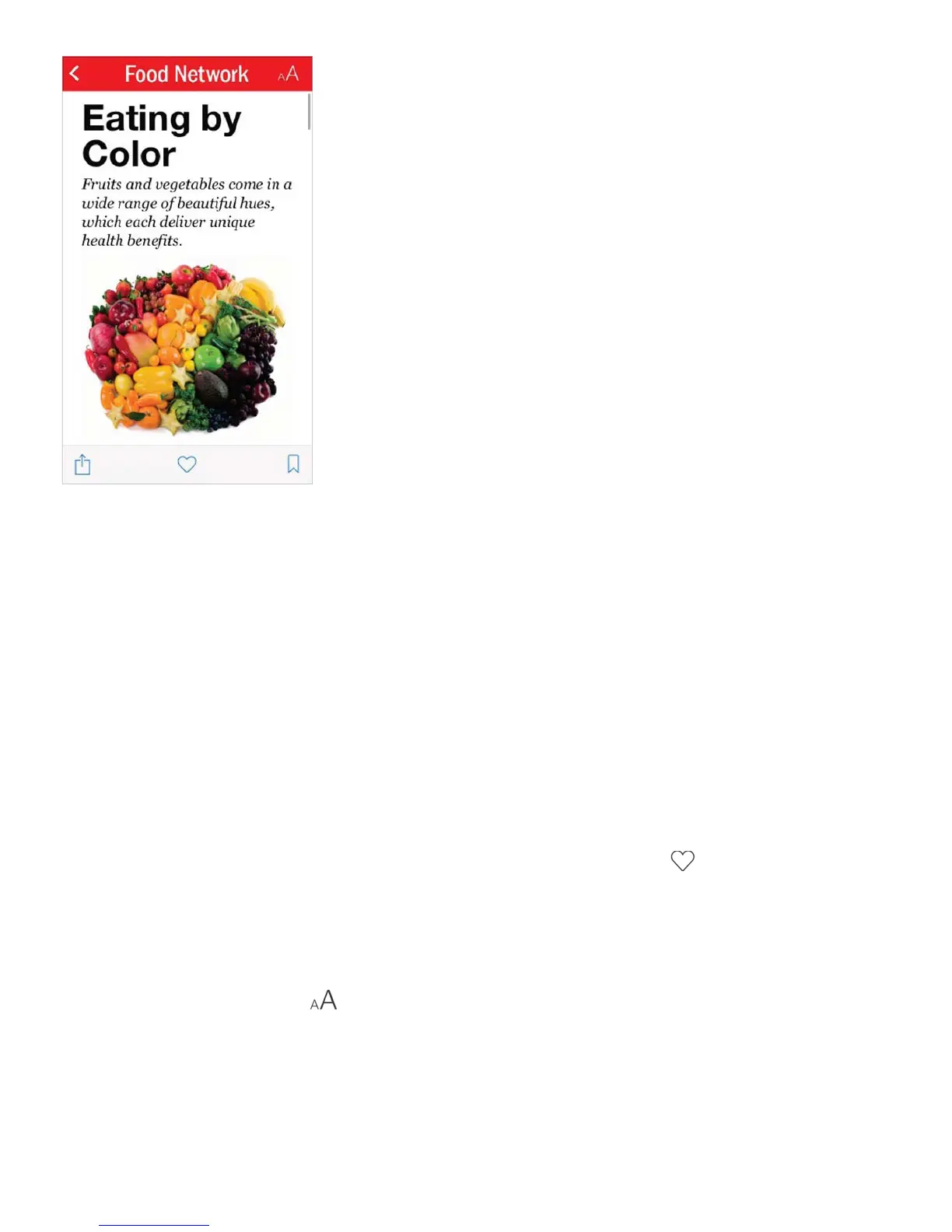
Peek at stories with a press. On iPhone 6s and iPhone 6s Plus, press a story to take a
peek at it. Swipe up to see options such as Like, Save, Share, and Mute Channel. Press
deeper to pop open the story.
Read a story. Tap a story to read it. Web stories delivered through an RSS feed show a
preview. To view an RSS story in full, swipe up. To always view the full story, go to Settings
> News, then turn off Show Story Previews.
Get a broader view. Turn iPhone to landscape orientation.
Read the next story. Swipe left to read the next story, swipe right to read the previous
story. Swipe from the left edge to return to the story feed.
Tell News what you do and don’t like. When viewing a story, tap to like the story; tap
it again to dislike the story. Tap it once more to return to a neutral setting, where you neither
like nor dislike the story. News takes your feedback into account for future
recommendations.
Change the text size. Tap , then tap the smaller or larger letter to change the size.
Note: This option is available only for stories in Apple News Format (not RSS stories). When
you resize text, all Apple News Format stories in the channel use the new text size. The
new text size is also applied to the channel’s Apple News Format stories on iOS devices
where you’re signed in to iCloud using the same Apple ID, and News is turned on for iCloud.



 To Next Page