Chapter 1 iPhone at a Glance 11
Press and hold the Sleep/Wake button until the slider appears, then drag
the slider.
For additional security, you can require a passcode to unlock iPhone. Go to Settings > Touch ID
& Passcode (iPhone models with Touch ID) or Settings > Passcode (other models). See Use a
passcode with data protection on page 43.
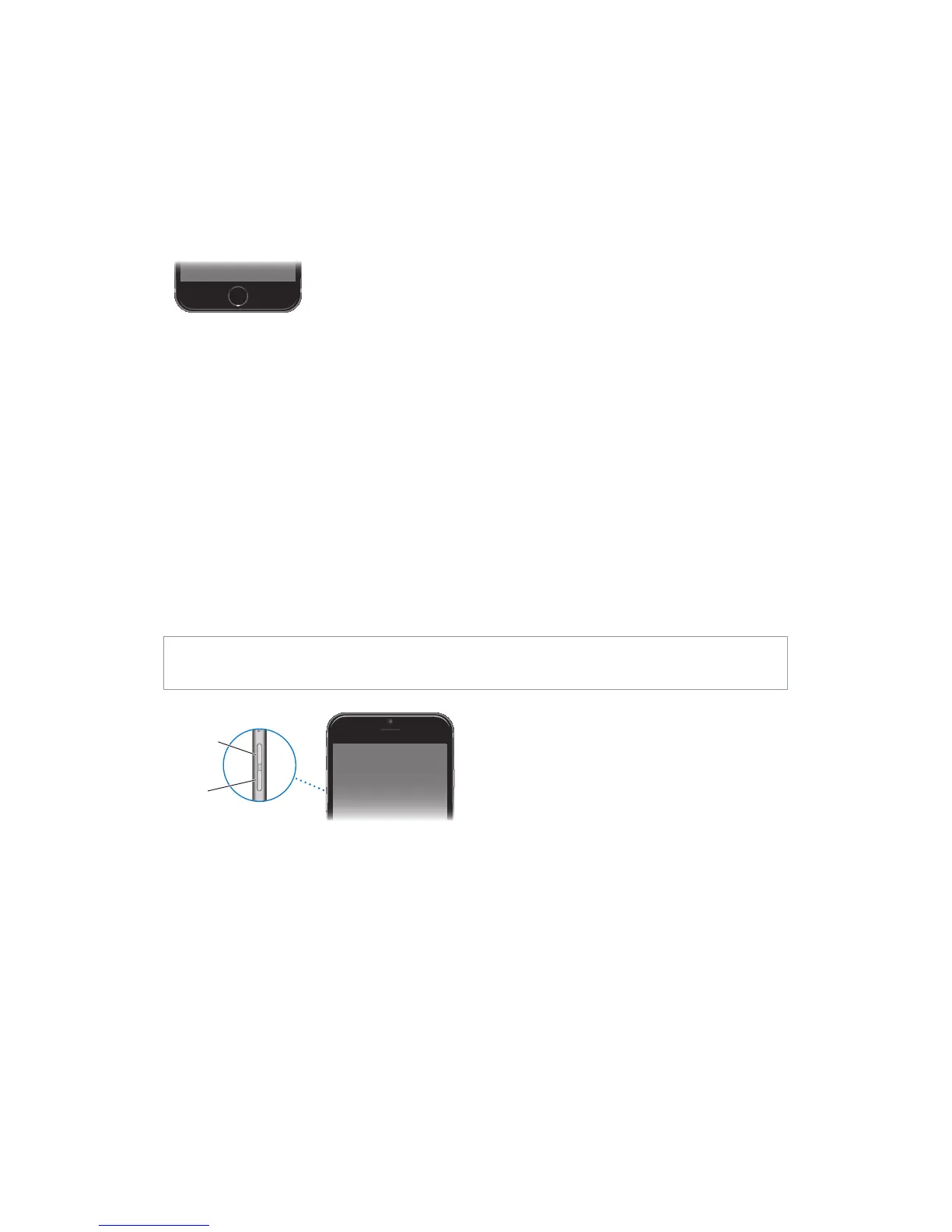
Home button
The Home button takes you to the Home screen, and provides other convenient shortcuts.
See apps you’ve opened. Double-click the Home button. See Start at home on page 22.
Use Siri (iPhone 4s or later) or Voice Control. Press and hold the Home button. See Voice
Control on page 32 and Chapter 4, Siri, on page 47.
On iPhone models with Touch ID, you can use the sensor in the Home button to read your
purchases in the iTunes Store, App Store, and iBooks Store. See Touch ID sensor on page 44.
Accessibility
Shortcut on page 13 9.
Volume controls
When you’re on the phone or listening to songs, movies, or other media, the buttons on the side
of iPhone adjust the audio volume. Otherwise, the buttons control the volume for the ringer,
WARNING: For important information about avoiding hearing loss, see Important safety
information on page 168.
Volume
down
Lock the ringer and alert volumes.
To limit the volume for music and videos, go to Settings > Music > Volume Limit.
Note: In some European Union (EU) countries, iPhone may warn that you’re setting the volume
above the EU recommended level for hearing safety. To increase the volume beyond this level,
to this level, go to Settings > Music > Volume Limit and turn on EU Volume Limit. To prevent
changes to the volume limit, go to Settings > General > Restrictions.
You can also use either volume button to take a picture or record a video. See Take photos and
videos on page 89.



 To Next Page