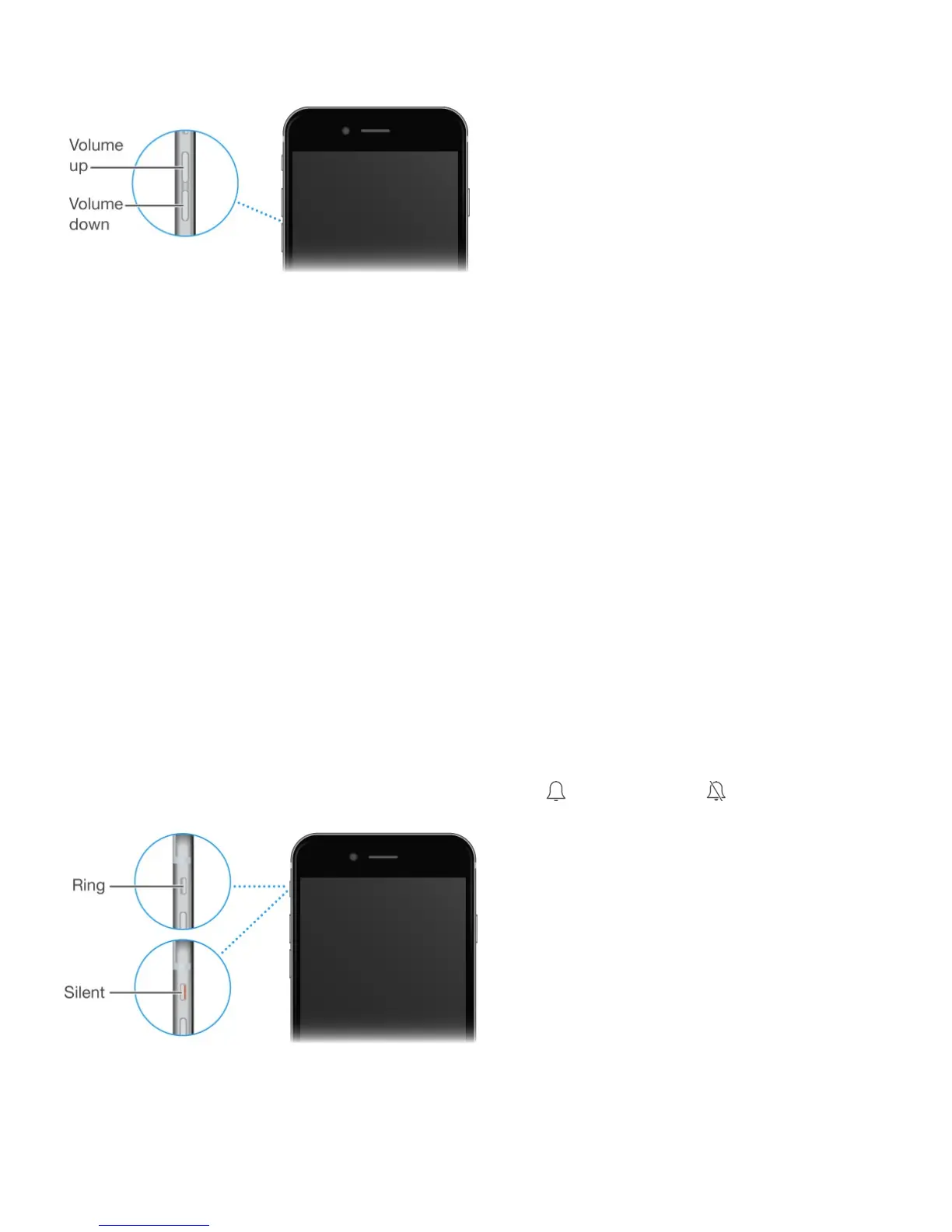
.
Lock the ringer and alert volumes. Go to Settings > Sounds, then turn off Change with
Buttons. To limit the volume for music and videos, go to Settings > Music > Volume Limit.
Note: In some European Union (EU) countries, iPhone may warn that you’re setting the
volume above the EU recommended level for hearing safety. To increase the volume
beyond this level, you may need to briefly release the volume control. To limit the maximum
headset volume to this level, go to Settings > Music > Volume Limit, then turn on EU
Volume Limit. To prevent changes to the volume limit, go to Settings > General >
Restrictions.
Use Control Center to adjust the volume. When iPhone is locked or when you’re using
another app, swipe up from the bottom edge of the screen to open Control Center.
You can also use either volume button to take a picture or record a video. See
.
Ring/Silent switch
Flip the Ring/Silent switch to put iPhone in ring mode or silent mode .
In ring mode, iPhone plays all sounds. In silent mode, iPhone doesn’t ring or play alerts and
other sound effects (but iPhone may still vibrate).
Important: Clock alarms, audio apps such as Music, and many games play sounds through
information
Take photos
and videos



 To Next Page