Chapter 2 Lesson 2: Transferring Music to iPod mini 17
• If you have a Windows PC that doesn’t have any FireWire or USB 2.0 ports, here are other
ways you can connect iPod mini:
• Purchase a FireWire card or USB 2.0 card and install it. For more information about
compatible FireWire and USB 2.0 cards, go to www.apple.com/ipod.
• Or, if your computer has a 4-pin FireWire port, you can use an optional
6-pin-to-4-pin FireWire adapter. You can’t charge iPod mini through your computer
using a 4-pin FireWire port. You must use the iPod Power Adapter.
2 Connect the appropriate cable to a FireWire or USB 2.0 port on your computer.
Note: Be sure to connect iPod mini to a USB 2.0 port directly on your computer, or to
a powered USB 2.0 hub that’s connected to your computer. iPod mini won’t charge if
it’s connected to a low-power USB 2.0 port, such as those sometimes found on
keyboards or other peripherals.
Note: If you’re using a laptop or portable computer with a high-power USB 2.0 port,
connect the laptop to a power outlet before connecting iPod mini for best results.
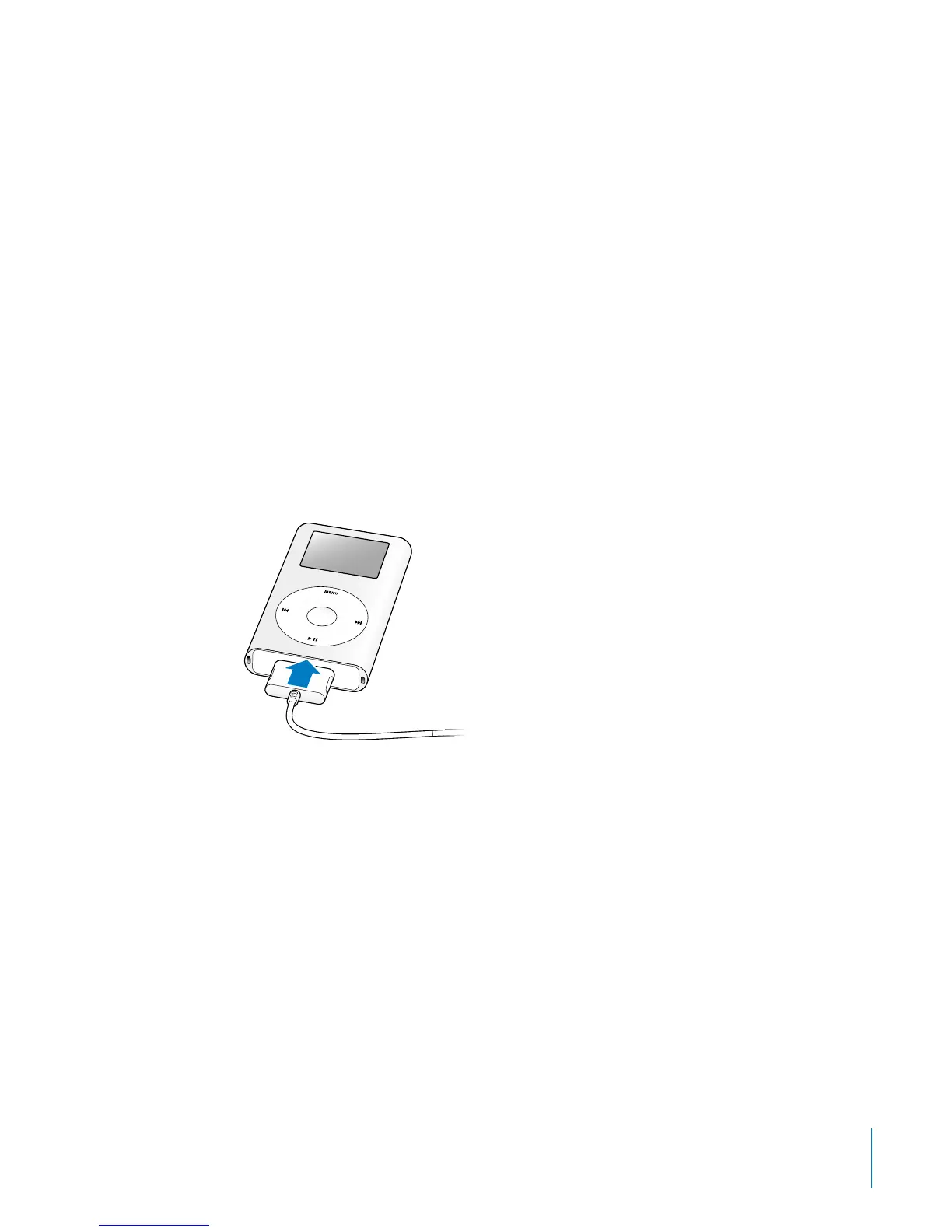
3 Connect the other end of the cable to iPod mini. Be sure to orient the cable correctly.
It only goes in one way.
4 iTunes may be set to open automatically when you connect iPod mini. If not, open it.
You’ll see the iPod mini icon show up in the iTunes Source list. If iTunes is set to update
your iPod mini automatically, the update begins.



 To Next Page