Setting Up iPod nano
Before you can use iPod nano, you must set it up in iTunes. During setup, you can
create an iTunes Store account or specify an existing account. (The iTunes Store may
not be available in all countries or regions.) iTunes also displays and records the serial
number of your iPod nano when it’s connected, in case you need it.
To set up iPod nano:
1 Download and install the latest version of iTunes from www.itunes.com/download.
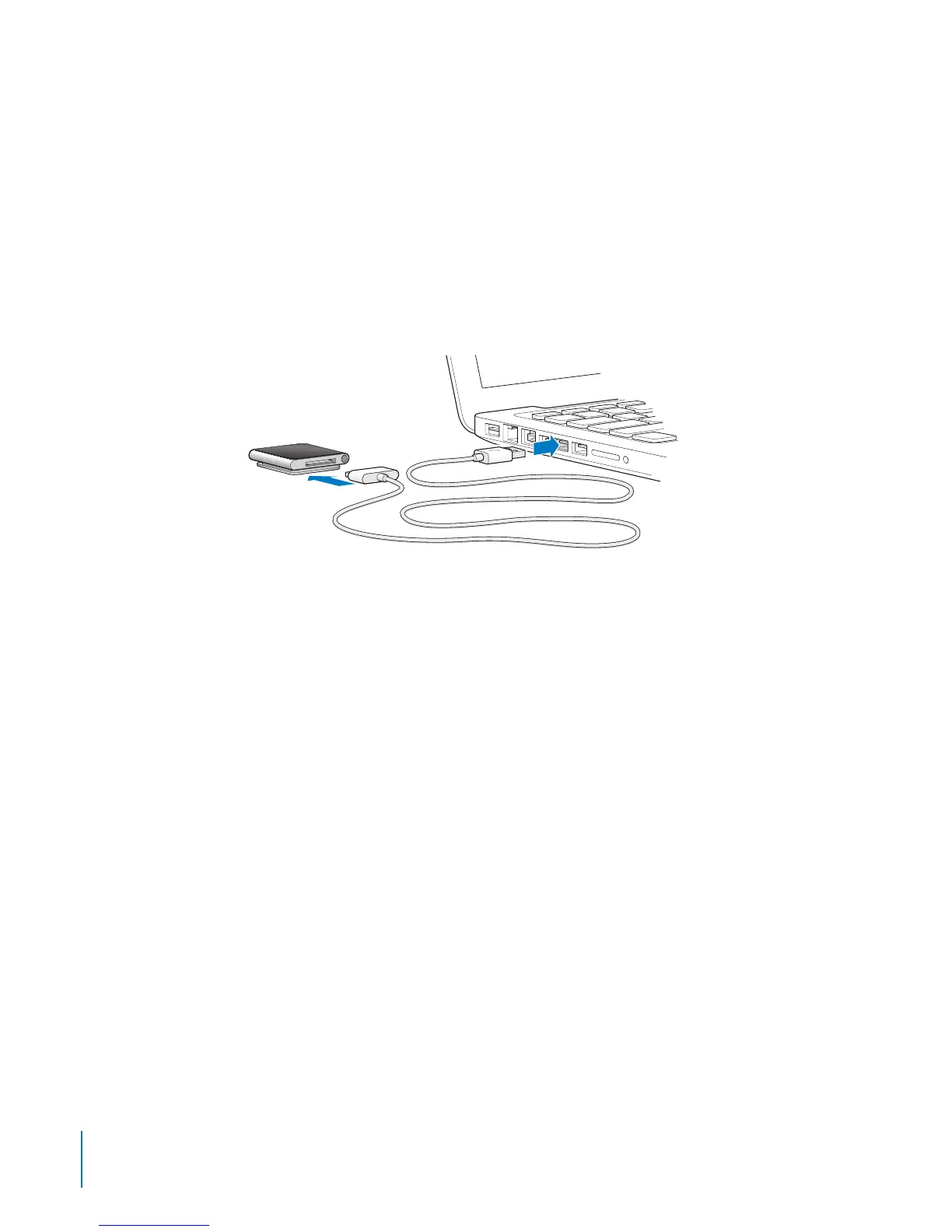
2 Connect iPod nano to a high-power USB 2.0 port on your Mac or PC, using the cable
that came with iPod nano.
3 Follow the onscreen instructions in iTunes to register iPod nano and sync iPod nano
with songs from your iTunes library.
If you need help using the iPod nano Setup Assistant, see “To set up iTunes syncing the
rst time:” on page 20.
When iPod nano is syncing with your computer, iPod nano shows “Sync in Progress.”
When syncing is complete, iTunes shows “iPod sync is complete.” For information
about syncing, see Chapter 4, “Syncing with iTunes,” on page 20.
4 Leave iPod nano connected to your computer for up to three hours, to fully charge
the battery.
You can disconnect iPod nano before the battery is fully charged, and you can sync
while the battery charges. For more information, see “About the Battery” on page 15.
5 Disconnect the cable from iPod nano when you’re ready to use it.
Don’t disconnect iPod nano if you see the “Connected” or “Synchronizing” message. To
avoid damaging les on iPod nano, you must eject iPod nano before disconnecting
when you see these messages.
For more information about safely disconnecting iPod nano, see “Disconnecting iPod
nano from Your Computer” on page 15.
10
Chapter 2 Getting Started



 To Next Page