Getting Information About iPod nano
You can get these details about your iPod nano in Settings:
Capacity and amount of space available
•
Number of songs and photos
•
Serial number, model, and software version
•
Copyright and legal information
•
To get information about iPod nano:
On the Home screen, tap Settings, and then tap About. B
Connecting and Disconnecting iPod nano
You connect iPod nano to your computer to sync les and charge the iPod nano
battery. You can sync songs and charge the battery at the same time.
Important: The battery doesn’t charge while your computer is in sleep or standby mode.
Connecting iPod nano to Your Computer
iTunes syncs songs on iPod nano automatically when you connect it to your computer,
unless you select other sync settings in iTunes.
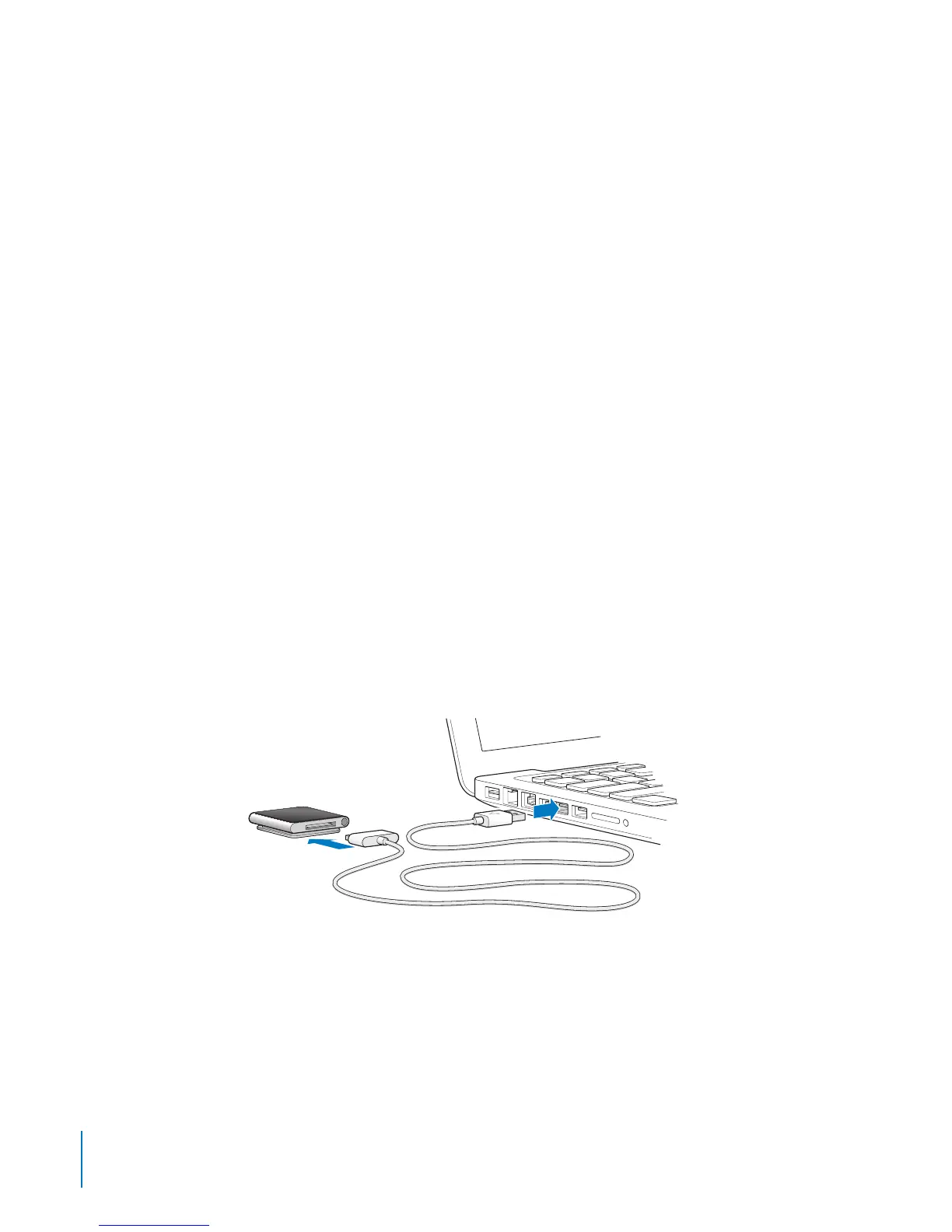
To connect iPod nano to your computer:
Connect the included Apple Dock Connector to USB Cable to a high-power USB 2.0 B
port on your computer. Connect the other end to iPod nano.
If you have an iPod dock, you can connect the cable to a USB 2.0 port on your
computer, connect the other end to the dock, and then put iPod nano in the dock.
Note: The USB port on most keyboards doesn’t provide enough power to charge
iPod nano. Connect iPod nano to a USB 2.0 port on your computer.
14
Chapter 3 Basics



 To Next Page