Setting Date and Time
The date and time are set automatically from your computer’s clock when you connect
iPod nano, but you can change the settings.
To set the date and time:
1 On the Home screen, tap Settings, and then tap General.
2 Tap Date & Time, and then tap Date (or Time).
3 Scroll the wheels until the correct month, day, and year (or hour, minute, and time of
day) are lined up across the center.
4 Tap Done.
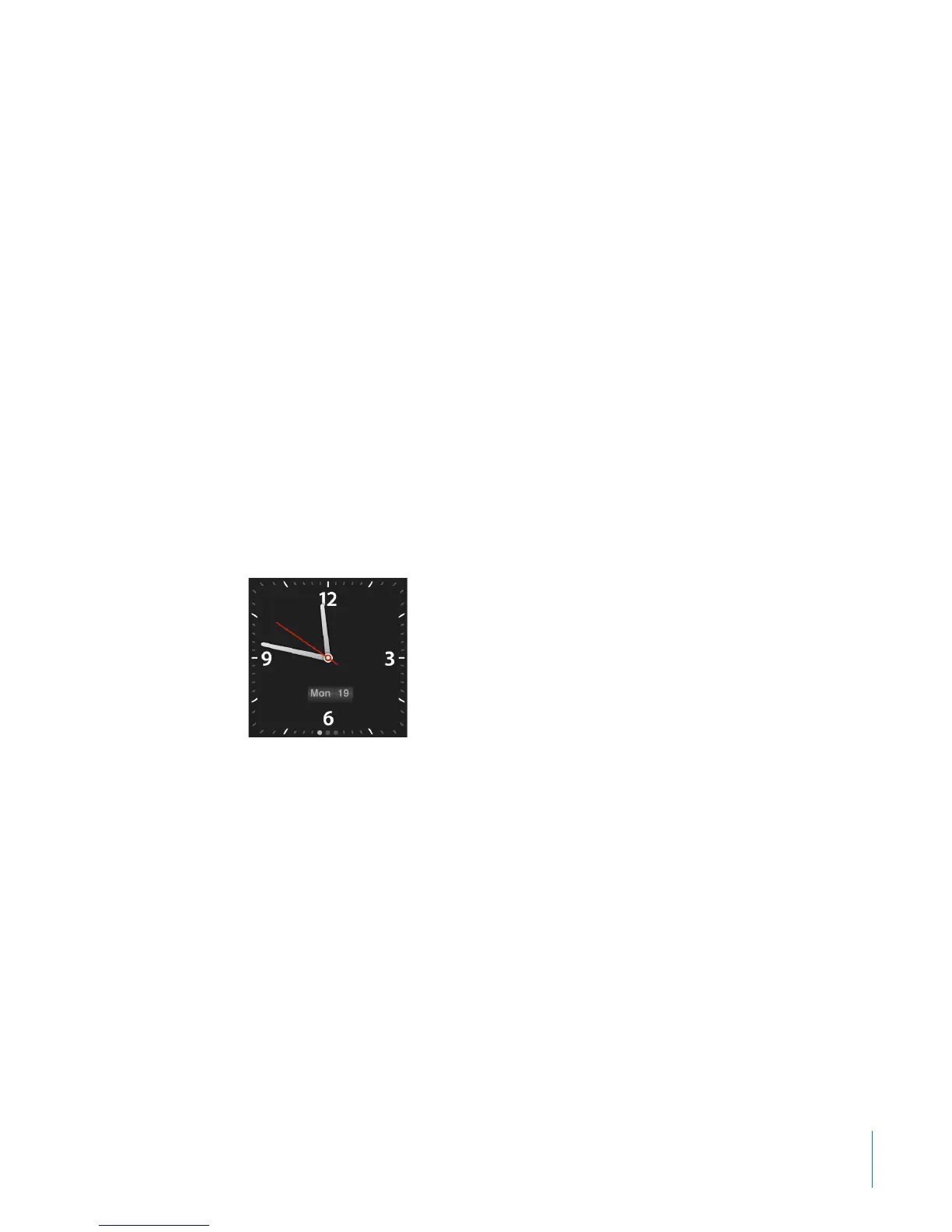
You can set iPod nano to show a clock when you wake iPod nano from sleep, so you
can quickly check the time.
To show the clock on waking:
1 On the Home screen, tap Settings, and then tap General.
2 Tap Date & Time.
3 Tap the On/O switch next to Time On Wake to turn it on.
4 Tap Clock Face, and then tap White or Black to set whether the clock is white or black.
To use the 24-hour clock:
1 On the Home screen, tap Settings, then tap General.
2 Tap Date & Time.
3 Tap the On/O switch next to 24 Hour Clock to turn it on.
Resetting All Settings
You can reset all the settings to their default without aecting your synced content.
To reset all settings:
1 From the Home screen, tap Settings.
2 Flick up, then tap Reset Settings.
3 Tap Reset, or tap Cancel if you change your mind.
4 Tap your language, and then tap Done.
19
Chapter 3 Basics



 To Next Page