Playing Podcasts, Audiobooks, and iTunes U Collections
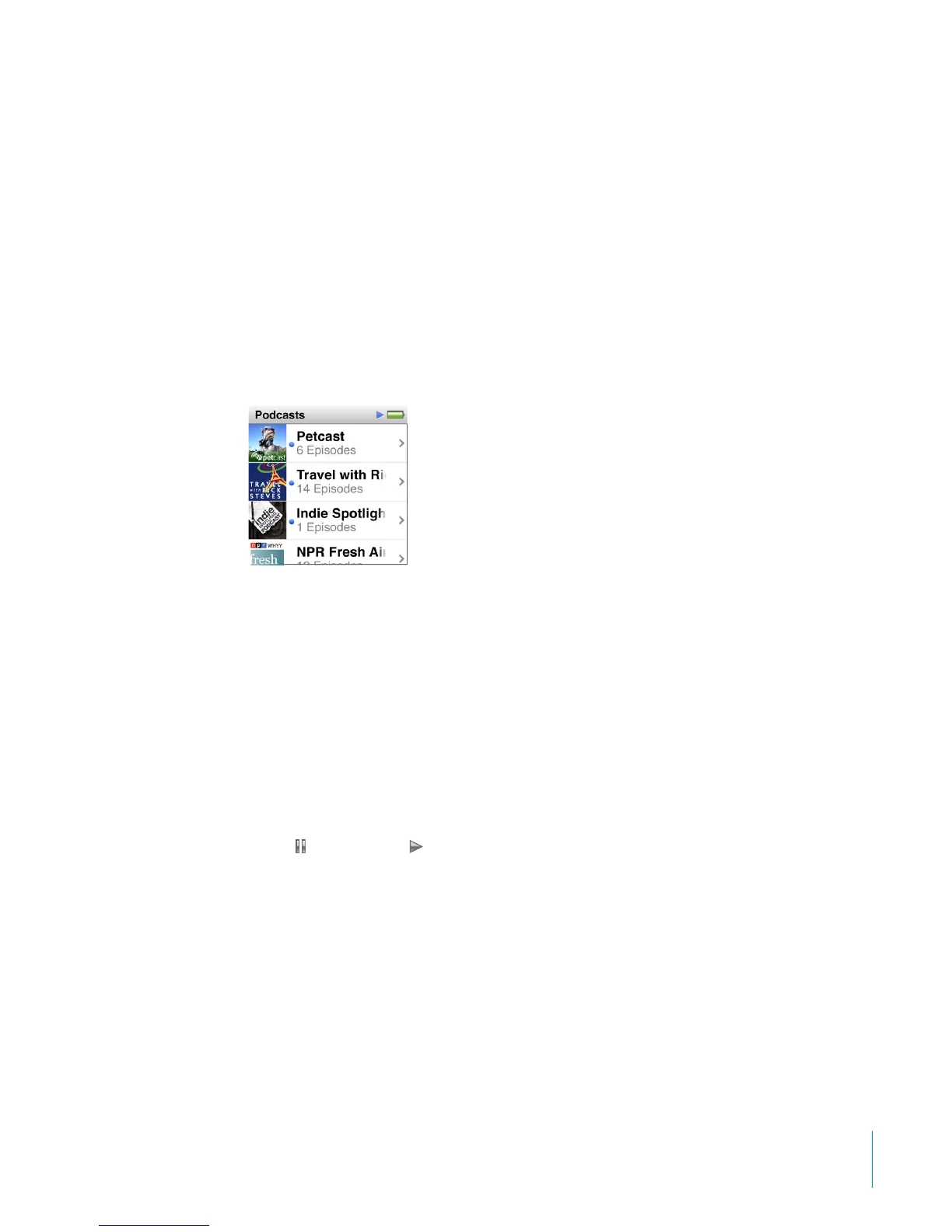
Podcasts are free, downloadable shows available at the iTunes Store. Podcasts are
organized by shows, episodes within shows, and chapters within episodes. If you stop
playing a podcast and return to it later, the podcast begins playing where you left o.
iTunes U is a part of the iTunes Store featuring free lectures, language lessons, and
more, which you can download and enjoy on iPod nano. iTunes U content is organized
by collections, items within collections, authors, and providers. You only see an iTunes U
icon on the Home screen if you synced iTunes U content from your iTunes Library.
Podcast shows and iTunes U collections appear in alphabetical order. Episodes appear
in reverse chronological order, so you can play the most recent one rst. A blue dot
marks unplayed shows and episodes.
You can purchase and download audiobooks from the iTunes Store and listen to them
on iPod nano. When you listen to audiobooks purchased from the iTunes Store or
audible.com, you can adjust the playback speed to be faster or slower than normal.
To play podcasts, audiobooks, and iTunes U Collections:
1 On the Home screen, tap Podcasts (or iTunes U or Audiobooks), and then tap a show
or title.
2 Tap an episode or chapter to play it.
The Now Playing screen displays the podcast or iTunes U artwork (if any is available).
3 Tap the Now Playing screen to see playback controls.
Tap
•
to pause, and to resume.
The podcast, audiobook, or iTunes U collection begins playing where you left o. For
audiobooks, you can also tap Resume in the chapter list.
29
Chapter 5 Music and Other Audio



 To Next Page