Creating Playlists on iPod nano
You can create your own playlists of songs, podcasts, and audiobooks; or use Genius to
create Genius playlists, even when iPod nano isn’t connected to your computer.
Playlists you create on iPod nano are synced back to iTunes the next time you connect.
Creating and Editing Playlists
To create a playlist:
1 On the Home screen, tap Playlists.
2 Flick down, and then tap Add.
3 Tap a category (Songs, Albums, Podcasts, and so on), and then tap the items you want
to add.
Don’t tap Done until you’ve added everything you want to include in the playlist.
4 Swipe left to continue adding content.
You can add content from any category. For example, you can mix podcasts with songs
in a single playlist.
5 When you nish, tap Done.
The new playlist is named New Playlist 1 (or New Playlist 2, and so on). The next time
you sync, you can change the title in iTunes. When you sync again, the playlist title on
iPod nano is updated.
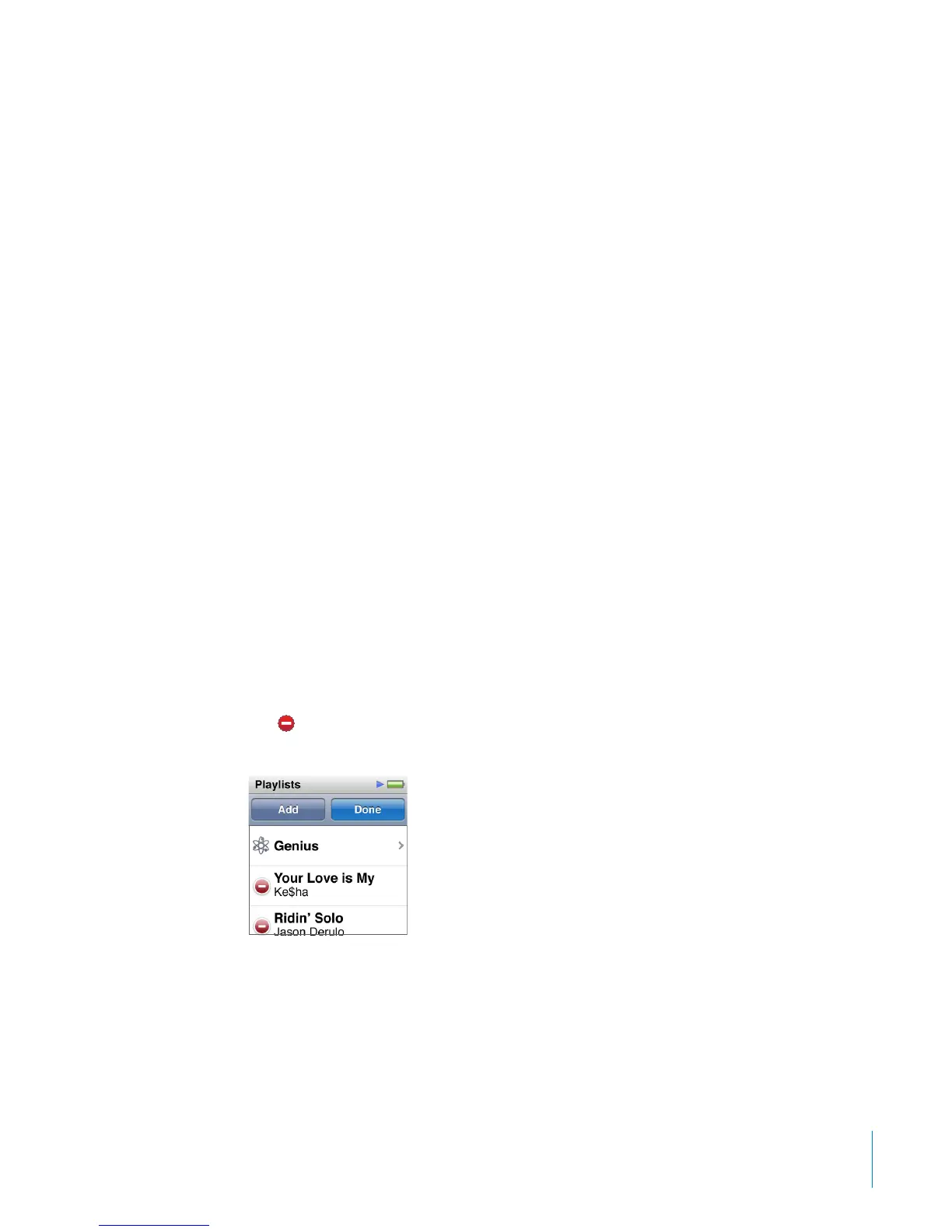
To remove items from a playlist:
1 Tap Playlists, and then tap the playlist you want to edit.
2 Flick down, and then tap Edit.
3 Tap
next to the item you want to delete, and then tap Delete when it appears next
to the item.
4 When you nish, tap Done.
33
Chapter 5 Music and Other Audio



 To Next Page