To delete a playlist:
1 Tap Playlists.
2 Flick down and tap Edit.
3 Tap
next to the playlist you want to delete, and then tap Delete when it appears
next to the playlist.
If you tapped the wrong playlist, tap the one you want to delete.
4 Tap Delete, or tap Cancel if you change your mind.
5 When you nish, tap Done (or swipe right to return to the Home screen if you cancel).
Rating Songs to Create Smart Playlists
You can assign a rating to a song (from zero to ve stars) to indicate how much you like
it. You can use song ratings to help you create Smart Playlists automatically in iTunes.
To rate a song:
1 Start playing the song.
2 On the Now Playing screen, tap the album artwork.
3 Tap the Info button in the lower-right corner.
4 Tap or drag over the ratings bullets at the top of the screen (
) to assign the
number of stars.
The ratings you assign to songs on iPod nano are transferred to iTunes when you sync.
Creating Genius Playlists
A Genius playlist is a collection of songs that go with a song you choose from your
library. You can create Genius playlists on iPod nano, and sync Genius playlists you
create with iTunes.
Genius is a free service, but you need an iTunes Store account to use it. To learn how to
set up Genius in iTunes, open iTunes and choose Help > iTunes Help.
To make a Genius playlist on iPod nano:
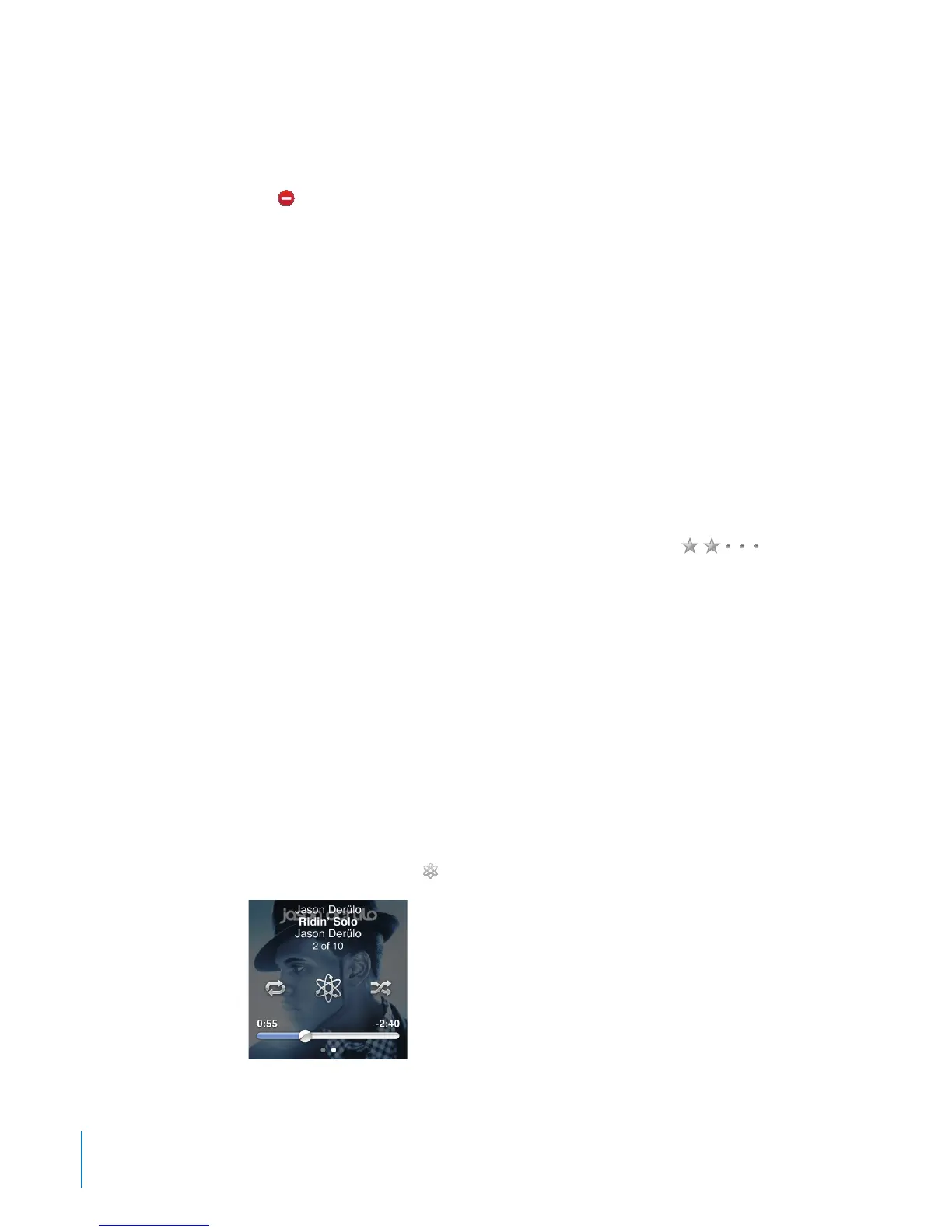
1 Play a song, and then tap the album artwork on the Now Playing screen.
2 Swipe left, and then tap
.
34
Chapter 5 Music and Other Audio



 To Next Page