Watching Slideshows on a TV Connected to iPod nano
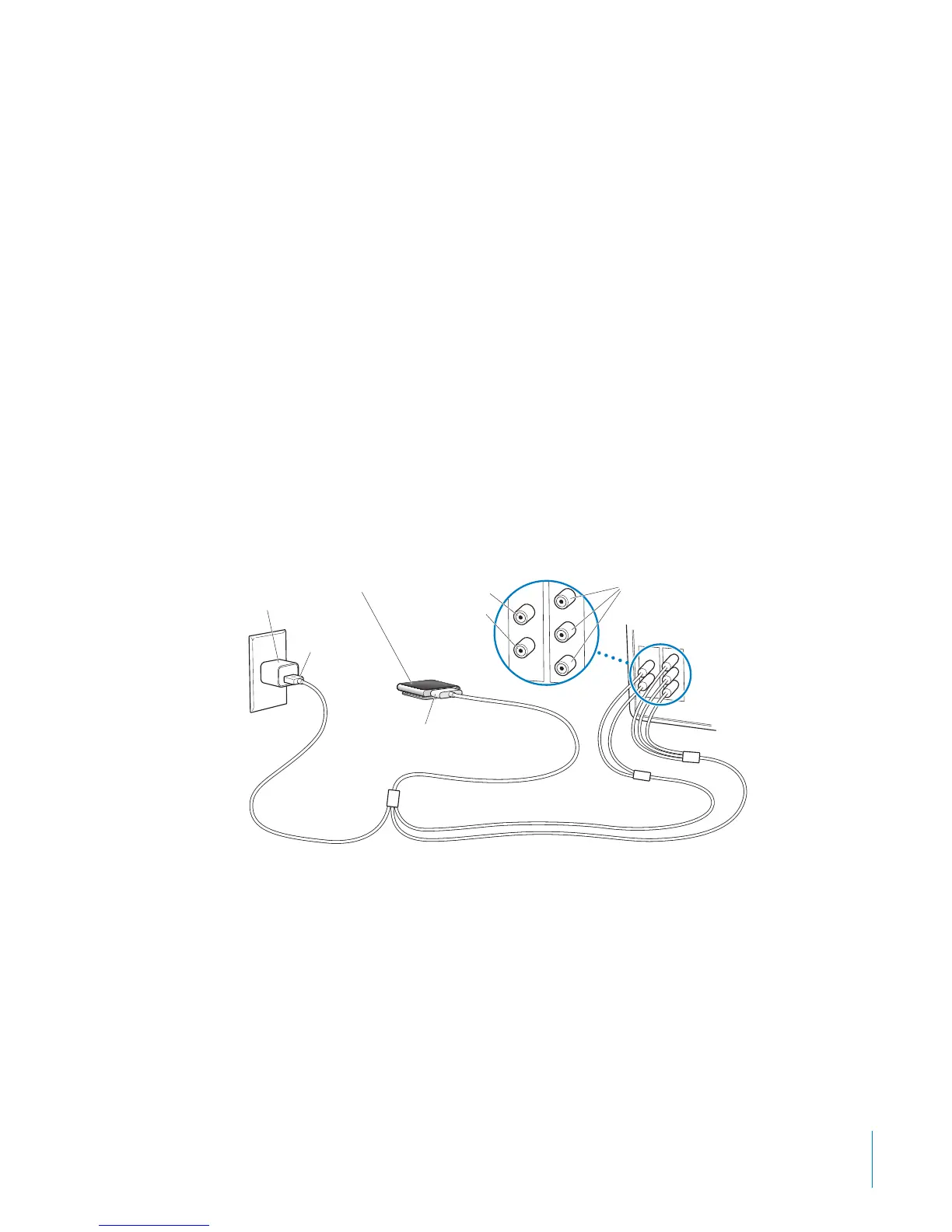
If you have an AV cable, you can connect iPod nano to your TV and view photo
slideshows.
Use the Apple Component AV Cable or the Apple Composite AV Cable. Other similar
RCA cables might not work. You can purchase these cables at your local Apple Store or
www.apple.com/ipodstore.
To connect iPod nano to your TV:
1 If you use the Apple Component AV Cable, plug the green, blue, and red video
connectors to the component video (Y, Pb, and Pr) input ports on your TV.
If you use the Apple Composite AV Cable, connect the yellow video connector to the
video input port on your TV. Your TV must have RCA video and audio ports.
2 Connect the white and red audio connectors to the left and right analog audio input
ports on your TV.
3 Connect the 30-pin connector to your iPod nano or Universal Dock.
4 Connect the USB connector to your Apple USB Power Adapter or your computer to
keep your iPod nano charged.
5 Turn on iPod nano and your TV to start playing.
USB Power
Adapter
Left audio (white)
Television
Video in (Y, Pb, Pr)
Right audio (red)
USB
connector
30-pin connector
iPod
If the TV uses a dierent broadcast standard than the region where you purchased
iPod nano, you may need to change the setting on iPod nano to match the TV.
To change the TV broadcast standard:
1 On the Home screen, tap Settings, and then tap Photos.
2 Tap TV Signal, and choose PAL or NTSC.
If you aren’t sure which one to use, check the documentation that came with the TV.
53
Chapter 8 Photos



 To Next Page