To add the business to your contacts list, tap “Add to Contacts” at the bottom of the
screen, then tap “Create New Contact” or “Add to Existing Contact.”
Share the location of the business by email.
See a list of the businesses found in the search: From the Map screen, tap List.
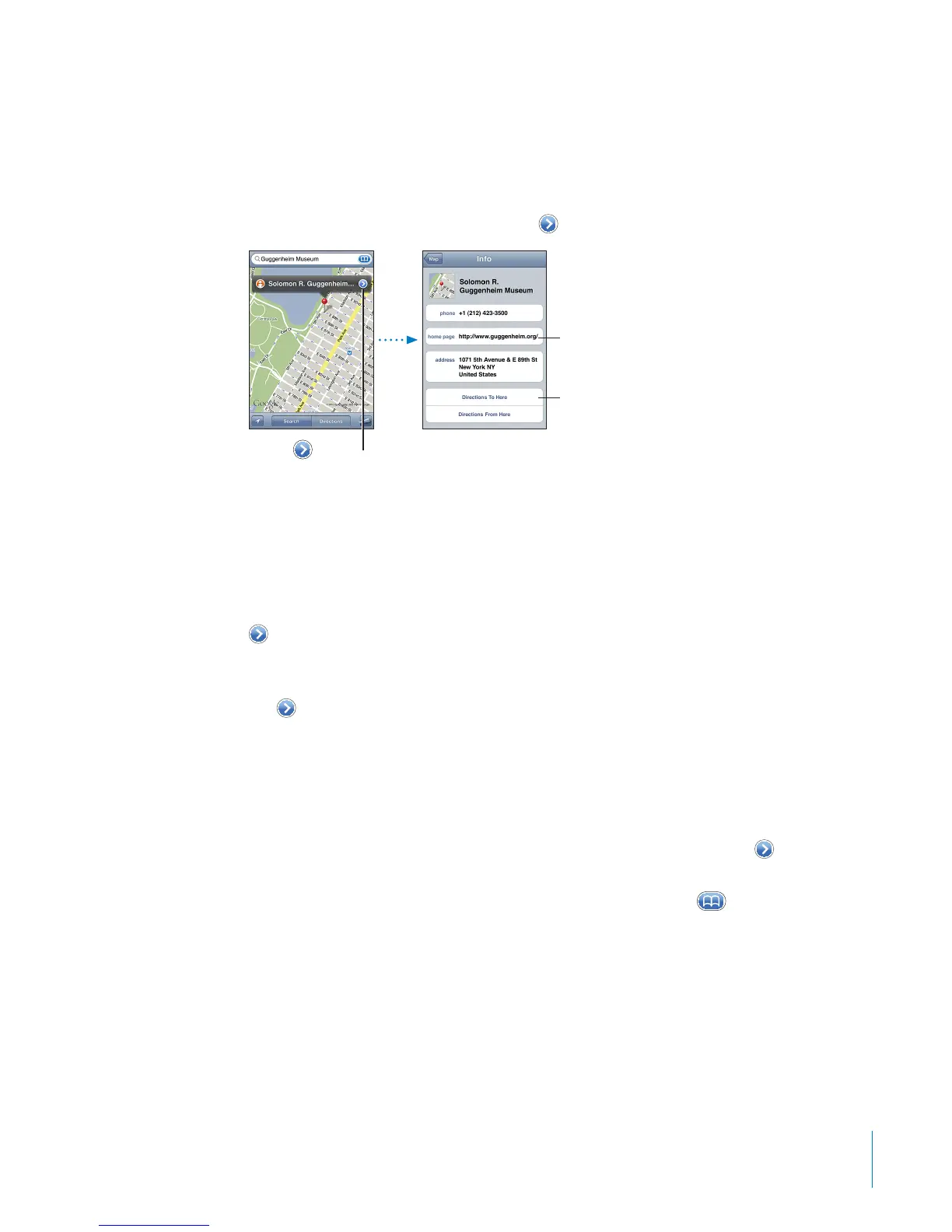
Tap a business to see its location. Or tap
next to a business to see its information.
Get
directions
Visit
website
Tap to show
contact info
Sharing Location Information
You can add a location you’ve found to your contacts list. You can also send links to a
Google Maps location using email.
Add a location to your contacts list: Find a location, tap the pin that points to it, tap
next to the name or description, then tap “Add to Contacts” at the bottom of the
screen and tap “Create New Contact” or “Add to Existing Contact.”
Email a link to a Google Maps location: Find a location, tap the pin that points to it,
tap
next to the name or description, then tap Share Location at the bottom of the
screen and tap Email.
Bookmarking Locations
You can bookmark locations that you want to nd again later.
Bookmark a location: Find a location, tap the pin that points to it, tap next to the
name or description, then tap “Add to Bookmarks” at the bottom of the Info screen.
See a bookmarked location or recently viewed location: Tap
in the search eld,
then tap Bookmarks or Recents.
12 5
Chapter 15 Maps



 To Next Page