MacBook Pro (13-inch) Symptom Charts — Input/Output Devices 98
2010-09-14
Built-in Keyboard Has Dim or No Keyboard Backlight
Unlikely cause: LCD, hard drive, optical drive
Quick Check
Symptom Quick Check
Built-in Keyboard Has Dim or No
Backlight
• In darkened room, keyboard
backlight does not come on or
is dim.
1. Make sure that the option “Illuminate keyboard
in low light condition” is checked in Keyboard
System Preferences.
2. Make sure that keyboard backlight is turned on
and brightness turned up.
3. Block the ambient light sensor to simulate
darkened room.
Deep Dive
Check Result Action Code
1. Make sure that the option
“Illuminate keyboard in low
light condition” is checked in
Keyboard System Preferences.
Then cover the ambient
light sensor, located to left of
camera. Did the display dim?
Yes Ambient light sensor is
working. Go to step 4.
No Go to step 2.
2. Cover the ambient light sensor
again. Did the keyboard
backlight work?
Yes Issue resolved.
No Go to step 3.
3. In the Apple System Proler,
can you see the AirPort and
Bluetooth cards?
Yes The light sensor connection
to logic board is likely good.
Replace display assembly.
L14
No Go to step 4.
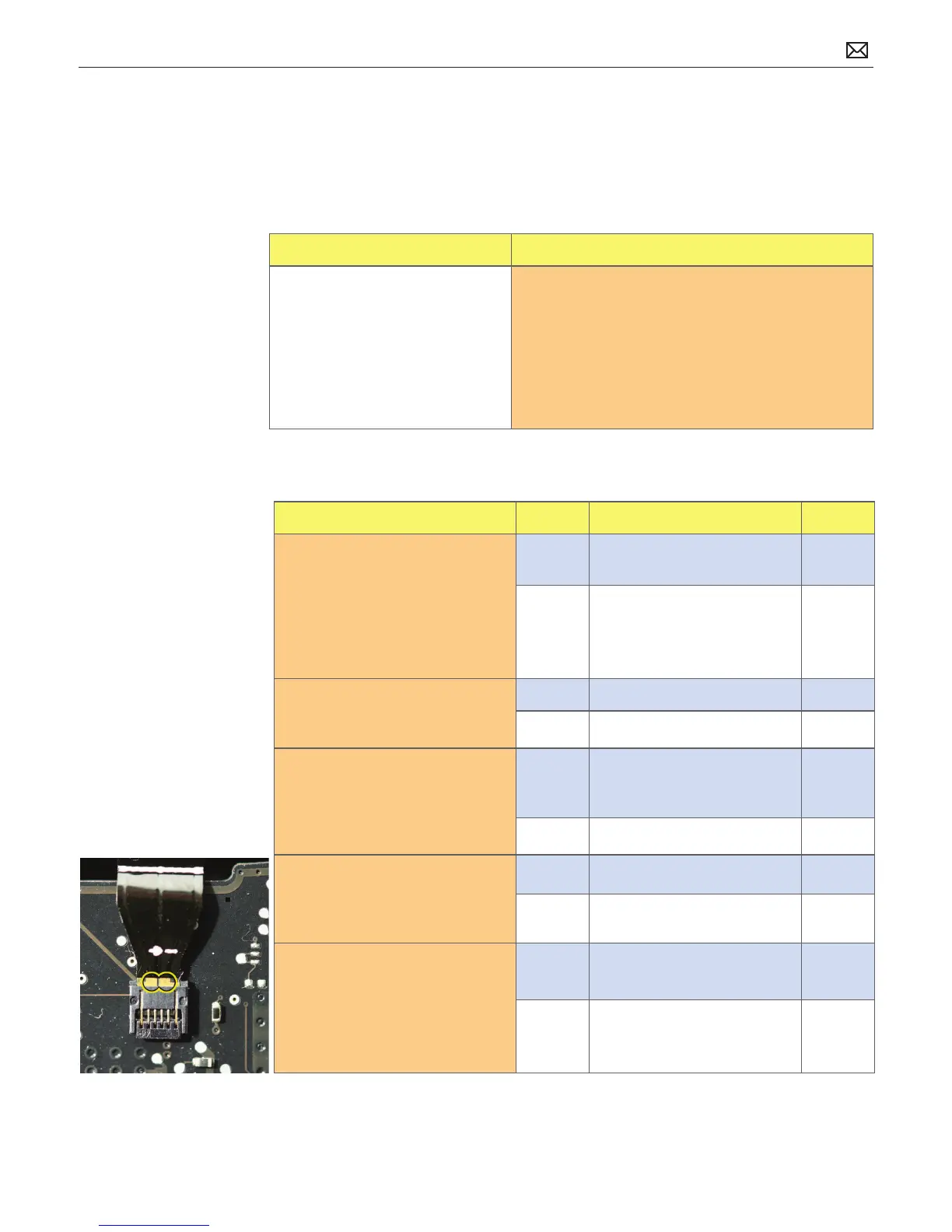
4. Reseat the keyboard backlight
connection to the logic board.
Does the keyboard backlight
work now?
Yes Issue resolved.
No Go to step 5
5. Measure the voltage between
pin 4 and pin 2 of the
keyboard backlight connector
J5815. Is there voltage present
with the running system in a
dark room?
Yes Replace top case. K10
No Replace logic board. M99



 To Next Page