073-1311 Rev. A 6
© 2009 Apple Inc. All rights reserved.
Replacement
Touch a metal surface inside battery bay to discharge static electricity.1
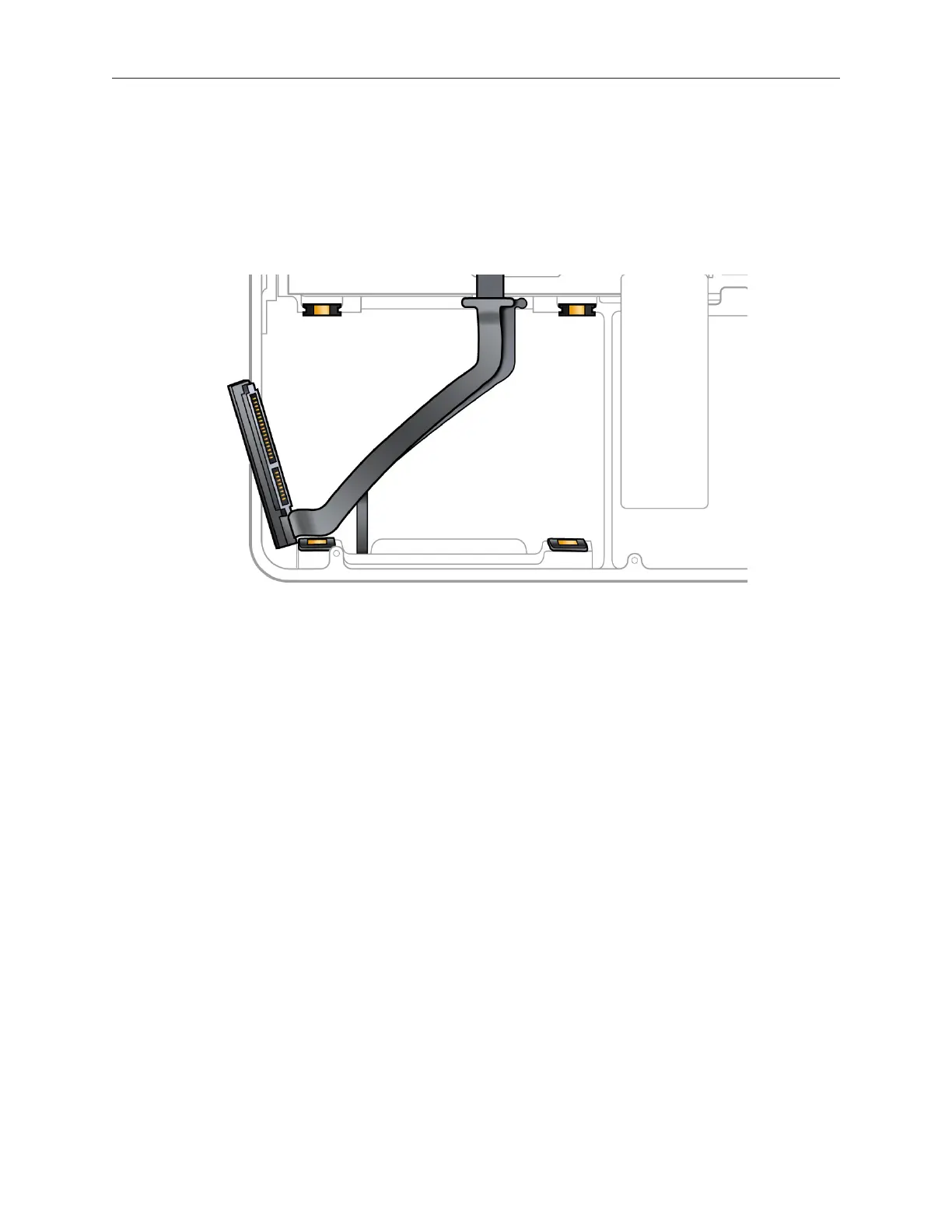
Make sure 4 rubber grommets are seated in top case before installing the hard drive. 2
Attach hard drive connector, and tilt hard drive into computer.3
Install hard drive bracket.4
Install bottom case.5
Reinstalling Software that Came with the Computer
Use the software install discs that came with your computer to reinstall Mac OS X and any
applications that came with the computer. Choose either “Archive and Install,” which saves the
existing les and settings, or “Erase and Install,” which erases all your data.
Important: Apple recommends backing up data on your hard disk before restoring software.
Because the “Erase and Install” option erases the hard disk, you should back up essential les
before installing Mac OS X and other applications. Apple is not responsible for any lost data.
Installing Mac OS X
To install Mac OS X, follow these steps:
Back up essential les.1.



 To Next Page